> ## Documentation Index
> Fetch the complete documentation index at: https://typecast.ai/docs/llms.txt
> Use this file to discover all available pages before exploring further.
# Google Sheets
> Automate TTS generation directly from Google Sheets using Apps Script - no coding skills required!
[Google Sheets](https://sheets.google.com/) combined with [Apps
Script](https://script.google.com/) lets you automate text-to-speech
generation right from your spreadsheet. Perfect for batch processing, content
automation, and team workflows!
## What You Can Do
With Typecast and Google Sheets, you can:
* **Batch generate TTS** - Convert multiple texts to speech with one click
* **Automate workflows** - Process data and generate audio automatically
* **No coding required** - Use the simple custom menu interface
* **Team collaboration** - Share sheets with team members for collaborative audio production
* **Auto-save to Drive** - Generated audio files are automatically stored in Google Drive
***
## Prerequisites
Before you start, make sure you have:
1. **Google Account** - Access to Google Sheets
2. **Typecast API Key** - [Get yours here](https://typecast.ai/developers/api/)
***
## Setup Guide
### Step 1: Create Your Spreadsheet
1. Open [Google Sheets](https://sheets.google.com/)
2. Create a new blank spreadsheet
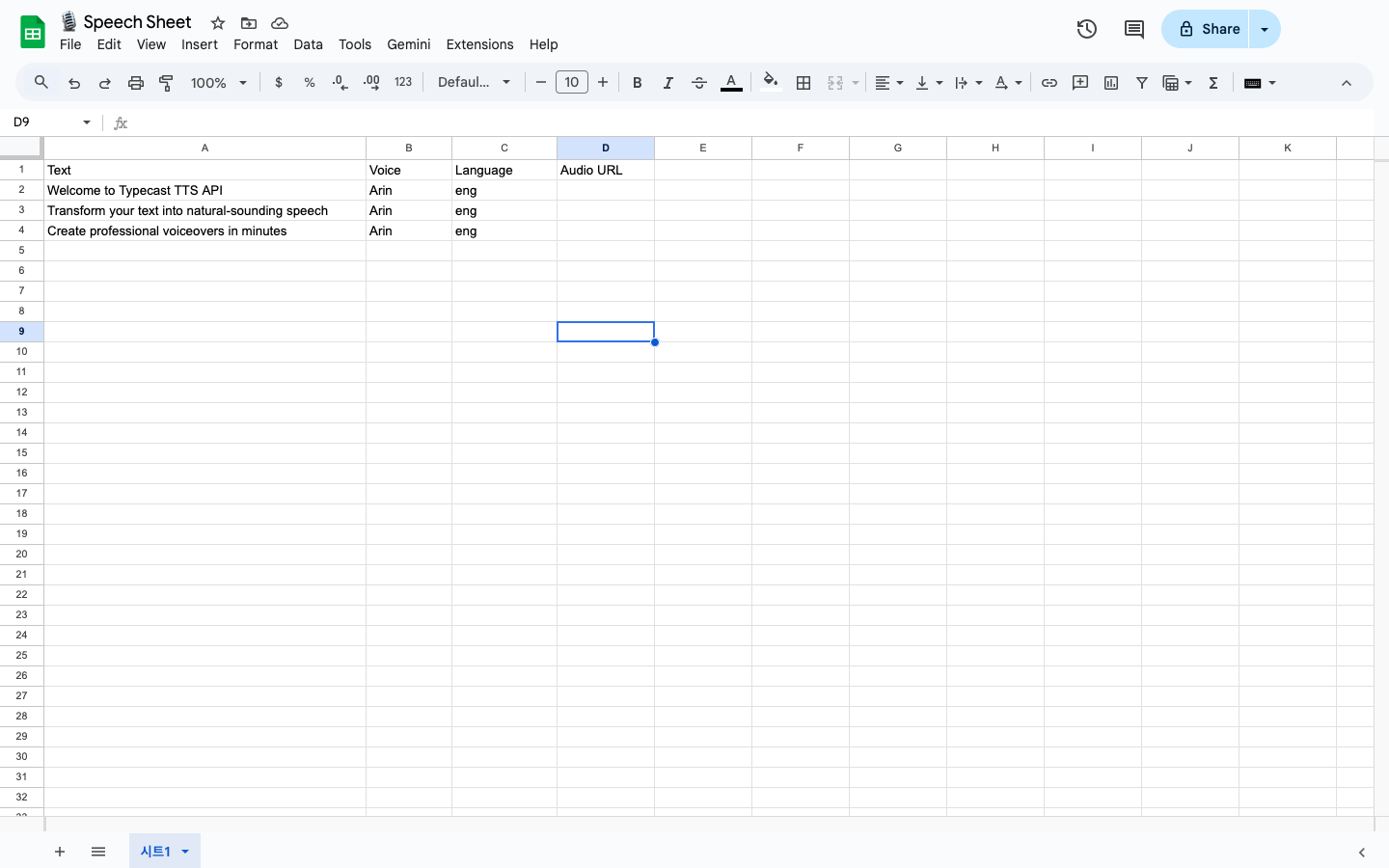
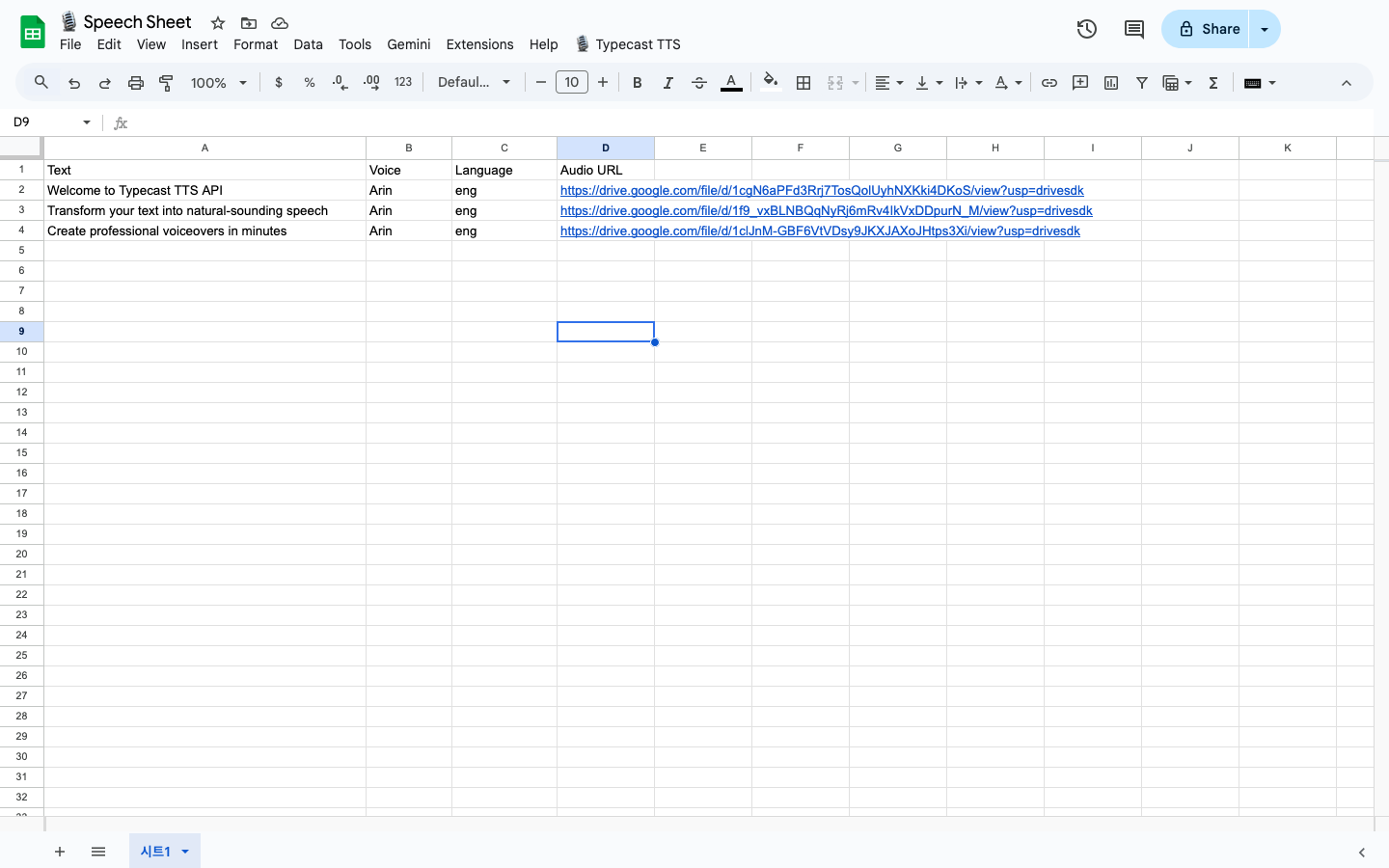
3. Set up your columns with headers in the **first row**:
* **Column A**: `Text` - The text you want to convert to speech
* **Column B**: `Voice` - Voice ID (e.g., `tc_66aca22c7d31e45ff05ff418`) or Voice Name from the [Voice Library](https://typecast.ai/developers/api/voices)
* **Column C**: `Language` - Language code (`eng`, `kor`, `jpn`, `cmn`, etc.)
* **Column D**: `Audio URL` - Leave empty (will be auto-filled)
4. Add your data starting from the **second row** (row 1 is reserved for headers)
 You can use **voice names** (like `Arin`) or **voice IDs** (like
`tc_66aca22c7d31e45ff05ff418`)! The script automatically looks up voice IDs
from names. Find available voices and their names at **[Voice
Library](https://typecast.ai/developers/api/voices)** or using the [Voices
API](https://typecast.ai/developers/api/voices). The script uses **Smart Emotion**
and **ssfm-v30 model** by default for natural-sounding speech!
### Step 2: Open Apps Script Editor
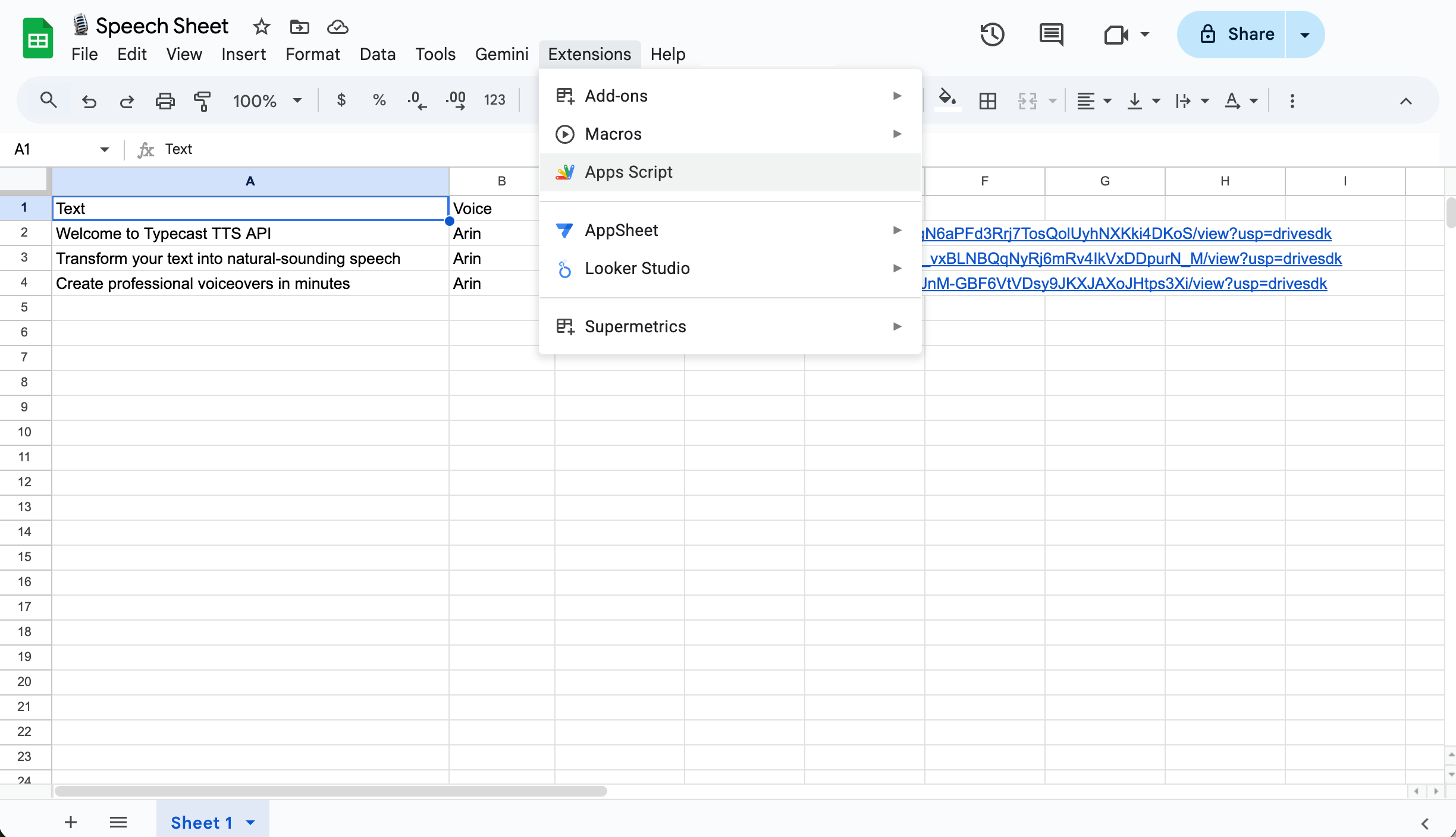
1. Click **Extensions** in the menu bar
2. Select **Apps Script**
You can use **voice names** (like `Arin`) or **voice IDs** (like
`tc_66aca22c7d31e45ff05ff418`)! The script automatically looks up voice IDs
from names. Find available voices and their names at **[Voice
Library](https://typecast.ai/developers/api/voices)** or using the [Voices
API](https://typecast.ai/developers/api/voices). The script uses **Smart Emotion**
and **ssfm-v30 model** by default for natural-sounding speech!
### Step 2: Open Apps Script Editor
1. Click **Extensions** in the menu bar
2. Select **Apps Script**
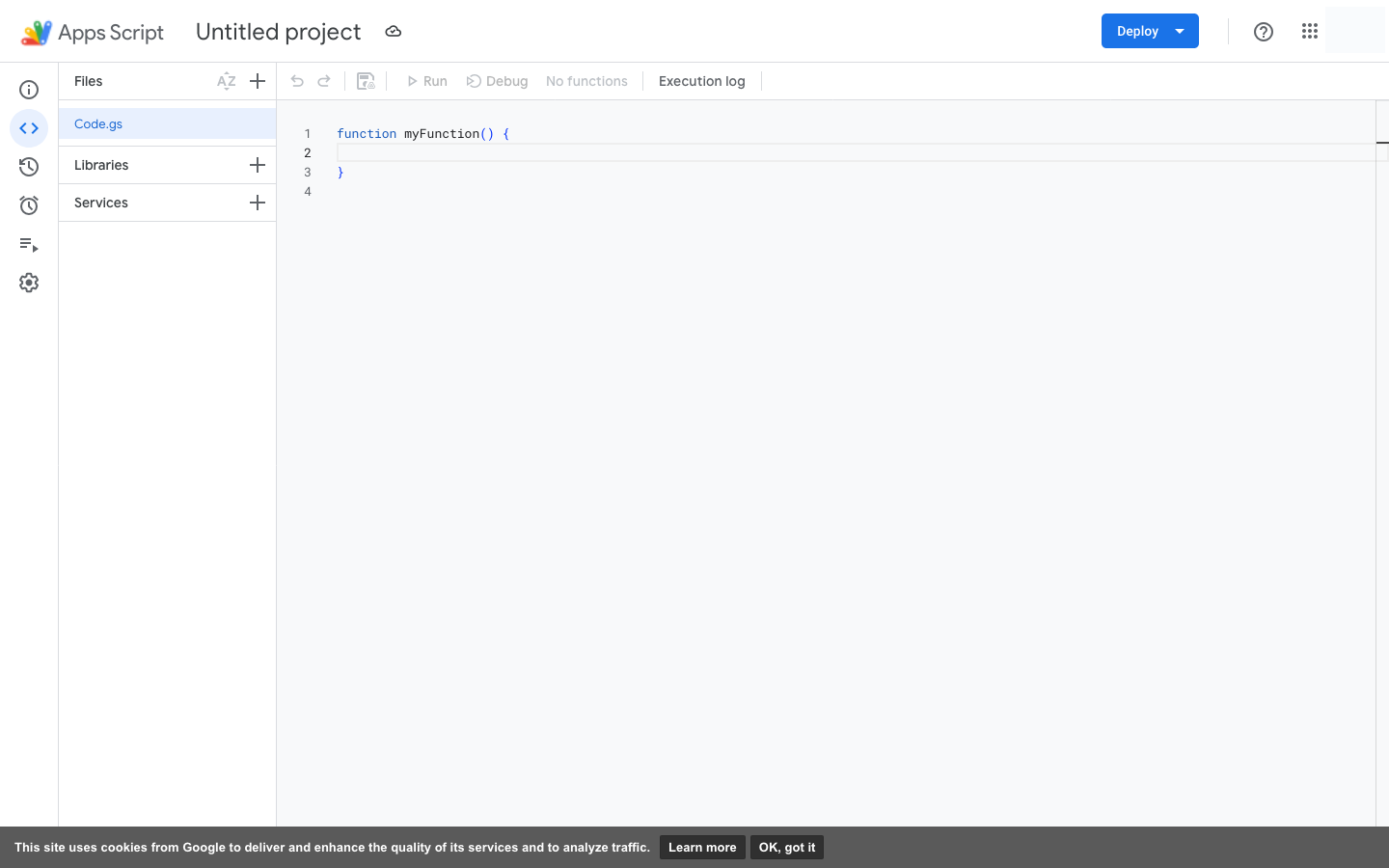
 3. A new tab will open with the Apps Script editor
 ### Step 3: Add the Typecast Integration Code
**IMPORTANT: API Key Required!** Before using the script, you MUST replace
`YOUR_API_KEY_HERE` on line 2 with your actual Typecast API key. Get your API
key from the [Typecast API
console](https://typecast.ai/developers/api/).
1. Delete the default `myFunction()` code
2. Copy and paste the following code:
```javascript theme={null}
// Typecast API Configuration
const TYPECAST_API_KEY = "YOUR_API_KEY_HERE"; // Replace with your actual API key
const TYPECAST_API_URL = "https://api.typecast.ai/v1/text-to-speech";
/**
* Creates custom menu when spreadsheet opens
*/
function onOpen() {
const ui = SpreadsheetApp.getUi();
ui.createMenu("🎙️ Typecast TTS")
.addItem("Generate All Audio", "generateAllAudio")
.addItem("Generate Selected Rows", "generateSelectedAudio")
.addSeparator()
.addItem("Clear Audio URLs", "clearAudioUrls")
.addToUi();
}
/**
* Generates audio for all rows with text
*/
function generateAllAudio() {
const sheet = SpreadsheetApp.getActiveSheet();
const lastRow = sheet.getLastRow();
if (lastRow < 2) {
SpreadsheetApp.getUi().alert("No data to process!");
return;
}
// Get all data at once for better performance
const dataRange = sheet.getRange(2, 1, lastRow - 1, 4);
const data = dataRange.getValues();
let successCount = 0;
let errorCount = 0;
// Process each row
data.forEach((row, index) => {
const text = row[0];
const voiceNameOrId = row[1];
const language = row[2] || "eng"; // Default to English if not specified
const rowNumber = index + 2;
// Skip if text or voice name/ID is empty
if (!text || !voiceNameOrId) {
return;
}
// Skip if audio URL already exists
if (row[3]) {
return;
}
try {
const audioUrl = callTypecastAPI(text, voiceNameOrId, language);
sheet.getRange(rowNumber, 4).setValue(audioUrl);
successCount++;
// Add a small delay to avoid rate limiting
Utilities.sleep(500);
} catch (error) {
sheet.getRange(rowNumber, 4).setValue("Error: " + error.message);
errorCount++;
}
});
SpreadsheetApp.getUi().alert(
`Generation complete!\n\nSuccess: ${successCount}\nErrors: ${errorCount}`,
);
}
/**
* Generates audio for selected rows only
*/
function generateSelectedAudio() {
const sheet = SpreadsheetApp.getActiveSheet();
const selection = sheet.getActiveRange();
const startRow = selection.getRow();
const numRows = selection.getNumRows();
if (startRow === 1) {
SpreadsheetApp.getUi().alert("Please select data rows (not the header)");
return;
}
let successCount = 0;
let errorCount = 0;
for (let i = 0; i < numRows; i++) {
const rowNumber = startRow + i;
const text = sheet.getRange(rowNumber, 1).getValue();
const voiceNameOrId = sheet.getRange(rowNumber, 2).getValue();
const language = sheet.getRange(rowNumber, 3).getValue() || "eng";
if (!text || !voiceNameOrId) {
continue;
}
try {
const audioUrl = callTypecastAPI(text, voiceNameOrId, language);
sheet.getRange(rowNumber, 4).setValue(audioUrl);
successCount++;
Utilities.sleep(500);
} catch (error) {
sheet.getRange(rowNumber, 4).setValue("Error: " + error.message);
errorCount++;
}
}
SpreadsheetApp.getUi().alert(
`Generation complete!\n\nSuccess: ${successCount}\nErrors: ${errorCount}`,
);
}
/**
* Clears all audio URLs from column D
*/
function clearAudioUrls() {
const sheet = SpreadsheetApp.getActiveSheet();
const lastRow = sheet.getLastRow();
if (lastRow < 2) {
return;
}
const response = SpreadsheetApp.getUi().alert(
"Clear Audio URLs",
"Are you sure you want to clear all audio URLs?",
SpreadsheetApp.getUi().ButtonSet.YES_NO,
);
if (response === SpreadsheetApp.getUi().Button.YES) {
sheet.getRange(2, 4, lastRow - 1, 1).clearContent();
SpreadsheetApp.getUi().alert("Audio URLs cleared!");
}
}
/**
* Gets voice ID from voice name by calling the Voices API
* @param {string} voiceName - Voice name to look up
* @returns {string} Voice ID (e.g., tc_66aca22c7d31e45ff05ff418)
*/
function getVoiceIdByName(voiceName) {
const url = "https://api.typecast.ai/v2/voices";
const options = {
method: "get",
headers: {
"X-API-KEY": TYPECAST_API_KEY,
},
muteHttpExceptions: true,
};
const response = UrlFetchApp.fetch(url, options);
const responseCode = response.getResponseCode();
if (responseCode !== 200) {
throw new Error(`Failed to fetch voices: ${responseCode}`);
}
const voices = JSON.parse(response.getContentText());
// Search for voice by name (case-insensitive)
const searchName = voiceName.toLowerCase().trim();
const voice = voices.find((v) => v.voice_name.toLowerCase() === searchName);
if (!voice) {
throw new Error(
`Voice "${voiceName}" not found. Please check the voice name or use voice ID instead.`,
);
}
return voice.voice_id;
}
/**
* Calls the Typecast API to generate speech
* @param {string} text - Text to convert to speech
* @param {string} voiceNameOrId - Voice name (e.g., "Emily") or Voice ID (e.g., "tc_66aca22c7d31e45ff05ff418")
* @param {string} language - Language code (eng, kor, jpn, cmn, etc.)
* @returns {string} URL to the generated audio file
*/
function callTypecastAPI(text, voiceNameOrId, language) {
// Trim and validate inputs
text = String(text).trim();
voiceNameOrId = String(voiceNameOrId).trim();
language = String(language || "eng").trim();
if (!text || !voiceNameOrId) {
throw new Error("Text and Voice Name/ID are required");
}
// Determine if input is voice ID or name
// Voice IDs start with "tc_"
let voiceId;
if (voiceNameOrId.startsWith("tc_")) {
voiceId = voiceNameOrId;
Logger.log("Using voice ID: " + voiceId);
} else {
// It's a voice name, look up the ID
Logger.log("Looking up voice name: " + voiceNameOrId);
voiceId = getVoiceIdByName(voiceNameOrId);
Logger.log("Found voice ID: " + voiceId);
}
// Log for debugging
Logger.log("Calling API with text: " + text);
Logger.log("Language: " + language);
const payload = {
voice_id: voiceId,
text: text,
model: "ssfm-v30",
language: language,
prompt: {
emotion_type: "smart", // Enable Smart Emotion for natural-sounding speech
},
output: {
audio_format: "mp3",
},
};
// Log payload for debugging
Logger.log("Payload: " + JSON.stringify(payload));
const options = {
method: "post",
contentType: "application/json",
headers: {
"X-API-KEY": TYPECAST_API_KEY,
},
payload: JSON.stringify(payload),
muteHttpExceptions: true,
};
const response = UrlFetchApp.fetch(TYPECAST_API_URL, options);
const responseCode = response.getResponseCode();
if (responseCode !== 200) {
const errorBody = response.getContentText();
Logger.log("Error response: " + errorBody);
throw new Error(`API Error: ${responseCode} - ${errorBody}`);
}
// Get the audio blob
const audioBlob = response.getBlob();
// Upload to Google Drive
const folder = DriveApp.getRootFolder(); // Or specify a folder
const fileName = `typecast_${new Date().getTime()}.mp3`;
const file = folder.createFile(audioBlob.setName(fileName));
// Set file to be accessible with link
file.setSharing(DriveApp.Access.ANYONE_WITH_LINK, DriveApp.Permission.VIEW);
// Return the file URL
return file.getUrl();
}
```
### Step 3: Add the Typecast Integration Code
**IMPORTANT: API Key Required!** Before using the script, you MUST replace
`YOUR_API_KEY_HERE` on line 2 with your actual Typecast API key. Get your API
key from the [Typecast API
console](https://typecast.ai/developers/api/).
1. Delete the default `myFunction()` code
2. Copy and paste the following code:
```javascript theme={null}
// Typecast API Configuration
const TYPECAST_API_KEY = "YOUR_API_KEY_HERE"; // Replace with your actual API key
const TYPECAST_API_URL = "https://api.typecast.ai/v1/text-to-speech";
/**
* Creates custom menu when spreadsheet opens
*/
function onOpen() {
const ui = SpreadsheetApp.getUi();
ui.createMenu("🎙️ Typecast TTS")
.addItem("Generate All Audio", "generateAllAudio")
.addItem("Generate Selected Rows", "generateSelectedAudio")
.addSeparator()
.addItem("Clear Audio URLs", "clearAudioUrls")
.addToUi();
}
/**
* Generates audio for all rows with text
*/
function generateAllAudio() {
const sheet = SpreadsheetApp.getActiveSheet();
const lastRow = sheet.getLastRow();
if (lastRow < 2) {
SpreadsheetApp.getUi().alert("No data to process!");
return;
}
// Get all data at once for better performance
const dataRange = sheet.getRange(2, 1, lastRow - 1, 4);
const data = dataRange.getValues();
let successCount = 0;
let errorCount = 0;
// Process each row
data.forEach((row, index) => {
const text = row[0];
const voiceNameOrId = row[1];
const language = row[2] || "eng"; // Default to English if not specified
const rowNumber = index + 2;
// Skip if text or voice name/ID is empty
if (!text || !voiceNameOrId) {
return;
}
// Skip if audio URL already exists
if (row[3]) {
return;
}
try {
const audioUrl = callTypecastAPI(text, voiceNameOrId, language);
sheet.getRange(rowNumber, 4).setValue(audioUrl);
successCount++;
// Add a small delay to avoid rate limiting
Utilities.sleep(500);
} catch (error) {
sheet.getRange(rowNumber, 4).setValue("Error: " + error.message);
errorCount++;
}
});
SpreadsheetApp.getUi().alert(
`Generation complete!\n\nSuccess: ${successCount}\nErrors: ${errorCount}`,
);
}
/**
* Generates audio for selected rows only
*/
function generateSelectedAudio() {
const sheet = SpreadsheetApp.getActiveSheet();
const selection = sheet.getActiveRange();
const startRow = selection.getRow();
const numRows = selection.getNumRows();
if (startRow === 1) {
SpreadsheetApp.getUi().alert("Please select data rows (not the header)");
return;
}
let successCount = 0;
let errorCount = 0;
for (let i = 0; i < numRows; i++) {
const rowNumber = startRow + i;
const text = sheet.getRange(rowNumber, 1).getValue();
const voiceNameOrId = sheet.getRange(rowNumber, 2).getValue();
const language = sheet.getRange(rowNumber, 3).getValue() || "eng";
if (!text || !voiceNameOrId) {
continue;
}
try {
const audioUrl = callTypecastAPI(text, voiceNameOrId, language);
sheet.getRange(rowNumber, 4).setValue(audioUrl);
successCount++;
Utilities.sleep(500);
} catch (error) {
sheet.getRange(rowNumber, 4).setValue("Error: " + error.message);
errorCount++;
}
}
SpreadsheetApp.getUi().alert(
`Generation complete!\n\nSuccess: ${successCount}\nErrors: ${errorCount}`,
);
}
/**
* Clears all audio URLs from column D
*/
function clearAudioUrls() {
const sheet = SpreadsheetApp.getActiveSheet();
const lastRow = sheet.getLastRow();
if (lastRow < 2) {
return;
}
const response = SpreadsheetApp.getUi().alert(
"Clear Audio URLs",
"Are you sure you want to clear all audio URLs?",
SpreadsheetApp.getUi().ButtonSet.YES_NO,
);
if (response === SpreadsheetApp.getUi().Button.YES) {
sheet.getRange(2, 4, lastRow - 1, 1).clearContent();
SpreadsheetApp.getUi().alert("Audio URLs cleared!");
}
}
/**
* Gets voice ID from voice name by calling the Voices API
* @param {string} voiceName - Voice name to look up
* @returns {string} Voice ID (e.g., tc_66aca22c7d31e45ff05ff418)
*/
function getVoiceIdByName(voiceName) {
const url = "https://api.typecast.ai/v2/voices";
const options = {
method: "get",
headers: {
"X-API-KEY": TYPECAST_API_KEY,
},
muteHttpExceptions: true,
};
const response = UrlFetchApp.fetch(url, options);
const responseCode = response.getResponseCode();
if (responseCode !== 200) {
throw new Error(`Failed to fetch voices: ${responseCode}`);
}
const voices = JSON.parse(response.getContentText());
// Search for voice by name (case-insensitive)
const searchName = voiceName.toLowerCase().trim();
const voice = voices.find((v) => v.voice_name.toLowerCase() === searchName);
if (!voice) {
throw new Error(
`Voice "${voiceName}" not found. Please check the voice name or use voice ID instead.`,
);
}
return voice.voice_id;
}
/**
* Calls the Typecast API to generate speech
* @param {string} text - Text to convert to speech
* @param {string} voiceNameOrId - Voice name (e.g., "Emily") or Voice ID (e.g., "tc_66aca22c7d31e45ff05ff418")
* @param {string} language - Language code (eng, kor, jpn, cmn, etc.)
* @returns {string} URL to the generated audio file
*/
function callTypecastAPI(text, voiceNameOrId, language) {
// Trim and validate inputs
text = String(text).trim();
voiceNameOrId = String(voiceNameOrId).trim();
language = String(language || "eng").trim();
if (!text || !voiceNameOrId) {
throw new Error("Text and Voice Name/ID are required");
}
// Determine if input is voice ID or name
// Voice IDs start with "tc_"
let voiceId;
if (voiceNameOrId.startsWith("tc_")) {
voiceId = voiceNameOrId;
Logger.log("Using voice ID: " + voiceId);
} else {
// It's a voice name, look up the ID
Logger.log("Looking up voice name: " + voiceNameOrId);
voiceId = getVoiceIdByName(voiceNameOrId);
Logger.log("Found voice ID: " + voiceId);
}
// Log for debugging
Logger.log("Calling API with text: " + text);
Logger.log("Language: " + language);
const payload = {
voice_id: voiceId,
text: text,
model: "ssfm-v30",
language: language,
prompt: {
emotion_type: "smart", // Enable Smart Emotion for natural-sounding speech
},
output: {
audio_format: "mp3",
},
};
// Log payload for debugging
Logger.log("Payload: " + JSON.stringify(payload));
const options = {
method: "post",
contentType: "application/json",
headers: {
"X-API-KEY": TYPECAST_API_KEY,
},
payload: JSON.stringify(payload),
muteHttpExceptions: true,
};
const response = UrlFetchApp.fetch(TYPECAST_API_URL, options);
const responseCode = response.getResponseCode();
if (responseCode !== 200) {
const errorBody = response.getContentText();
Logger.log("Error response: " + errorBody);
throw new Error(`API Error: ${responseCode} - ${errorBody}`);
}
// Get the audio blob
const audioBlob = response.getBlob();
// Upload to Google Drive
const folder = DriveApp.getRootFolder(); // Or specify a folder
const fileName = `typecast_${new Date().getTime()}.mp3`;
const file = folder.createFile(audioBlob.setName(fileName));
// Set file to be accessible with link
file.setSharing(DriveApp.Access.ANYONE_WITH_LINK, DriveApp.Permission.VIEW);
// Return the file URL
return file.getUrl();
}
```
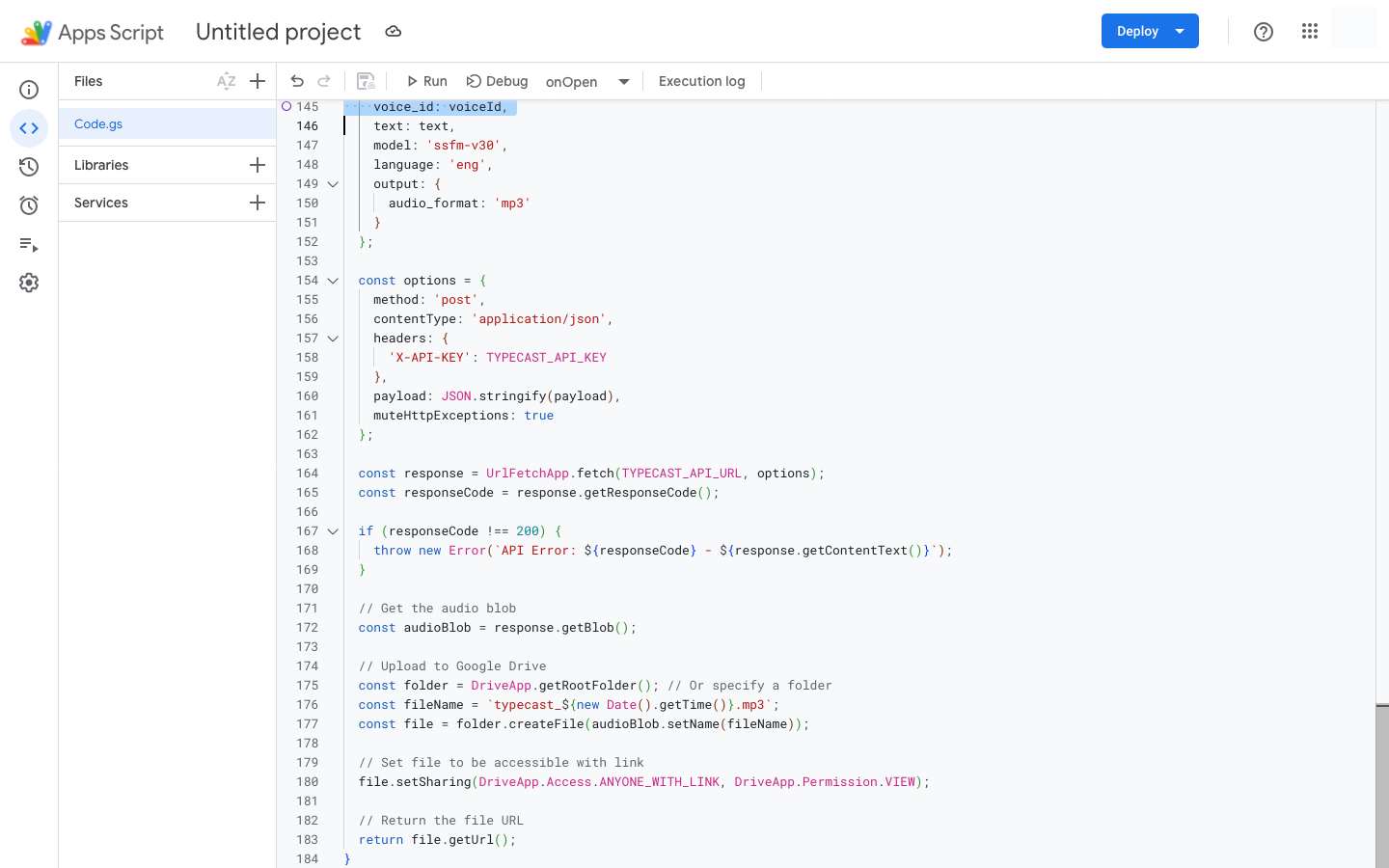 **🔑 Don't Forget Your API Key!** Before running the script, you MUST update
line 2: **Replace this:** `javascript const TYPECAST_API_KEY =
'YOUR_API_KEY_HERE'; ` **With your actual API key:** `javascript const
TYPECAST_API_KEY = 'your_actual_api_key_from_typecast'; ` Get your API key
from the [Typecast API console](https://typecast.ai/developers/api/).
3. Click the **Save** icon (💾) or press `⌘+S` (Mac) / `Ctrl+S` (Windows)
4. Give your project a name (e.g., "Typecast TTS Integration")
### Step 4: Authorize the Script
The first time you run the script, Google will ask for permissions:
1. Close the Apps Script tab and return to your spreadsheet
2. Refresh the page (F5 or `⌘+R`)
3. You should see a new menu: **🎙️ Typecast TTS** appear in the menu bar
**🔑 Don't Forget Your API Key!** Before running the script, you MUST update
line 2: **Replace this:** `javascript const TYPECAST_API_KEY =
'YOUR_API_KEY_HERE'; ` **With your actual API key:** `javascript const
TYPECAST_API_KEY = 'your_actual_api_key_from_typecast'; ` Get your API key
from the [Typecast API console](https://typecast.ai/developers/api/).
3. Click the **Save** icon (💾) or press `⌘+S` (Mac) / `Ctrl+S` (Windows)
4. Give your project a name (e.g., "Typecast TTS Integration")
### Step 4: Authorize the Script
The first time you run the script, Google will ask for permissions:
1. Close the Apps Script tab and return to your spreadsheet
2. Refresh the page (F5 or `⌘+R`)
3. You should see a new menu: **🎙️ Typecast TTS** appear in the menu bar
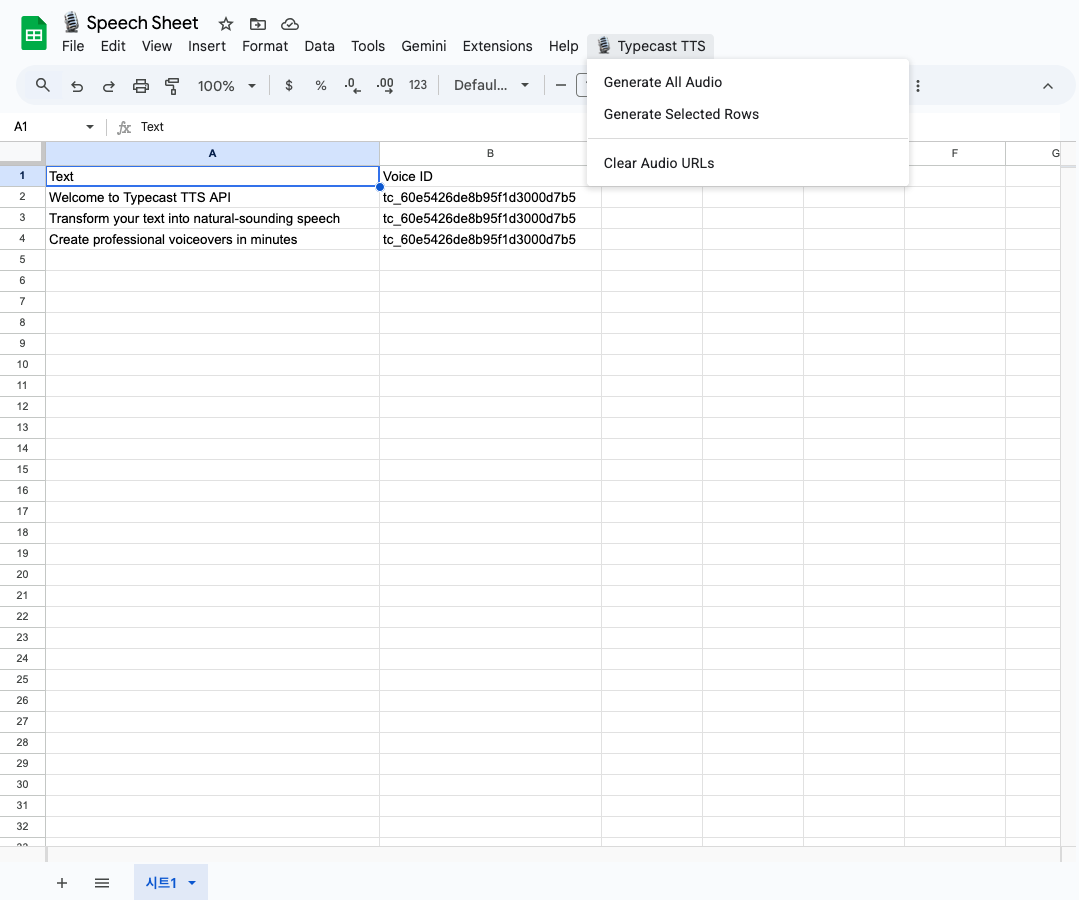 4. Click **🎙️ Typecast TTS** → **Generate All Audio**
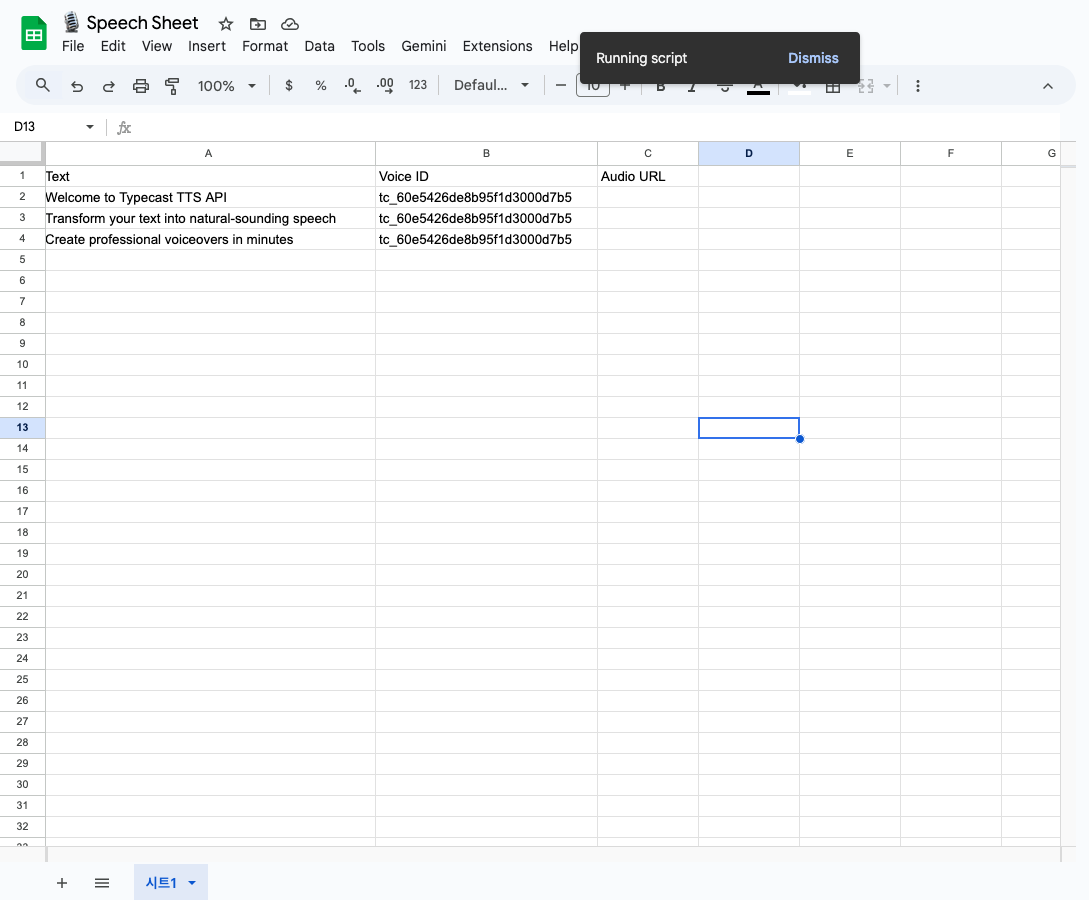 5. Google will prompt you to authorize the script:
* Click **Continue**
* Select your Google account
* Click **Advanced** → **Go to \[Project Name] (unsafe)**
* Click **Allow**
The "unsafe" warning appears because this is a custom script. It's safe to
proceed if you trust the code you copied.
***
## Usage
### Generate Audio for All Rows
1. Click **🎙️ Typecast TTS** → **Generate All Audio**
2. The script will process all rows with text and voice ID
5. Google will prompt you to authorize the script:
* Click **Continue**
* Select your Google account
* Click **Advanced** → **Go to \[Project Name] (unsafe)**
* Click **Allow**
The "unsafe" warning appears because this is a custom script. It's safe to
proceed if you trust the code you copied.
***
## Usage
### Generate Audio for All Rows
1. Click **🎙️ Typecast TTS** → **Generate All Audio**
2. The script will process all rows with text and voice ID
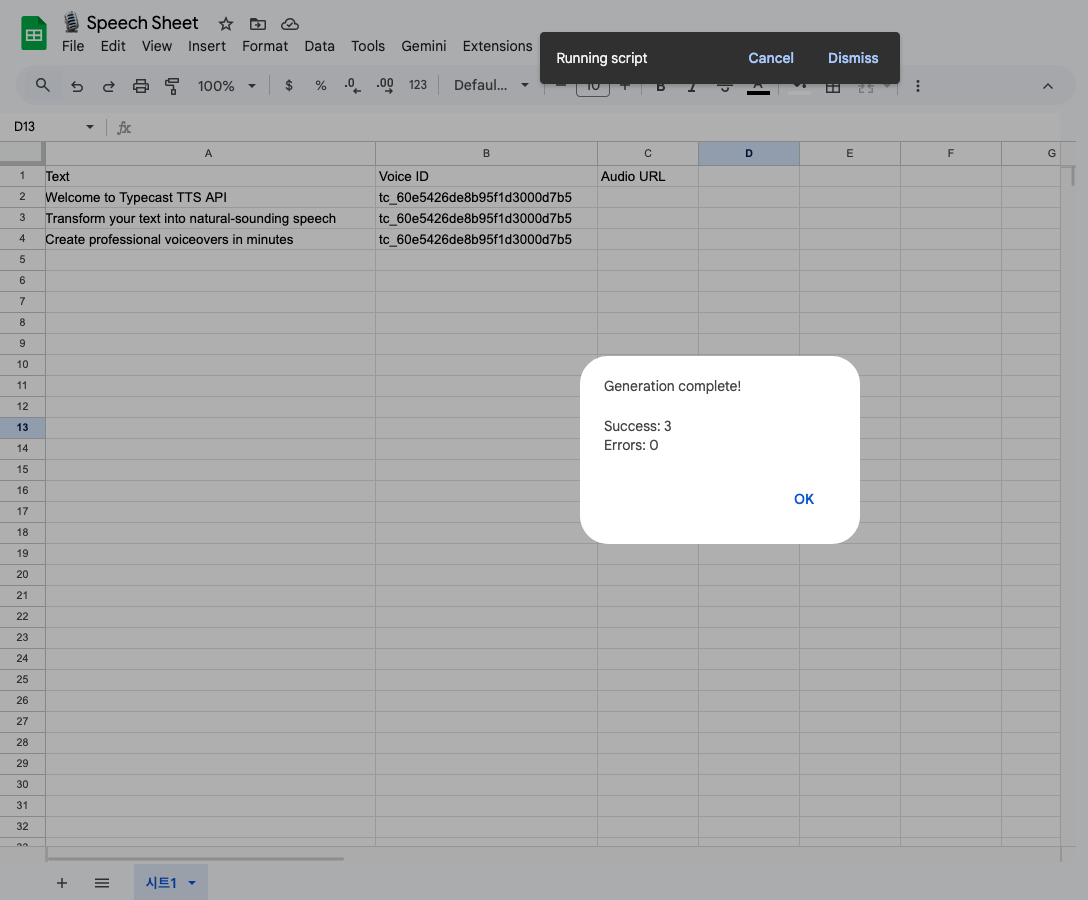 3. When complete, you'll see a success message
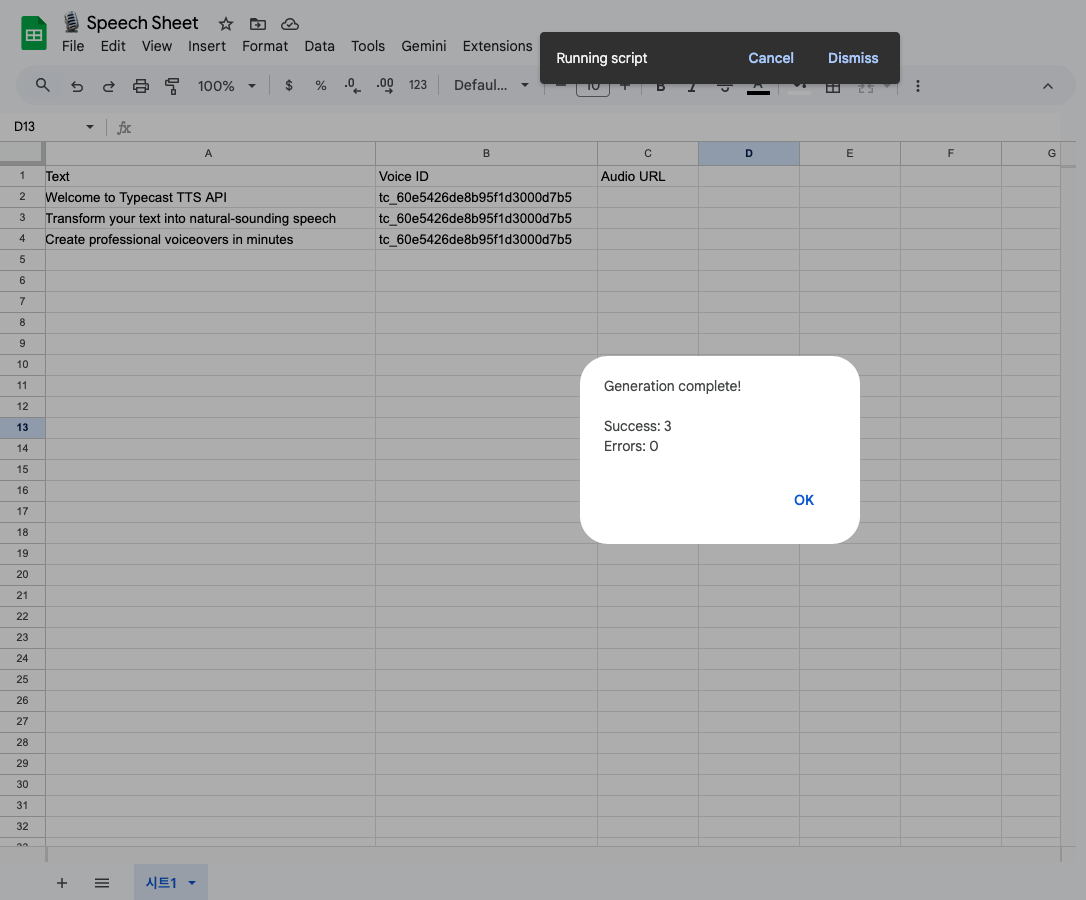 4. Audio URLs will appear in Column D
5. Generated audio files are saved to your Google Drive
**Smart Emotion is enabled by default!** The script uses `emotion_type:
'smart'` with the `ssfm-v30` model for natural-sounding, emotionally
appropriate speech.
4. Audio URLs will appear in Column D
5. Generated audio files are saved to your Google Drive
**Smart Emotion is enabled by default!** The script uses `emotion_type:
'smart'` with the `ssfm-v30` model for natural-sounding, emotionally
appropriate speech.
 ### Generate Audio for Selected Rows
1. Select the rows you want to process (click and drag on row numbers)
2. Click **🎙️ Typecast TTS** → **Generate Selected Rows**
3. Only the selected rows will be processed
Use "Generate Selected Rows" when you want to regenerate specific audio files
or add new rows incrementally.
### Clear Audio URLs
To remove all generated URLs (doesn't delete audio files from Drive):
1. Click **🎙️ Typecast TTS** → **Clear Audio URLs**
2. Confirm the action
3. All URLs in Column D will be cleared
***
## Advanced Configuration
### Smart Emotion (Default)
The script uses **Smart Emotion** by default, which automatically analyzes your text and applies appropriate emotions:
```javascript theme={null}
prompt: {
emotion_type: "smart"; // Automatically detects best emotion for your text
}
```
### Use Preset Emotions Instead
If you want to manually control emotions, change `emotion_type` to `preset`:
```javascript theme={null}
function callTypecastAPI(text, voiceId, language) {
const payload = {
voice_id: voiceId,
text: text,
model: "ssfm-v30",
language: language,
prompt: {
emotion_type: "preset",
emotion_preset: "happy", // Options: happy, sad, angry, whisper, normal, toneup, or tonedown.
emotion_intensity: 1.0, // 0.0 to 1.0
},
output: {
audio_format: "mp3",
audio_tempo: 1.0, // Speed: 0.5 (slow) to 2.0 (fast)
audio_pitch: 0, // Pitch: -12 to +12 semitones
volume: 100, // Volume: 0 to 200
},
};
// ... rest of the code
}
```
### Supported Languages
The script supports **37 languages** with the ssfm-v30 model (used by default):
| Code | Language | Code | Language | Code | Language |
| ----- | --------- | ----- | ---------- | ----- | ---------- |
| `ara` | Arabic | `ind` | Indonesian | `por` | Portuguese |
| `ben` | Bengali | `ita` | Italian | `ron` | Romanian |
| `bul` | Bulgarian | `jpn` | Japanese | `rus` | Russian |
| `ces` | Czech | `kor` | Korean | `slk` | Slovak |
| `dan` | Danish | `msa` | Malay | `spa` | Spanish |
| `deu` | German | `nan` | Min Nan | `swe` | Swedish |
| `ell` | Greek | `nld` | Dutch | `tam` | Tamil |
| `eng` | English | `nor` | Norwegian | `tgl` | Tagalog |
| `fin` | Finnish | `pan` | Punjabi | `tha` | Thai |
| `fra` | French | `pol` | Polish | `tur` | Turkish |
| `hin` | Hindi | `ukr` | Ukrainian | `vie` | Vietnamese |
| `hrv` | Croatian | `yue` | Cantonese | `zho` | Chinese |
| `hun` | Hungarian | | | | |
Simply change the value in Column C to use different languages! Language codes are case-insensitive (`ENG` and `eng` both work).
### Save to Specific Drive Folder
To save audio files to a specific folder instead of root:
```javascript theme={null}
// Replace this line:
const folder = DriveApp.getRootFolder();
// With this (using folder ID):
const folder = DriveApp.getFolderById("YOUR_FOLDER_ID_HERE");
// Or create a new folder:
const folder = DriveApp.createFolder("Typecast Audio Files");
```
### Add More Columns
You can extend the spreadsheet with additional columns for even more control:
* **Column E**: Emotion Preset (happy, sad, angry, normal)
* **Column F**: Audio Tempo (0.5 to 2.0)
* **Column G**: Audio Pitch (-12 to +12)
* **Column H**: Status (Processing, Done, Error)
Then modify the script to read these values from the sheet.
***
## Why Use Google Sheets with Typecast?
Simple copy-paste setup. Non-developers can easily generate professional
voiceovers in just 5 minutes.
Set it up once and use forever. Ideal for repetitive TTS tasks and
macro-style workflows.
Generate hundreds of audio files with a single click. Process entire content
calendars at once.
Share spreadsheets with your team. Everyone can contribute text and generate
audio together.
**This is how simple the Typecast API is!** With just a few lines of code and
Google Sheets, you can automate your entire TTS workflow. Perfect for content
creators, marketers, and educators who need to generate audio at scale without
technical expertise.
***
## Use Cases
Create course narrations from lesson scripts. Add text in Column A, generate
audio, and download for your videos.
Generate intro/outro segments, ad reads, and announcements from a shared
Google Sheet.
Convert e-commerce product descriptions into audio for accessibility or
marketing videos.
Batch-generate voiceovers for Instagram Reels, TikTok, or YouTube Shorts
from your content calendar.
Translate text in your sheet and generate audio in multiple languages for
global audiences.
***
## Troubleshooting
* Make sure you saved the script in Apps Script editor - Try running the
`onOpen` function manually: 1. Go back to Apps Script editor 2. Select
`onOpen` from the function dropdown 3. Click the **Run** button (▶️) - Check
the browser console for errors (F12)
* Make sure you clicked **Allow** when prompted - Try clearing authorization
and re-authorizing: 1. Apps Script editor → Run → Clear authorization 2.
Save and close 3. Refresh your spreadsheet 4. Try the menu again
* Check that you replaced `YOUR_API_KEY_HERE` with your actual API key -
Verify your API key at [Typecast API
console](https://typecast.ai/developers/api/) - Make sure there are
no extra spaces around the key
* Check your credit balance in the [Typecast API
console](https://typecast.ai/developers/api/usage) - Each character costs
credits - make sure you have enough
* Process in smaller batches using "Generate Selected Rows" - Apps Script
has a 6-minute execution limit - For very large datasets (500+ rows), split
into multiple sheets
* Check your Google Drive root folder - Audio files are named
`typecast_[timestamp].mp3` - Make sure the script has Drive permissions
(authorized correctly)
***
## Resources
Browse 500+ available voices
Explore the Typecast API
Learn more about Google Apps Script
Get your Typecast API key
### Generate Audio for Selected Rows
1. Select the rows you want to process (click and drag on row numbers)
2. Click **🎙️ Typecast TTS** → **Generate Selected Rows**
3. Only the selected rows will be processed
Use "Generate Selected Rows" when you want to regenerate specific audio files
or add new rows incrementally.
### Clear Audio URLs
To remove all generated URLs (doesn't delete audio files from Drive):
1. Click **🎙️ Typecast TTS** → **Clear Audio URLs**
2. Confirm the action
3. All URLs in Column D will be cleared
***
## Advanced Configuration
### Smart Emotion (Default)
The script uses **Smart Emotion** by default, which automatically analyzes your text and applies appropriate emotions:
```javascript theme={null}
prompt: {
emotion_type: "smart"; // Automatically detects best emotion for your text
}
```
### Use Preset Emotions Instead
If you want to manually control emotions, change `emotion_type` to `preset`:
```javascript theme={null}
function callTypecastAPI(text, voiceId, language) {
const payload = {
voice_id: voiceId,
text: text,
model: "ssfm-v30",
language: language,
prompt: {
emotion_type: "preset",
emotion_preset: "happy", // Options: happy, sad, angry, whisper, normal, toneup, or tonedown.
emotion_intensity: 1.0, // 0.0 to 1.0
},
output: {
audio_format: "mp3",
audio_tempo: 1.0, // Speed: 0.5 (slow) to 2.0 (fast)
audio_pitch: 0, // Pitch: -12 to +12 semitones
volume: 100, // Volume: 0 to 200
},
};
// ... rest of the code
}
```
### Supported Languages
The script supports **37 languages** with the ssfm-v30 model (used by default):
| Code | Language | Code | Language | Code | Language |
| ----- | --------- | ----- | ---------- | ----- | ---------- |
| `ara` | Arabic | `ind` | Indonesian | `por` | Portuguese |
| `ben` | Bengali | `ita` | Italian | `ron` | Romanian |
| `bul` | Bulgarian | `jpn` | Japanese | `rus` | Russian |
| `ces` | Czech | `kor` | Korean | `slk` | Slovak |
| `dan` | Danish | `msa` | Malay | `spa` | Spanish |
| `deu` | German | `nan` | Min Nan | `swe` | Swedish |
| `ell` | Greek | `nld` | Dutch | `tam` | Tamil |
| `eng` | English | `nor` | Norwegian | `tgl` | Tagalog |
| `fin` | Finnish | `pan` | Punjabi | `tha` | Thai |
| `fra` | French | `pol` | Polish | `tur` | Turkish |
| `hin` | Hindi | `ukr` | Ukrainian | `vie` | Vietnamese |
| `hrv` | Croatian | `yue` | Cantonese | `zho` | Chinese |
| `hun` | Hungarian | | | | |
Simply change the value in Column C to use different languages! Language codes are case-insensitive (`ENG` and `eng` both work).
### Save to Specific Drive Folder
To save audio files to a specific folder instead of root:
```javascript theme={null}
// Replace this line:
const folder = DriveApp.getRootFolder();
// With this (using folder ID):
const folder = DriveApp.getFolderById("YOUR_FOLDER_ID_HERE");
// Or create a new folder:
const folder = DriveApp.createFolder("Typecast Audio Files");
```
### Add More Columns
You can extend the spreadsheet with additional columns for even more control:
* **Column E**: Emotion Preset (happy, sad, angry, normal)
* **Column F**: Audio Tempo (0.5 to 2.0)
* **Column G**: Audio Pitch (-12 to +12)
* **Column H**: Status (Processing, Done, Error)
Then modify the script to read these values from the sheet.
***
## Why Use Google Sheets with Typecast?
Simple copy-paste setup. Non-developers can easily generate professional
voiceovers in just 5 minutes.
Set it up once and use forever. Ideal for repetitive TTS tasks and
macro-style workflows.
Generate hundreds of audio files with a single click. Process entire content
calendars at once.
Share spreadsheets with your team. Everyone can contribute text and generate
audio together.
**This is how simple the Typecast API is!** With just a few lines of code and
Google Sheets, you can automate your entire TTS workflow. Perfect for content
creators, marketers, and educators who need to generate audio at scale without
technical expertise.
***
## Use Cases
Create course narrations from lesson scripts. Add text in Column A, generate
audio, and download for your videos.
Generate intro/outro segments, ad reads, and announcements from a shared
Google Sheet.
Convert e-commerce product descriptions into audio for accessibility or
marketing videos.
Batch-generate voiceovers for Instagram Reels, TikTok, or YouTube Shorts
from your content calendar.
Translate text in your sheet and generate audio in multiple languages for
global audiences.
***
## Troubleshooting
* Make sure you saved the script in Apps Script editor - Try running the
`onOpen` function manually: 1. Go back to Apps Script editor 2. Select
`onOpen` from the function dropdown 3. Click the **Run** button (▶️) - Check
the browser console for errors (F12)
* Make sure you clicked **Allow** when prompted - Try clearing authorization
and re-authorizing: 1. Apps Script editor → Run → Clear authorization 2.
Save and close 3. Refresh your spreadsheet 4. Try the menu again
* Check that you replaced `YOUR_API_KEY_HERE` with your actual API key -
Verify your API key at [Typecast API
console](https://typecast.ai/developers/api/) - Make sure there are
no extra spaces around the key
* Check your credit balance in the [Typecast API
console](https://typecast.ai/developers/api/usage) - Each character costs
credits - make sure you have enough
* Process in smaller batches using "Generate Selected Rows" - Apps Script
has a 6-minute execution limit - For very large datasets (500+ rows), split
into multiple sheets
* Check your Google Drive root folder - Audio files are named
`typecast_[timestamp].mp3` - Make sure the script has Drive permissions
(authorized correctly)
***
## Resources
Browse 500+ available voices
Explore the Typecast API
Learn more about Google Apps Script
Get your Typecast API key