> ## Documentation Index
> Fetch the complete documentation index at: https://typecast.ai/docs/llms.txt
> Use this file to discover all available pages before exploring further.
# n8n
> Integrate Typecast TTS into your n8n workflows without coding.
[n8n](https://n8n.io/) is a visual workflow automation tool. With the Typecast node, you can convert text to speech automatically — no coding required!
## What You Can Do
With the Typecast n8n node, you can:
* **Automate content creation** — Build fully automated YouTube or TikTok channels by combining RSS feeds, AI writing, and Typecast voices.
* **Enhance customer experience** — Send personalized voice messages via WhatsApp or email when a customer makes a purchase.
* **Scale your reach** — Automatically translate and dub your podcast or video content into multiple languages.
* **Recommend voices** — Search for voice candidates from a natural-language description.
* **Stay notified** — Get custom voice alerts on Slack or Discord for critical system updates or sales milestones.
***
## Prerequisites
Before you start, make sure you have:
1. **n8n** installed ([n8n Cloud](https://n8n.io/) or self-hosted)
2. **Typecast API Key** — [Get yours here](https://typecast.ai/developers/api/)
***
## Installation
### Step 1: Install the Typecast Node
If you are using n8n Cloud, no separate installation is required. You can skip directly to the **Quick Start** section.
If an installation button appears when searching for the node, click **Install node** to complete the setup.
1. Run the following command in your n8n installation directory:
```bash theme={null}
npm install @neosapience/n8n-nodes-typecast
```
2. Restart n8n.
***
## Quick Start: Your First Voice Generation
Let's create your first text-to-speech workflow!
### Step 1: Add the Typecast Node
1. Create a new workflow
2. Click **+** to add a node
3. Search for **Typecast**
4. Select **Typecast**
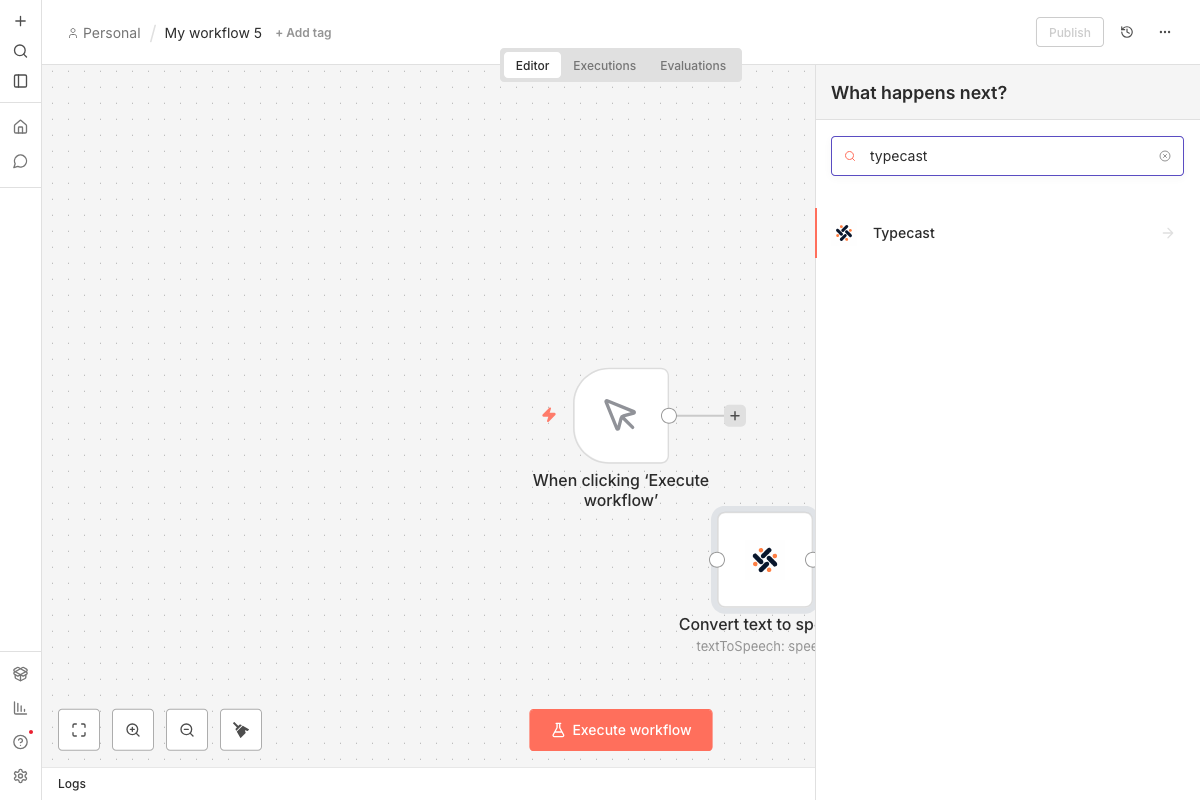 5. Choose an action from the list (e.g., **Convert text to speech**)
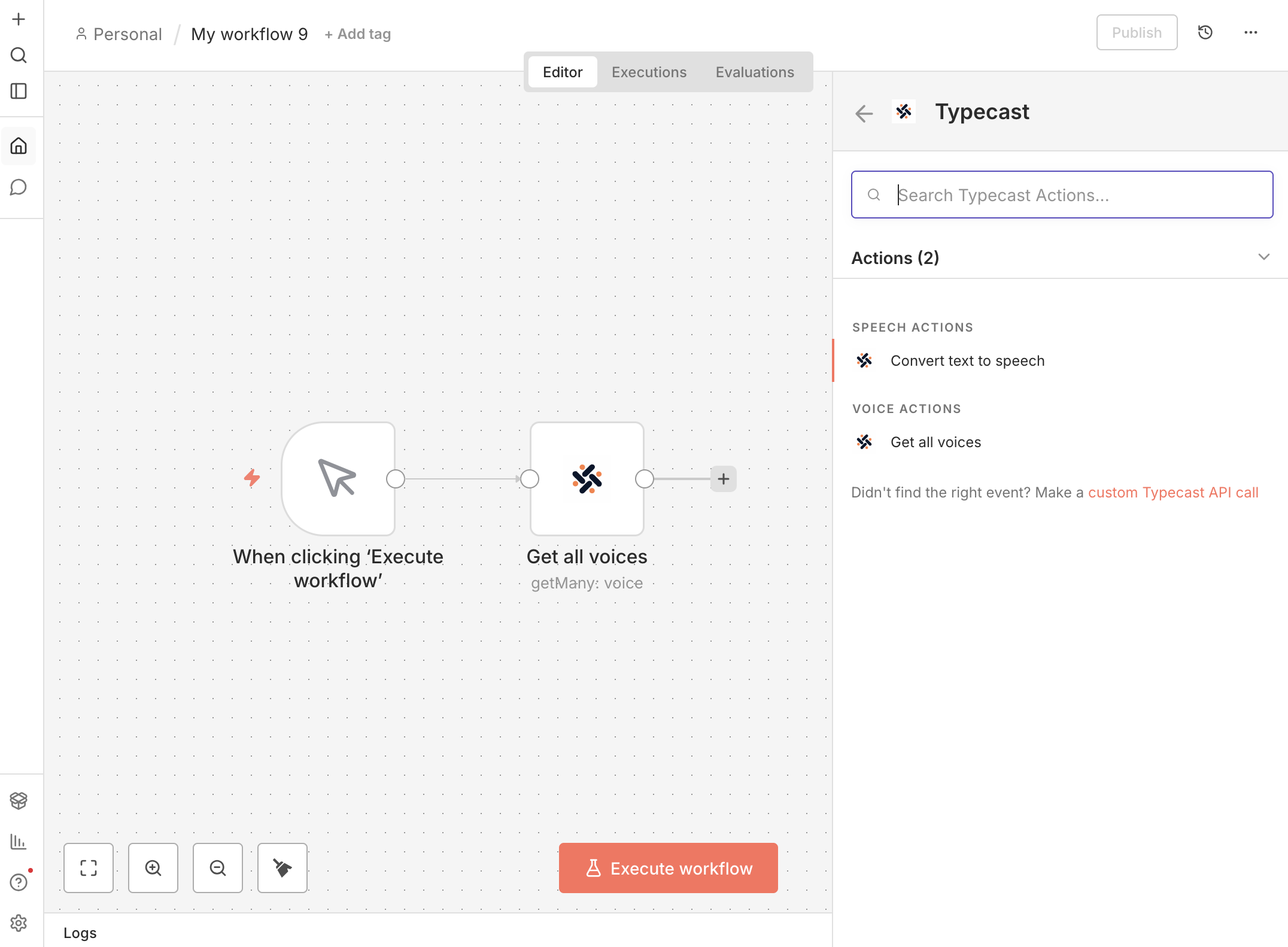 ### Step 2: Connect Your API Key (Credential)
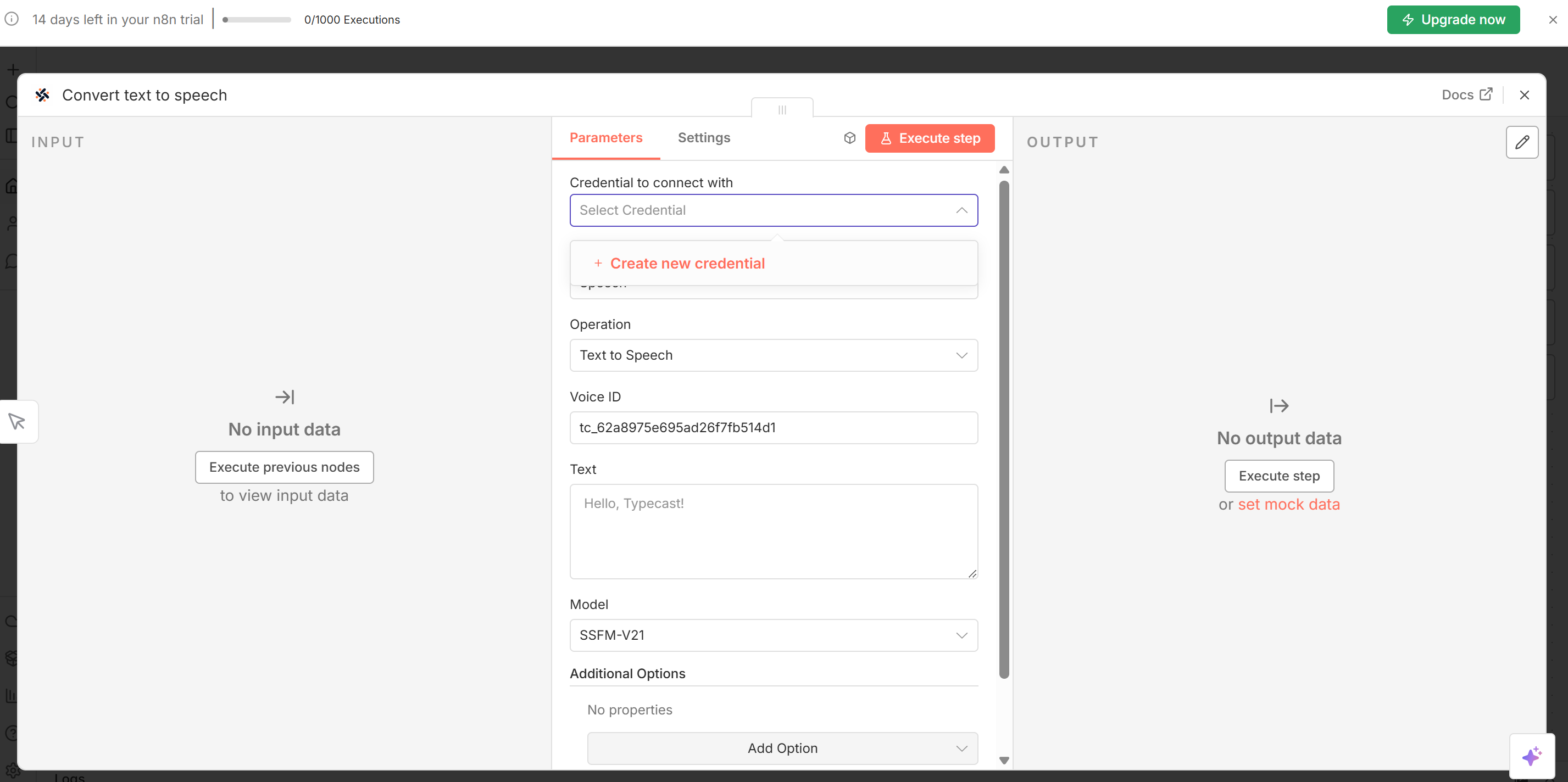
After selecting the node, you need to configure your API key to connect with the Typecast API.
1. In the node settings panel, click on the **Credential to connect with** field.
2. Select **- Create New Credential -**.
3. Enter your API key, which you can copy from the [Typecast API console](https://typecast.ai/developers/api/).
4. Click **Create** to save your credentials.
### Step 2: Connect Your API Key (Credential)
After selecting the node, you need to configure your API key to connect with the Typecast API.
1. In the node settings panel, click on the **Credential to connect with** field.
2. Select **- Create New Credential -**.
3. Enter your API key, which you can copy from the [Typecast API console](https://typecast.ai/developers/api/).
4. Click **Create** to save your credentials.
 ### Step 3: Configure Text to Speech
| Setting | What to Enter |
| ------------- | ------------------------------------------------------------------------ |
| **Resource** | `Speech` |
| **Operation** | `Text to Speech` |
| **Voice ID** | Select a voice from the dropdown (shows name, gender, age, and emotions) |
| **Text** | Your text to convert |
| **Model** | `ssfm-v30` — recommended for best quality |
#### Selecting a Voice
The Voice ID field makes it easy to find the perfect voice:
1. Click on the Voice ID dropdown
2. Browse voices with their details (name, gender, age, available emotions)
3. Use the search to filter by name or characteristics
4. Select your preferred voice
### Step 3: Configure Text to Speech
| Setting | What to Enter |
| ------------- | ------------------------------------------------------------------------ |
| **Resource** | `Speech` |
| **Operation** | `Text to Speech` |
| **Voice ID** | Select a voice from the dropdown (shows name, gender, age, and emotions) |
| **Text** | Your text to convert |
| **Model** | `ssfm-v30` — recommended for best quality |
#### Selecting a Voice
The Voice ID field makes it easy to find the perfect voice:
1. Click on the Voice ID dropdown
2. Browse voices with their details (name, gender, age, available emotions)
3. Use the search to filter by name or characteristics
4. Select your preferred voice
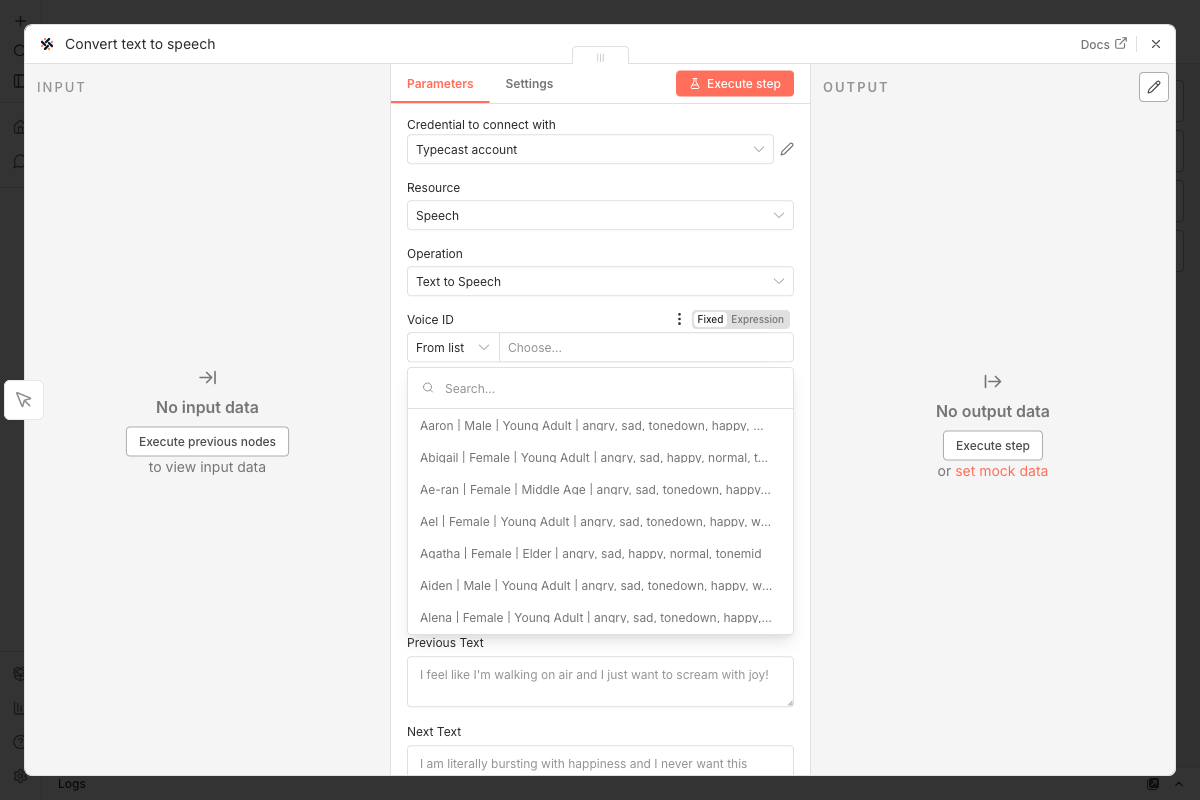 You can also switch to "By ID" mode to enter a Voice ID directly (e.g., `tc_60e5426de8b95f1d3000d7b5`).
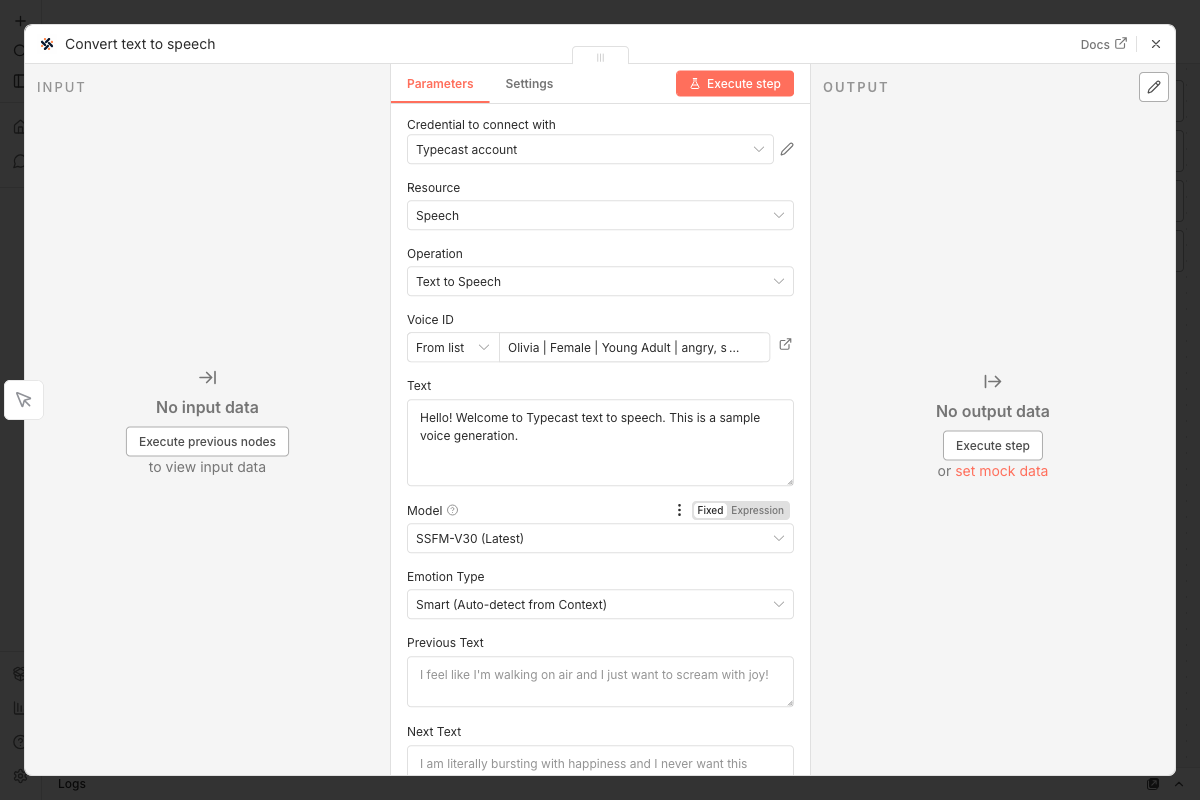 #### Emotion Settings
Make your voice expressive with emotion controls!
**For ssfm-v30**
Two ways to add emotion:
AI automatically detects the best emotion from your text context. Perfect for natural conversations and storytelling.
Manually choose from 7 emotions: Normal, Happy, Sad, Angry, Whisper, Tone Up, Tone Down.
**Smart Emotion Tip:** Add "Previous Text" and "Next Text" to help the AI understand context better!
**For ssfm-v21**
Choose from 4 emotions: `Normal`, `Happy`, `Sad`, `Angry`
#### Emotion Settings
Make your voice expressive with emotion controls!
**For ssfm-v30**
Two ways to add emotion:
AI automatically detects the best emotion from your text context. Perfect for natural conversations and storytelling.
Manually choose from 7 emotions: Normal, Happy, Sad, Angry, Whisper, Tone Up, Tone Down.
**Smart Emotion Tip:** Add "Previous Text" and "Next Text" to help the AI understand context better!
**For ssfm-v21**
Choose from 4 emotions: `Normal`, `Happy`, `Sad`, `Angry`
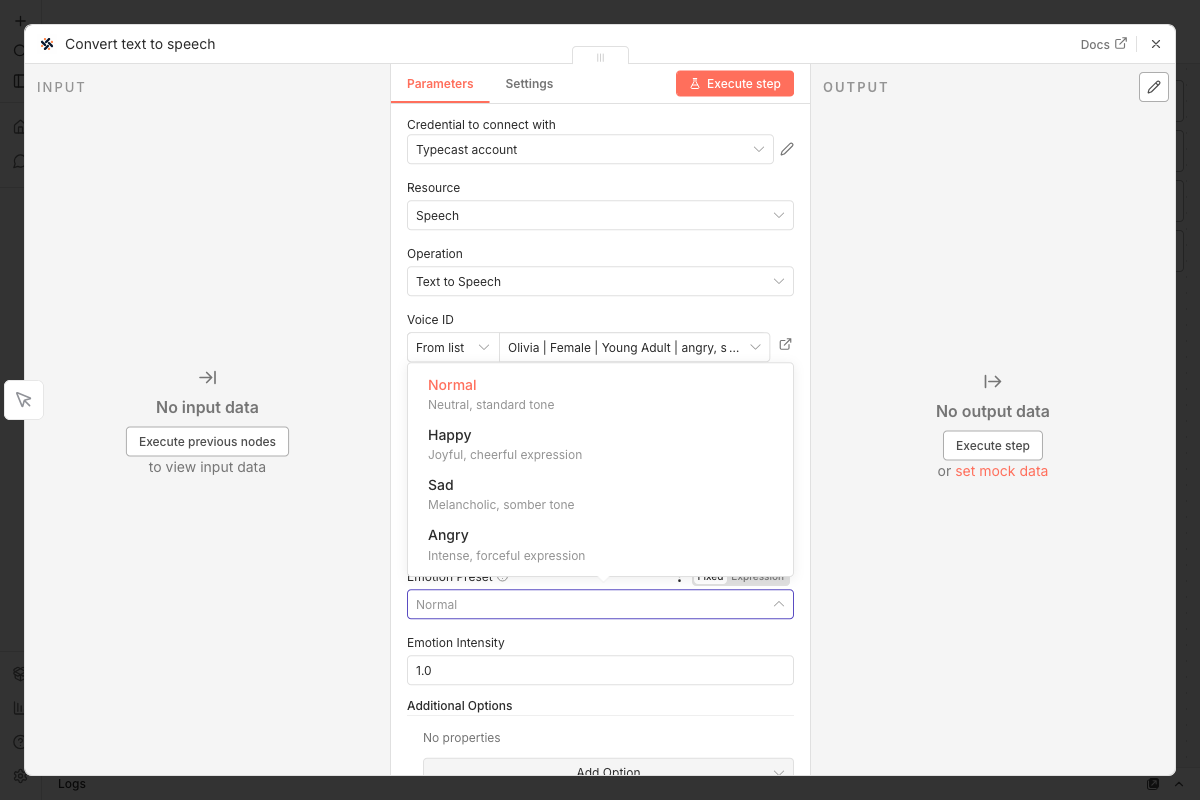 Adjust **Emotion Intensity** (0.0 - 2.0):
* `0.0` — Completely neutral
* `1.0` — Standard (default)
* `2.0` — Maximum intensity
Adjust **Emotion Intensity** (0.0 - 2.0):
* `0.0` — Completely neutral
* `1.0` — Standard (default)
* `2.0` — Maximum intensity
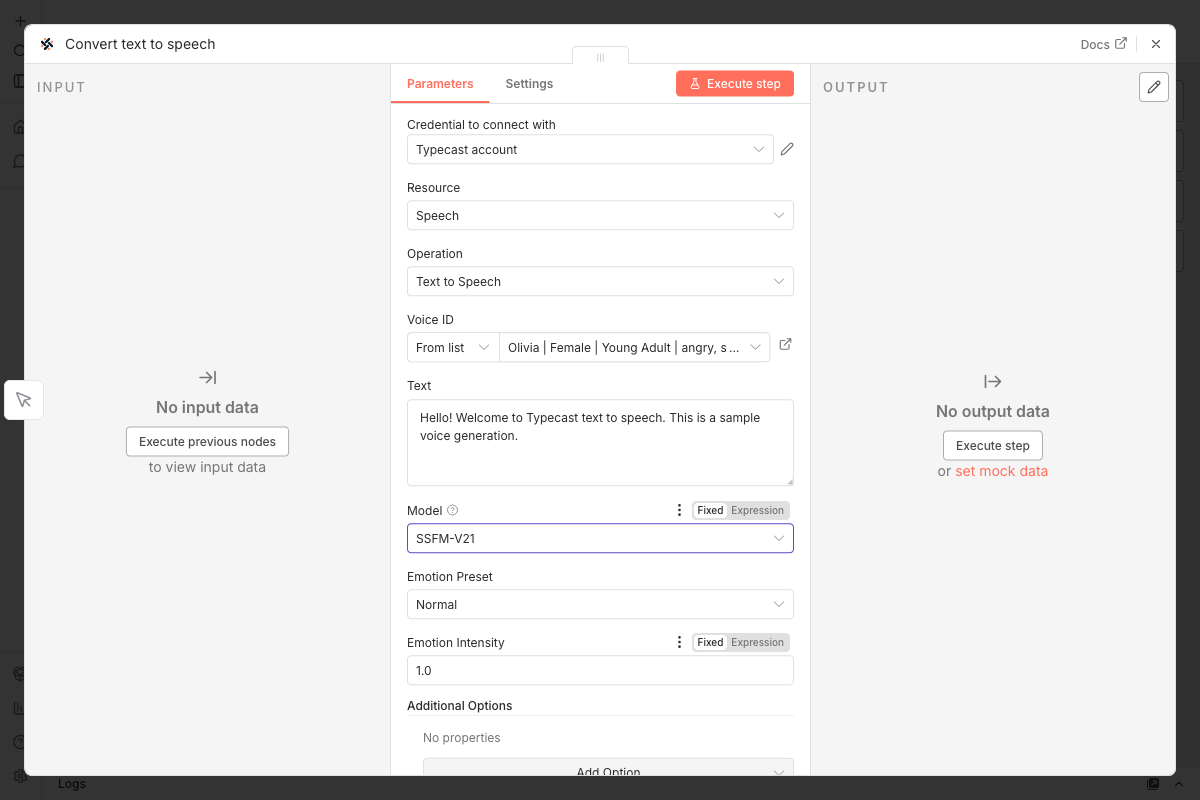 #### Additional Options
Customize your audio output:
| Option | Description | Default |
| ---------------- | ------------------------------------------------------------- | ----------- |
| **Audio Format** | `WAV` (high quality) or `MP3` (smaller size) | WAV |
| **Audio Pitch** | Adjust pitch (-12 to +12 semitones) | 0 |
| **Audio Tempo** | Speed adjustment (0.5x to 2.0x) | 1.0 |
| **Language** | Override auto-detection if needed | Auto-detect |
| **Seed** | Unsigned integer (≥ 0). Use same seed for reproducible output | Random |
### Step 4: Run and Listen
1. Connect the nodes (Manual Trigger → Typecast)
2. Click **Execute Workflow**
3. Check the output — your audio file is ready!
4. Click the audio to play it
#### Additional Options
Customize your audio output:
| Option | Description | Default |
| ---------------- | ------------------------------------------------------------- | ----------- |
| **Audio Format** | `WAV` (high quality) or `MP3` (smaller size) | WAV |
| **Audio Pitch** | Adjust pitch (-12 to +12 semitones) | 0 |
| **Audio Tempo** | Speed adjustment (0.5x to 2.0x) | 1.0 |
| **Language** | Override auto-detection if needed | Auto-detect |
| **Seed** | Unsigned integer (≥ 0). Use same seed for reproducible output | Random |
### Step 4: Run and Listen
1. Connect the nodes (Manual Trigger → Typecast)
2. Click **Execute Workflow**
3. Check the output — your audio file is ready!
4. Click the audio to play it
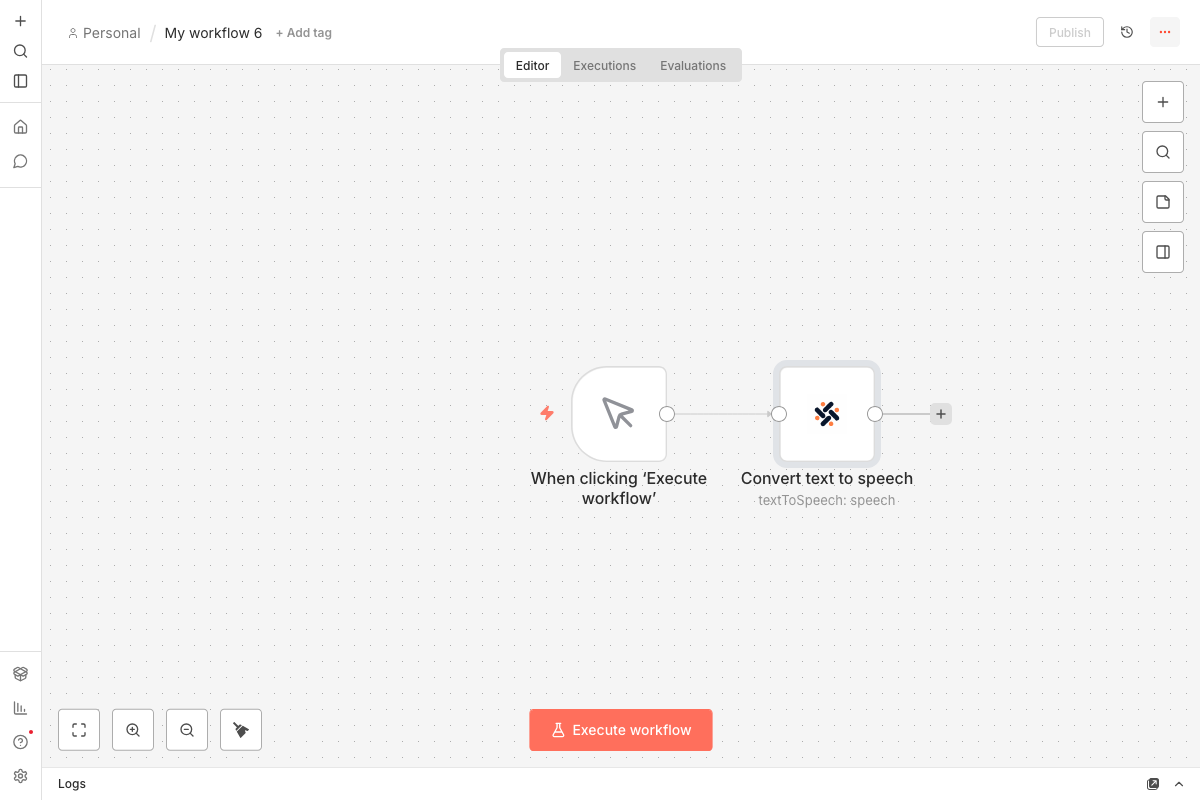 The generated audio appears as a binary file named `data`. You can save it, email it, or send it anywhere!
***
## Finding the Perfect Voice
### Browse All Voices
1. Add a Typecast node
2. Set **Resource** → `Voice`
3. Set **Operation** → `Get All Voices`
4. Run the node to see all available voices
### Recommend Voices
1. Add a Typecast node
2. Set **Resource** → `Voice`
3. Set **Operation** → `Recommend Voices`
4. Enter a text description and run the node
Recommendation results contain only `voice_id`, `voice_name`, and `score`. Use **Get Voice** or **Get All Voices** when your workflow needs metadata such as supported models, emotions, gender, age, or use cases before synthesis.
### Filter Voices
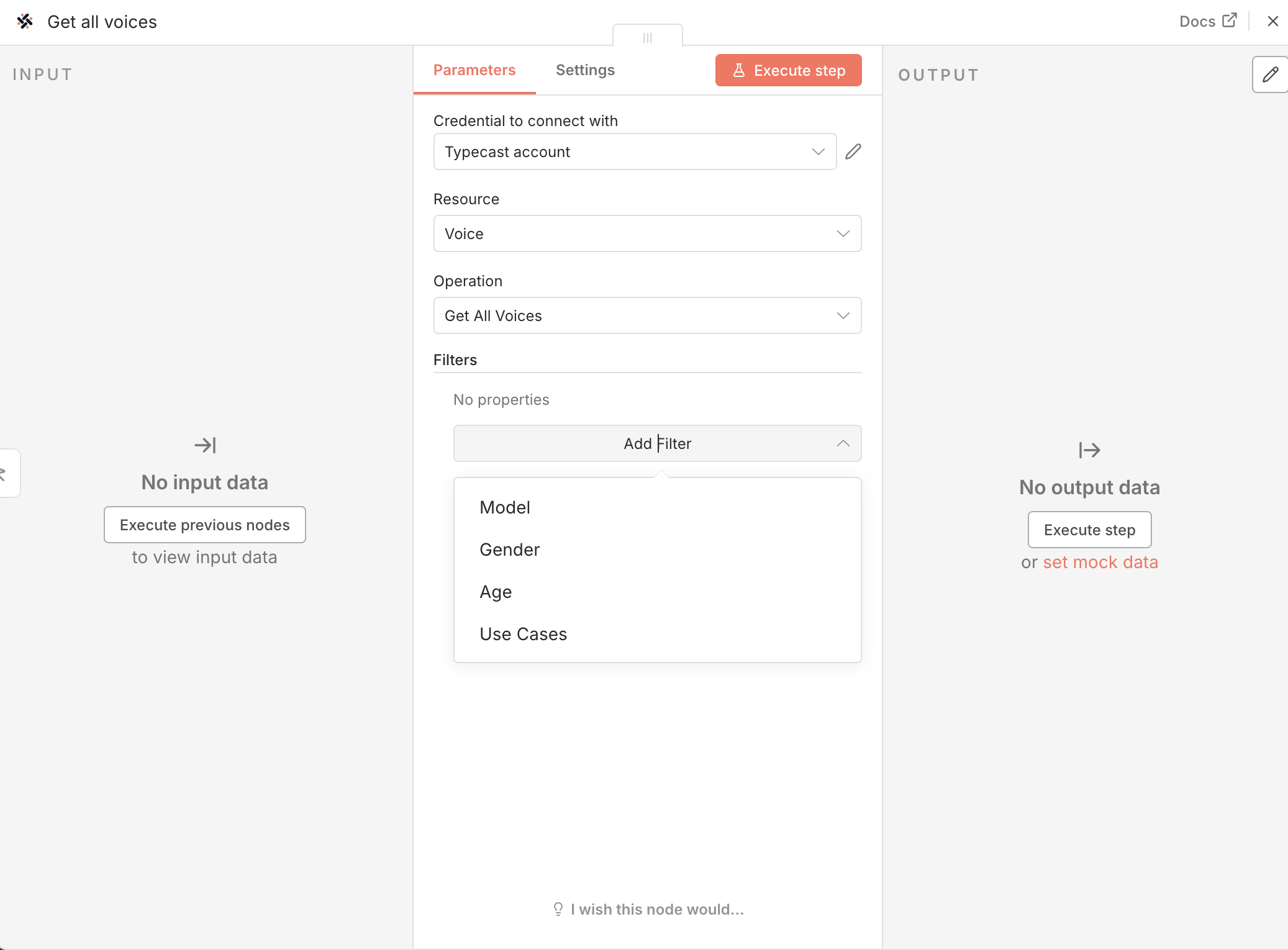
Use filters to find exactly what you need:
| Filter | Options |
| ------------- | ------------------------------------------------------------- |
| **Model** | `ssfm-v30` or `ssfm-v21` |
| **Gender** | `Male` or `Female` |
| **Age** | `Child`, `Teenager`, `Young Adult`, `Middle Age`, `Elder` |
| **Use Cases** | `Audiobook`, `Ads`, `E-learning`, `Game`, `Podcast`, and more |
The generated audio appears as a binary file named `data`. You can save it, email it, or send it anywhere!
***
## Finding the Perfect Voice
### Browse All Voices
1. Add a Typecast node
2. Set **Resource** → `Voice`
3. Set **Operation** → `Get All Voices`
4. Run the node to see all available voices
### Recommend Voices
1. Add a Typecast node
2. Set **Resource** → `Voice`
3. Set **Operation** → `Recommend Voices`
4. Enter a text description and run the node
Recommendation results contain only `voice_id`, `voice_name`, and `score`. Use **Get Voice** or **Get All Voices** when your workflow needs metadata such as supported models, emotions, gender, age, or use cases before synthesis.
### Filter Voices
Use filters to find exactly what you need:
| Filter | Options |
| ------------- | ------------------------------------------------------------- |
| **Model** | `ssfm-v30` or `ssfm-v21` |
| **Gender** | `Male` or `Female` |
| **Age** | `Child`, `Teenager`, `Young Adult`, `Middle Age`, `Elder` |
| **Use Cases** | `Audiobook`, `Ads`, `E-learning`, `Game`, `Podcast`, and more |
 ***
## Troubleshooting
* Restart n8n completely
* Clear your browser cache
* Verify the installation in **Settings** → **Community Nodes**
* Check your API key is correct
* Verify your key at [Typecast API Console](https://typecast.ai/developers/api/)
* Make sure there are no extra spaces in the key
* Use the **Get All Voices** operation to find valid Voice IDs
* Voice IDs are case-sensitive (use lowercase `tc_...`)
* Check that your text is not empty
* Verify you have sufficient API credits
* Check the error message in the node output
***
## Resources
View on npm registry
View source code and contribute
Browse all available voices
Explore the Typecast API
***
## Troubleshooting
* Restart n8n completely
* Clear your browser cache
* Verify the installation in **Settings** → **Community Nodes**
* Check your API key is correct
* Verify your key at [Typecast API Console](https://typecast.ai/developers/api/)
* Make sure there are no extra spaces in the key
* Use the **Get All Voices** operation to find valid Voice IDs
* Voice IDs are case-sensitive (use lowercase `tc_...`)
* Check that your text is not empty
* Verify you have sufficient API credits
* Check the error message in the node output
***
## Resources
View on npm registry
View source code and contribute
Browse all available voices
Explore the Typecast API