




Learning how to add AI voice to PowerPoint is one of the fastest ways to turn a flat slide deck into a presentation that actually holds attention. Whether you’re building a training module, a sales pitch, or an internal report, AI-generated narration removes the need for recording equipment, voice talent, or endless retakes.
Below is a practical, step-by-step walkthrough—plus the context you need to choose the right approach for your team.
Why AI voice is replacing manual narration in presentations
Not long ago, adding voiceover for PowerPoint meant booking a quiet room, pressing record, and hoping your delivery was consistent from slide one to slide forty. That workflow doesn’t scale.
The business case in three bullets
- Speed. An AI voice can narrate a 30-slide deck in minutes, not hours.
- Consistency. Every slide gets the same tone, pace, and audio quality—even when content is updated quarterly.
- Localization. Many AI voice platforms support dozens of languages, so one presentation can serve global teams.
As Microsoft noted when expanding Copilot features across Office:
“AI is fundamentally changing how people create, communicate, and collaborate at work.”
— Microsoft Work Trend Index
What you need before you start

Before diving into the steps, gather these items:
- A finalized slide deck (.pptx). AI narration works best when your script and slide order are locked.
- A written script or speaker notes. Paste your narration text into the Notes pane of each slide so you can copy it directly into your AI voice tool.
- An AI voice platform account. You’ll use this to generate audio files. (More on choosing one below.)
- Headphones for review. Small pronunciation issues are easy to miss on laptop speakers.
How to add AI voice to PowerPoint, step by step
Here is the core workflow that works regardless of which AI voice tool you use.
Step 1: Write a narration script in your speaker notes
Open your PowerPoint file and click the Notes pane at the bottom of each slide. Write exactly what you want the AI voice to say.
Keep sentences short—between 10 and 20 words. Shorter sentences sound more natural when synthesized and give your audience time to absorb the visuals on screen.
Step 2: Generate audio files with an AI voice tool
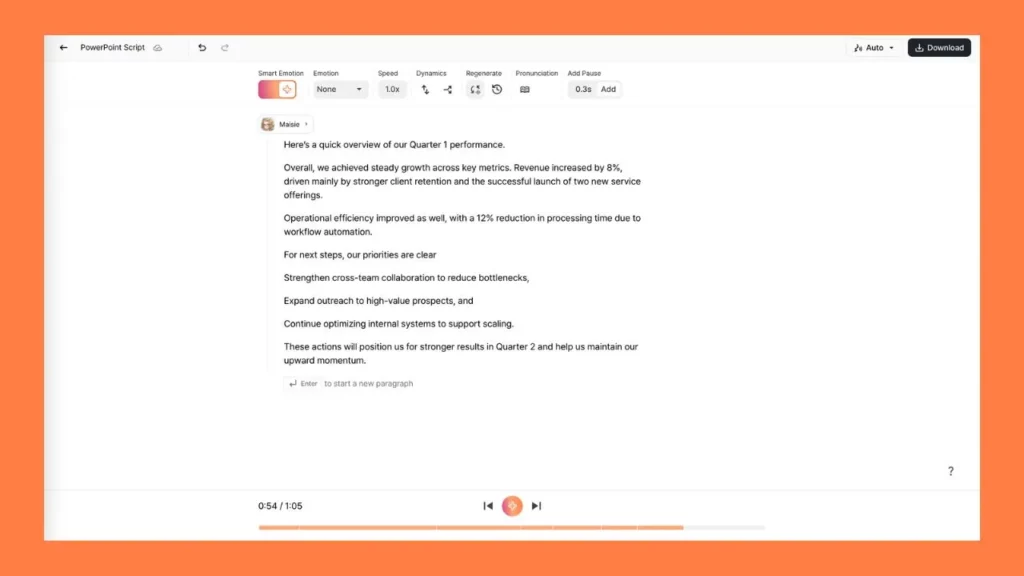
Copy your slide-by-slide script into your text-to-speech platform. For example, in Typecast you would:
- Open the editor and select a voice from the narrator voice generator library.
- Paste the text for Slide 1 into the script field.
- Adjust speed, pitch, and emphasis if needed.
- Click generate, then download the audio as an MP3 or WAV file.
- Repeat for each slide.
Typecast’s editor lets you preview and tweak individual sentences before exporting, which cuts down on revision cycles.
Step 3: Insert each audio file into the matching slide
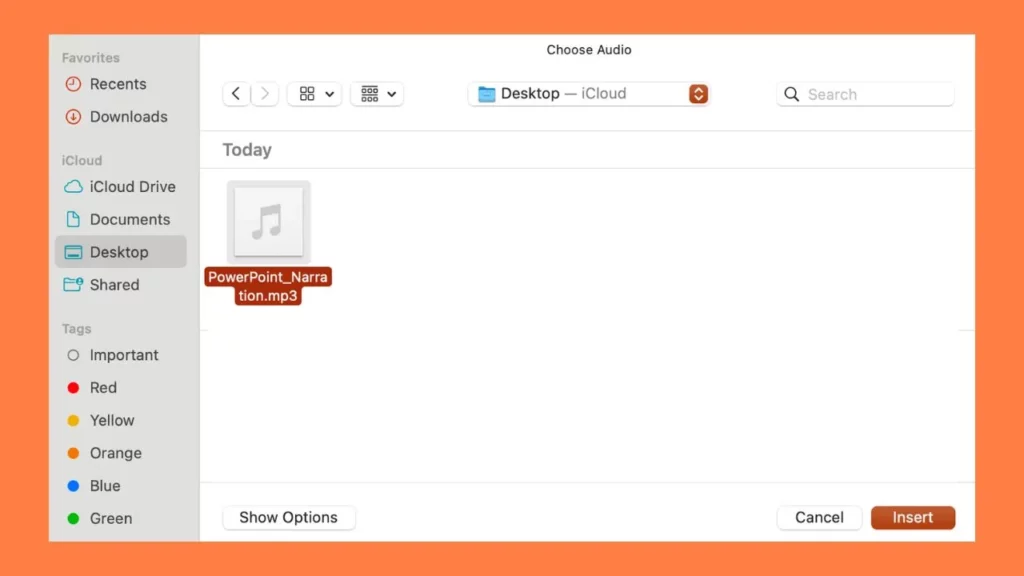
Back in PowerPoint:
- Navigate to the target slide.
- Go to Insert → Audio → Audio on My PC.
- Select the MP3 or WAV file you exported.
- A small speaker icon will appear on the slide—drag it off-canvas or resize it so it doesn’t block your content.
Step 4: Set playback to automatic
Click the speaker icon, then open the Playback tab on the ribbon. Configure these settings:
- Start: select “Automatically.”
- Check Hide During Show so the icon is invisible to viewers.
- Uncheck Loop until Stopped unless you intentionally want the audio to repeat.
This ensures the narration begins the moment the slide appears.
Step 5: Sync slide transitions with audio length
This is the step most guides skip.
Open the Transitions tab. Under Advance Slide, uncheck “On Mouse Click” and check “After,” then enter a duration that matches (or slightly exceeds) your audio clip length.
For example, if your Slide 3 narration is 18 seconds, set the advance timer to 20 seconds. That two-second buffer prevents the deck from jumping ahead while the voice is still speaking.
Step 6: Review the full presentation in slideshow mode
Press F5 and watch the entire deck from start to finish. Listen for:
- Awkward pronunciations (fix these by adjusting spelling or phonetic hints in your AI tool).
- Slides that advance too quickly or too slowly.
- Volume inconsistencies between slides.
Step 7: Export or share
Once you’re satisfied, you have two options:
- Share as .pptx. The embedded audio travels with the file, so recipients hear narration when they run the slideshow.
- Export as video. Go to File → Export → Create a Video. Choose your resolution (1080p is standard) and let PowerPoint render an MP4 with your AI narration baked in.
The video option is ideal for uploading to an LMS, YouTube, or an internal knowledge base.
How to use AI voice for PowerPoint presentation: tips that improve quality
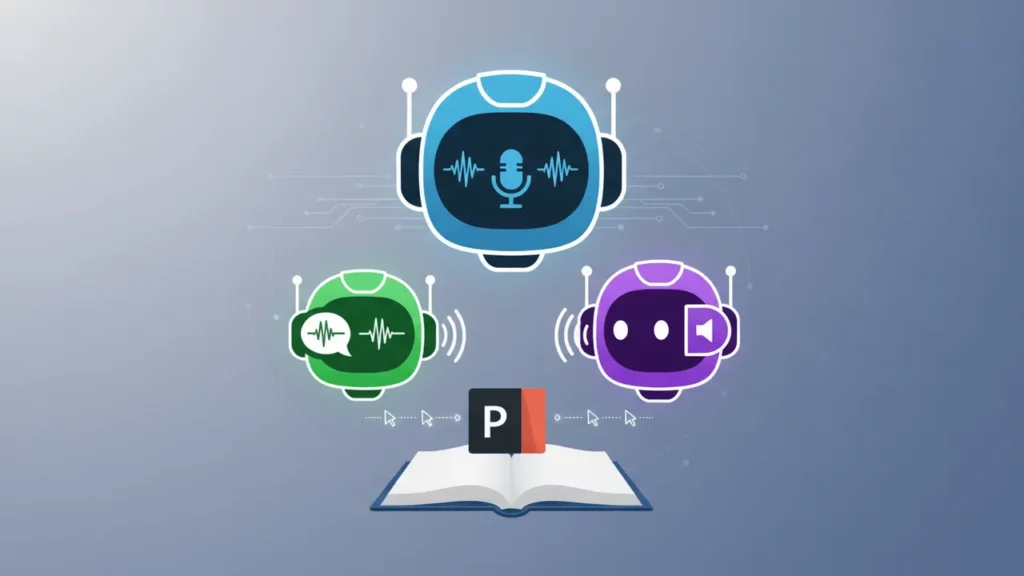
Getting audio onto slides is the mechanical part. Making it sound good is where most people can improve.
Match voice style to content purpose
A corporate earnings summary calls for a calm, authoritative tone. A product launch teaser benefits from an energetic, upbeat delivery. Most AI voice platforms—Typecast included—offer multiple voice styles and emotional presets, so spend a few minutes auditioning options before committing.
According to a 2023 study published in Computers & Education:
“The use of a human-like AI voice in instructional multimedia significantly improved learner engagement and information retention compared to robotic-sounding synthesis.”
— Computers & Education, Vol. 201
Add strategic pauses
Insert a comma or ellipsis in your script where you want the AI to breathe. A half-second pause before a key statistic or after a section transition gives the listener a mental reset.
Keep slide text minimal
If your narration says it, your slide doesn’t need to. Avoid walls of text that compete with audio. Use visuals, charts, or single-phrase headlines instead.
Common mistakes to avoid
- Using one long audio file for the entire deck. This makes editing a nightmare. Always produce one clip per slide.
- Ignoring file size. WAV files are large. If you’re emailing the deck, use compressed MP3s (192 kbps is a good balance of quality and size).
- Skipping the script review. AI voices faithfully read whatever you type—including typos, misplaced commas, and awkward phrasing. Proofread twice.
- Forgetting accessibility. Add closed captions or a transcript. PowerPoint’s built-in subtitle feature (Slide Show → Always Use Subtitles) can help, though manual captions are more accurate.
When to use AI voice vs. human narration
AI narration isn’t the right fit for every scenario. Here’s a quick decision framework:
| Scenario | Best choice |
|---|---|
| Internal training decks updated quarterly | AI voice |
| One-time keynote with personal storytelling | Human narration |
| Multilingual product demos | AI voice |
| Brand anthem video with emotional weight | Human narration |
| Weekly sales enablement slides | AI voice |
For the majority of recurring, information-dense presentations, AI voice wins on speed and cost.
A quick note on how to add narration to PowerPoint using the built-in recorder
PowerPoint does include a native Record Slide Show feature (Slide Show → Record Slide Show) that captures your microphone input slide by slide. It works, but it locks you into your own voice, your own recording environment, and a single take per slide unless you re-record.
If you’re exploring how to add narration to PowerPoint without external tools, the built-in recorder is a starting point—but it rarely matches the polish and flexibility of AI-generated audio, especially for teams that repurpose content across regions or update decks frequently.
Wrapping up
Adding AI voice to a PowerPoint presentation is a straightforward process: write a script, generate audio, insert it slide by slide, and sync your transitions. The entire workflow can take less than an hour for a 20-slide deck, and the result is a self-running, narrated presentation ready for any audience.
If you’re looking for a place to start generating narration, Typecast’s narrator voice generator offers a library of natural-sounding voices you can preview and customize before exporting.
The barrier to professional-quality voiceover has never been lower. The only step left is pressing play.