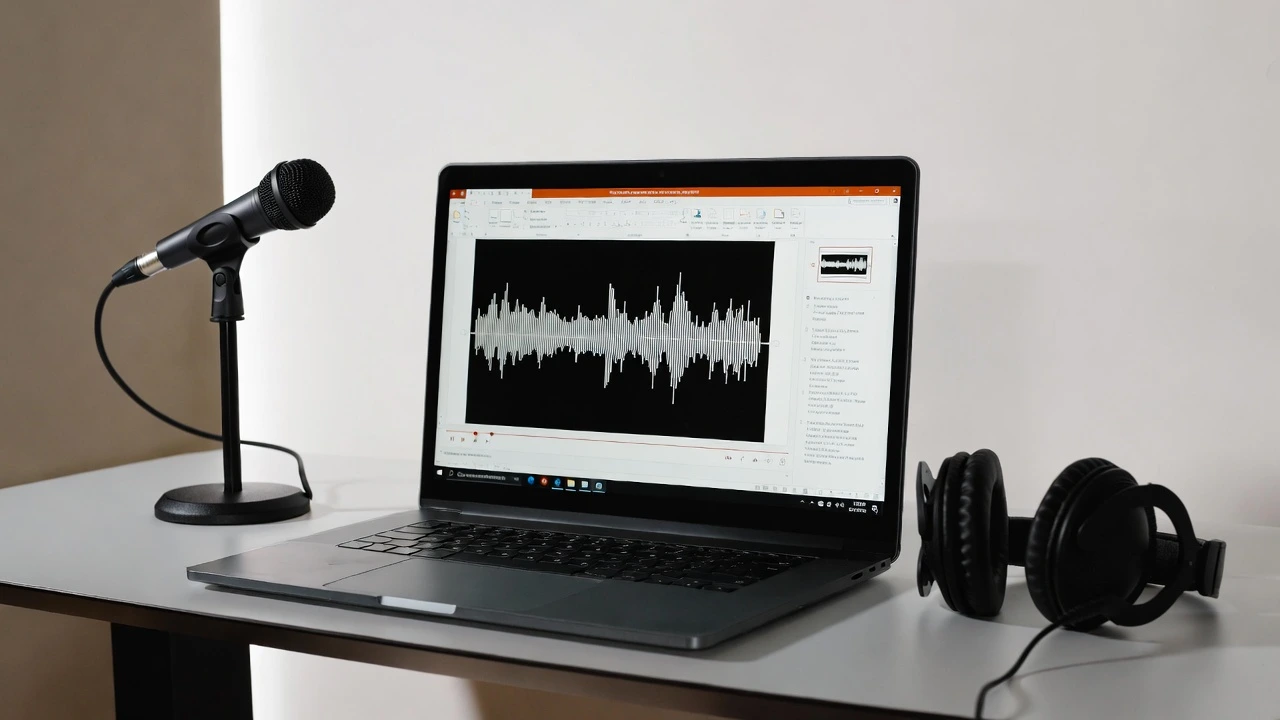





Learning how to add narration to PowerPoint can turn a flat slideshow into a presentation that holds attention. If you are looking for narration for a PowerPoint presentation, you have a few solid options that fit different skill levels and goals.
This guide walks through each method step by step. By the end, you will know exactly how to give your slides a clear, professional voice.
Why narration matters for your slides
Adding voice to PowerPoint helps your message land even when you are not in the room. It guides viewers through each slide at the right pace.
Narration also makes your content more accessible and easier to follow.
According to a report from the World Health Organization, over 1.5 billion people live with some degree of hearing loss, which is why pairing audio with clear visuals matters more than ever.
Voiceover for PowerPoint works well for self-paced training, recorded webinars, sales decks, video courses, and conference talks shared after the event.
What you need before you start

A little prep saves time later. Before you begin, gather a working microphone or a text-to-speech tool, a finished script or speaker notes, and your slides arranged in final order.
If you plan to record your own voice, find a quiet space first because a short script keeps your narration tight.
How to add narration to PowerPoint by recording your voice
PowerPoint has a built-in recording feature. This is the most direct way to capture your own voice.
Step by step in PowerPoint
Follow these steps to record narration slide by slide.
- Open your presentation and go to the Slide Show tab.
- Click Record Slide Show.
- Choose to start recording from the beginning or the current slide.
- Speak your narration as you move through each slide.
- Click Stop when finished, then save your file.
Your audio attaches to each slide automatically. A small speaker icon shows where narration lives.
Tips for a cleaner recording
Small habits make a big difference in audio quality. Record in a quiet room with soft surfaces, and keep the mic a steady distance from your mouth.
Pausing briefly between slides makes editing easier, and a short test run before the full take helps you catch problems early.
How to add narration with an audio file

You can also record audio separately and insert it into your slides.
This works well if you edit your audio in another tool first.
- Go to the Insert tab.
- Click Audio, then Audio on My PC.
- Select your file and place the icon on the slide.
- Use the Playback tab to set timing and volume.
This method gives you more control over editing before the audio reaches your deck.
Using AI narration for faster, cleaner results
Recording your own voice is not always practical. You may dislike your recorded voice, lack a good mic, or need to update slides often.
This is where AI voices help. A text-to-speech tool turns your script into natural narration in minutes.
Research from Stanford’s AI Index highlights how quickly speech generation has improved in quality and realism, making synthetic voices a practical choice for everyday content.
How AI narration helps
AI narration solves common pain points for busy creators. There is no need for recording equipment, and edits are easy whenever your script changes.
It also keeps your tone consistent across every slide, and most tools offer multiple voice and language options.
Creating narration with Typecast
Typecast is a text-to-speech tool that turns written scripts into clear, natural narration.
You type your script, pick a voice, and export an audio file ready for your slides.
The platform offers a narrator voice generator with voices suited to training, tutorials, and business decks.
Here is the simple flow:
- Paste your script into Typecast.
- Choose a voice that fits your topic and tone.
- Adjust pacing and emphasis where needed.
- Export the audio as a file.
- Insert that file into PowerPoint using the audio steps above.
If you want a deeper walkthrough, see this guide on how to add AI voice to PowerPoint.
Recorded voice or AI voice: which should you pick?

Both methods work. The right one depends on your situation.
A recorded voice suits you when you want a personal touch, have good recording gear, and rarely change your content.
AI narration fits better when you update slides often, need a polished result fast, or want consistent audio across many decks.
As voice technology researcher Bret Kinsella has observed, synthetic speech is becoming a normal part of how teams produce content at scale.
Testing your narration before sharing
Always review your work before sending it out.
Play the full presentation in Slide Show mode and listen closely.
As you watch, check for audio that overlaps with slide transitions, volume that jumps between slides, gaps where narration is missing, and timing that feels rushed or slow.
Fix any problems, then export your final file.
Exporting your narrated presentation
You can keep your narration in the PPTX file or export it as a video.
To create a video, go to File, then Export, then Create a Video. This locks in your narration and timing.
A video format plays reliably across devices and platforms.
Final thoughts
Adding voice to PowerPoint is easier than it looks. You can record your own voice or use an AI tool for fast, consistent results.
Start with a clear script, pick the method that fits your needs, and test before you share.
With the right approach, your narrated slides will guide every viewer from start to finish.