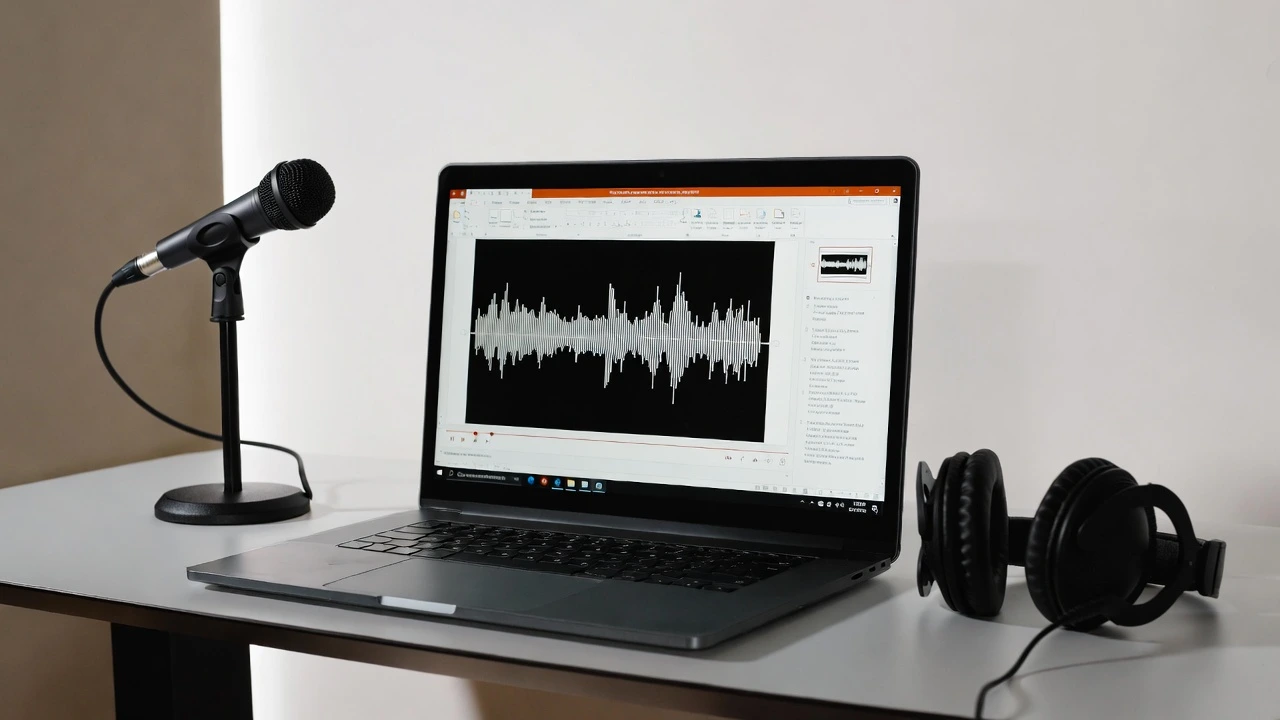




If you have ever wondered how to record narration in PowerPoint, you are not alone. Adding a clear, confident voiceover for PowerPoint is one of the fastest ways to turn a static deck into a presentation that holds attention.
Narration helps your audience follow along, even when you are not in the room. It also makes your slides reusable for training, webinars, and on-demand content.
This guide walks you through the full process, from setup to polish. Whether you are a business owner, marketer, or developer, you will leave with a repeatable workflow that sounds professional.
Why narration matters for your presentations
A narration PPT presentation does more than fill silence. It guides the viewer through your story at the right pace.
People retain information better when they hear and see it together. Voice adds tone, emphasis, and personality that text alone cannot deliver.
Consider how audio shapes engagement online. As one industry analysis notes, audio content continues to grow as a primary way people consume information.
According to Edison Research, “Audio is becoming a central part of how brands communicate, not an afterthought.”
The takeaway is simple. A recorded voiceover for PowerPoint makes your deck work harder, longer, and across more channels.
What you need before you start
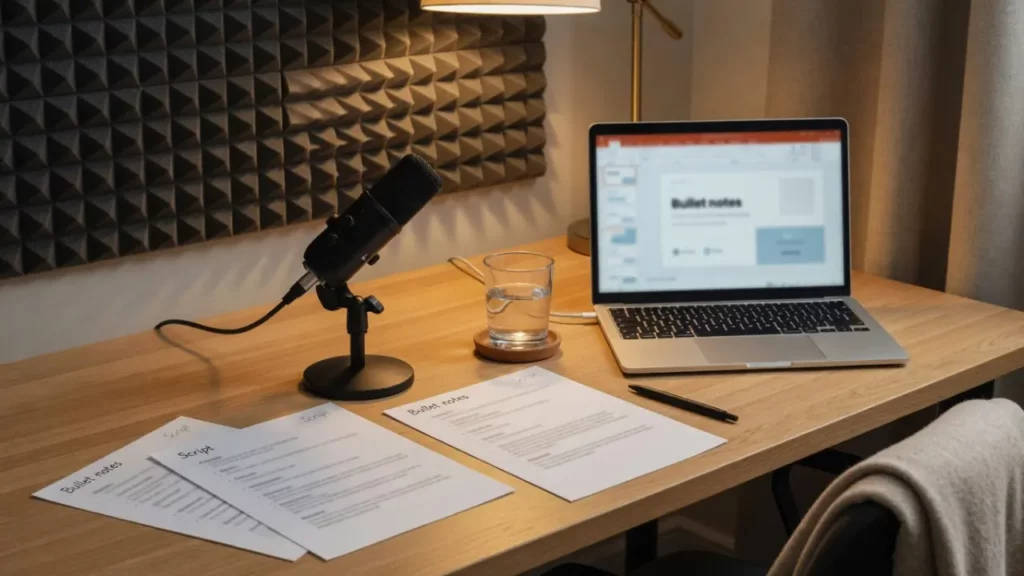
Good narration starts with good preparation. A few minutes of setup saves hours of re-recording later.
Here is a quick checklist before you hit record:
- A finished slide deck with clear talking points
- A quiet room with minimal echo and background noise
- A decent microphone, even an external USB mic helps
- A written script or bullet notes for each slide
- A glass of water nearby to keep your voice steady
A script keeps you on track and reduces filler words. You do not need to read it word for word, but it should anchor each slide.
How to record narration in PowerPoint step by step
PowerPoint has built-in recording tools that work on both Windows and Mac. The process is more straightforward than many people expect.
Step 1: Open the recording tab
Open your presentation and go to the Slide Show tab. Look for the Record or Record Slide Show option.
You can choose to start recording from the beginning or from the current slide. This flexibility is helpful when you only need to redo one section.
Step 2: Set up your audio and camera
Before recording, check your microphone input in the recording window. Most versions let you select your device and test the levels.
If you want a webcam bubble, enable the camera. If you prefer voice only, turn it off to keep file sizes smaller.
Step 3: Record slide by slide
Click record and begin speaking once the countdown ends. PowerPoint captures your voice, timing, and any annotations per slide.
Move through your deck at a natural pace. The tool records narration for each slide separately, so you can re-record individual slides later.
Step 4: Review and re-record as needed
After recording, play back your slides to check timing and clarity. If a slide feels rushed, simply re-record that single slide.
According to Harvard Business Review, “The best way to improve a recording is to listen back critically and fix one issue at a time.”
This slide-by-slide approach is what separates a polished deck from a rushed one.
Step 5: Save and export
Once you are happy with the result, save your file. To share it widely, export the presentation as a video.
Go to File, then Export, and choose Create a Video. This bundles your slides, timing, and narration into a single shareable file.
Tips to make your narration sound professional
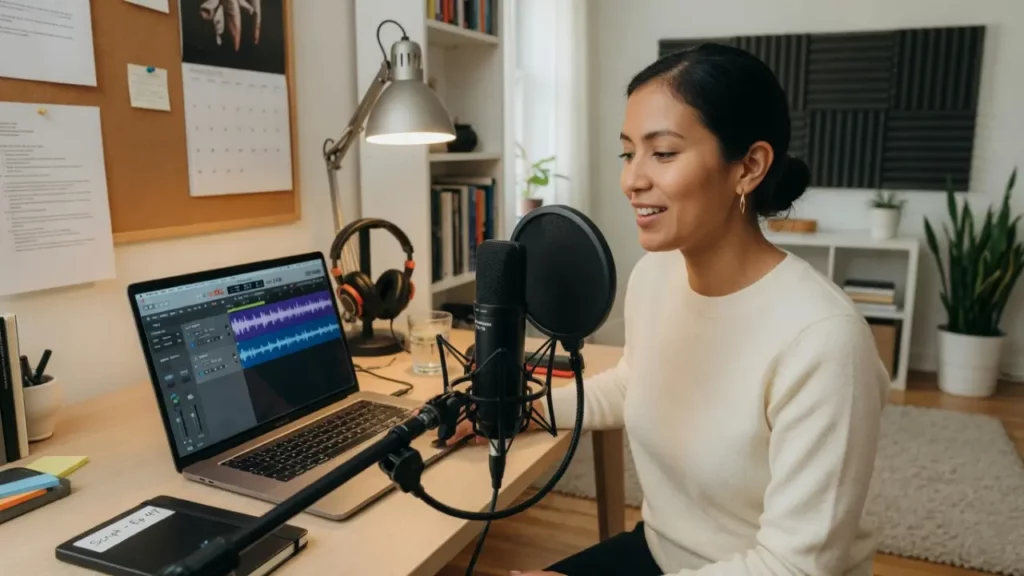
Recording is easy. Sounding polished takes a few extra habits.
Try these techniques to lift your audio quality:
- Speak slightly slower than feels natural to improve clarity
- Pause between key points instead of rushing through them
- Smile while you talk, since it warms up your tone
- Record in short segments to stay energized
- Keep your mouth a consistent distance from the mic
Consistency matters more than perfection. A steady pace and clear delivery beat a flawless but robotic read.
Nielsen Norman Group says, “Clarity and pacing influence how much an audience trusts and retains a message.”
When to use an AI voice instead

Live recording is not always practical. Sometimes you are short on time, working in a noisy space, or updating slides frequently.
This is where AI narration becomes useful. Tools that generate natural AI narration voices let you create a clean voiceover without a microphone or studio.
AI voices also make updates painless. If you change a slide, you simply regenerate that line instead of re-recording the whole deck.
For teams managing many presentations, this saves real time. You keep a consistent voice across every project, even when multiple people contribute.
Gartner states that “Synthetic voices have reached a quality level suitable for professional content in many use cases.”
Choosing between live and AI narration

Both methods have a place. The right choice depends on your goals, timeline, and resources.
Use live recording when:
- You want a personal, human connection with your audience
- The presentation is a one-time event or keynote
- Your natural voice is part of your brand
Use AI narration when:
- You need to update content often
- You lack recording equipment or a quiet space
- You want consistency across a large library of decks
Many creators blend both. They record key personal moments and use AI for routine slides and updates.
Common mistakes to avoid
Even experienced presenters slip up. Watch out for these issues when you learn how to add narration to PowerPoint.
- Recording in a room with hard surfaces and heavy echo
- Reading in a flat monotone with no emphasis
- Forgetting to test audio levels before a full session
- Packing too many words onto a single slide
- Skipping the playback review before exporting
Fixing these small problems makes a big difference in the final result.
Final thoughts
Learning how to record narration in PowerPoint is a skill that pays off across every presentation you create. With a quiet space, a simple script, and the built-in tools, you can produce professional results.
When time is tight or updates are frequent, AI narration gives you a fast, flexible backup. Either way, your slides become more engaging and far more shareable.
Start with one deck, refine your process, and build from there. Your audience will notice the difference.