Transform your storyboards into professional digital videos
Upload your storyboard images, add AI voice overs and professional editing to create compelling video content from your visual concepts.
Why use our digital storyboard creator tool?
Discover what makes our AI storyboard maker stand out from the competition.
-
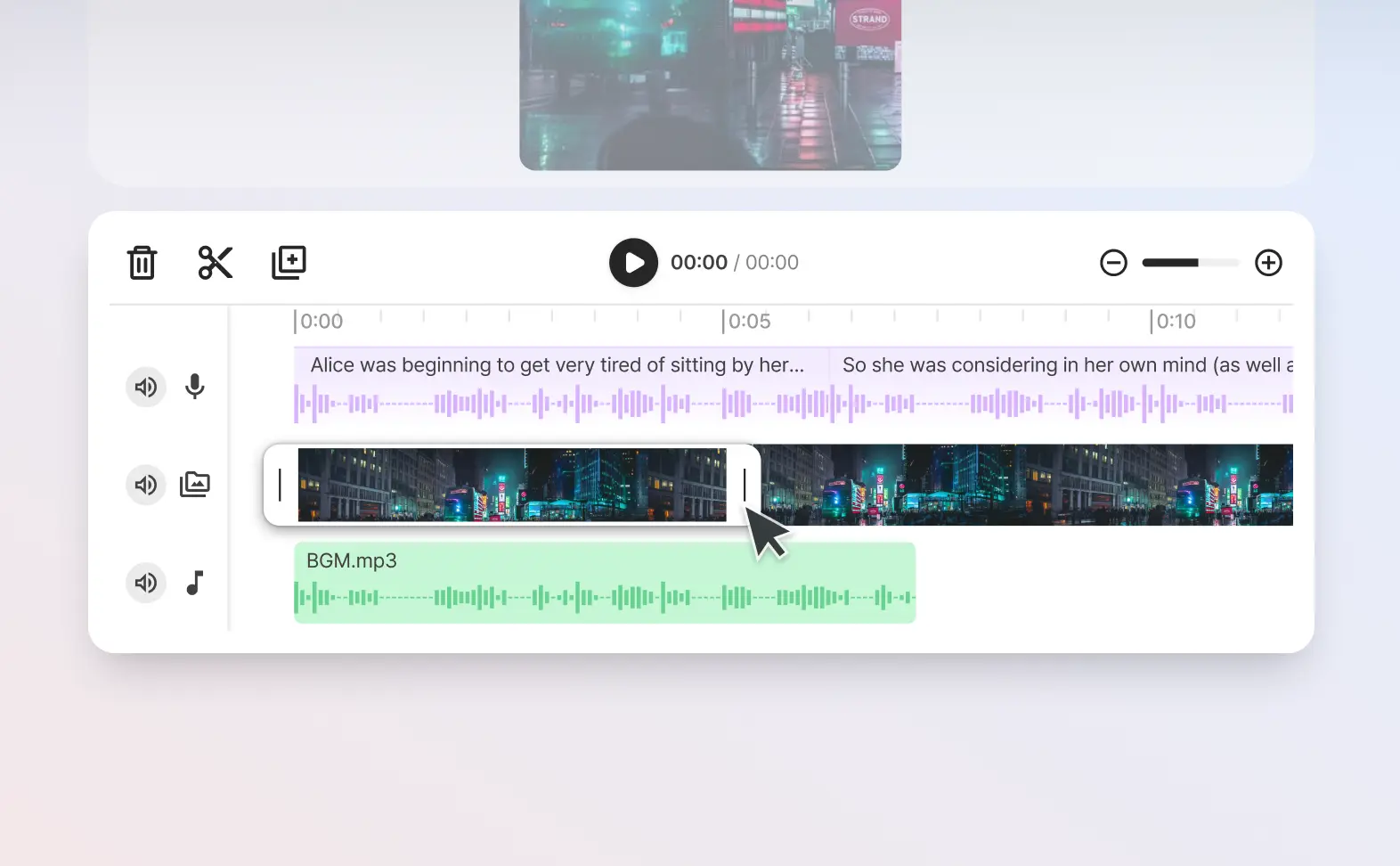
Trim & cut voice and video together
You can edit your digital storyboard video together with our AI generated voices at the same time, ensuring you get the perfect voice over.
-
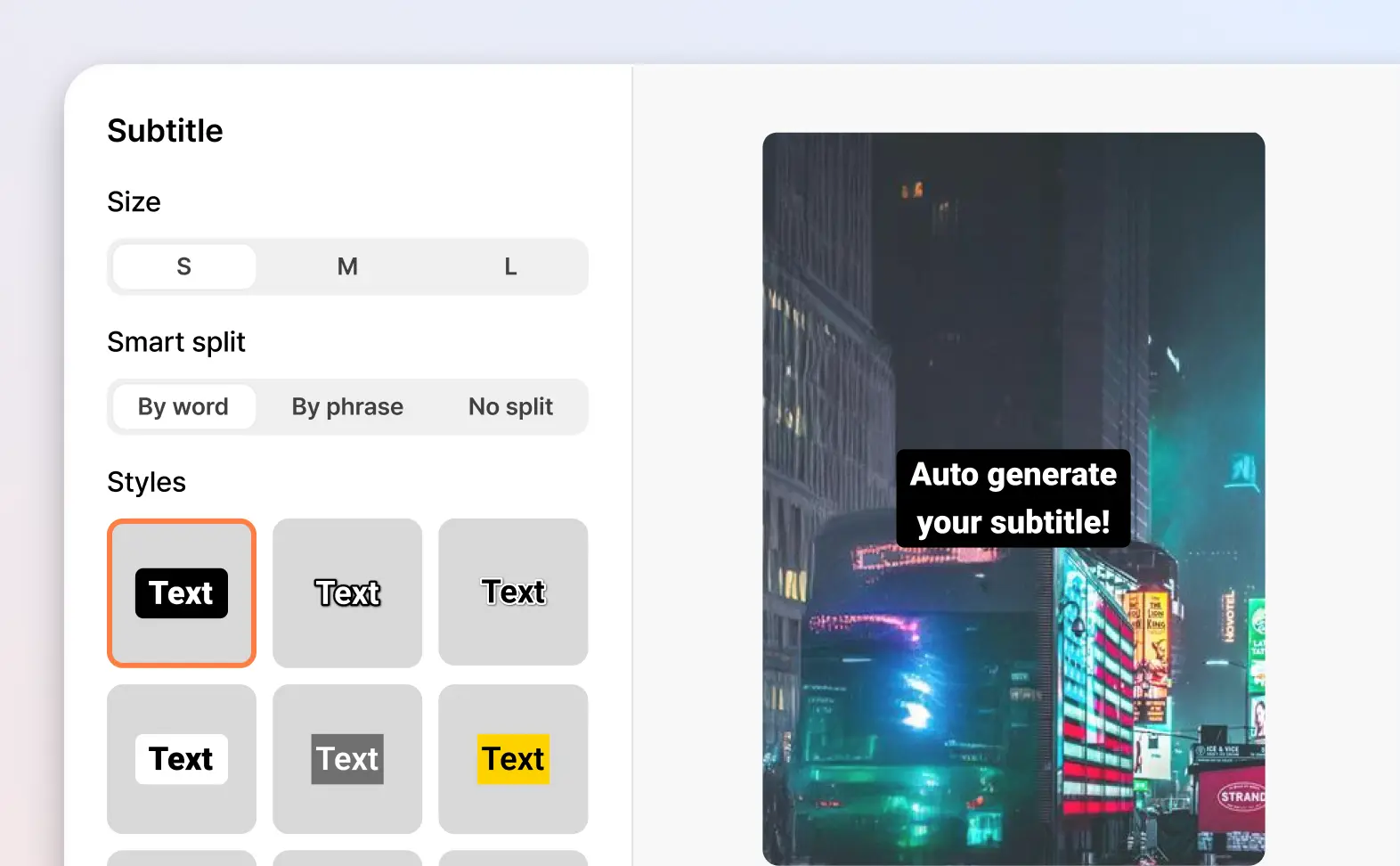
Auto-generate captions
Automatically create captions in your video while you type and edit the voice over.
-
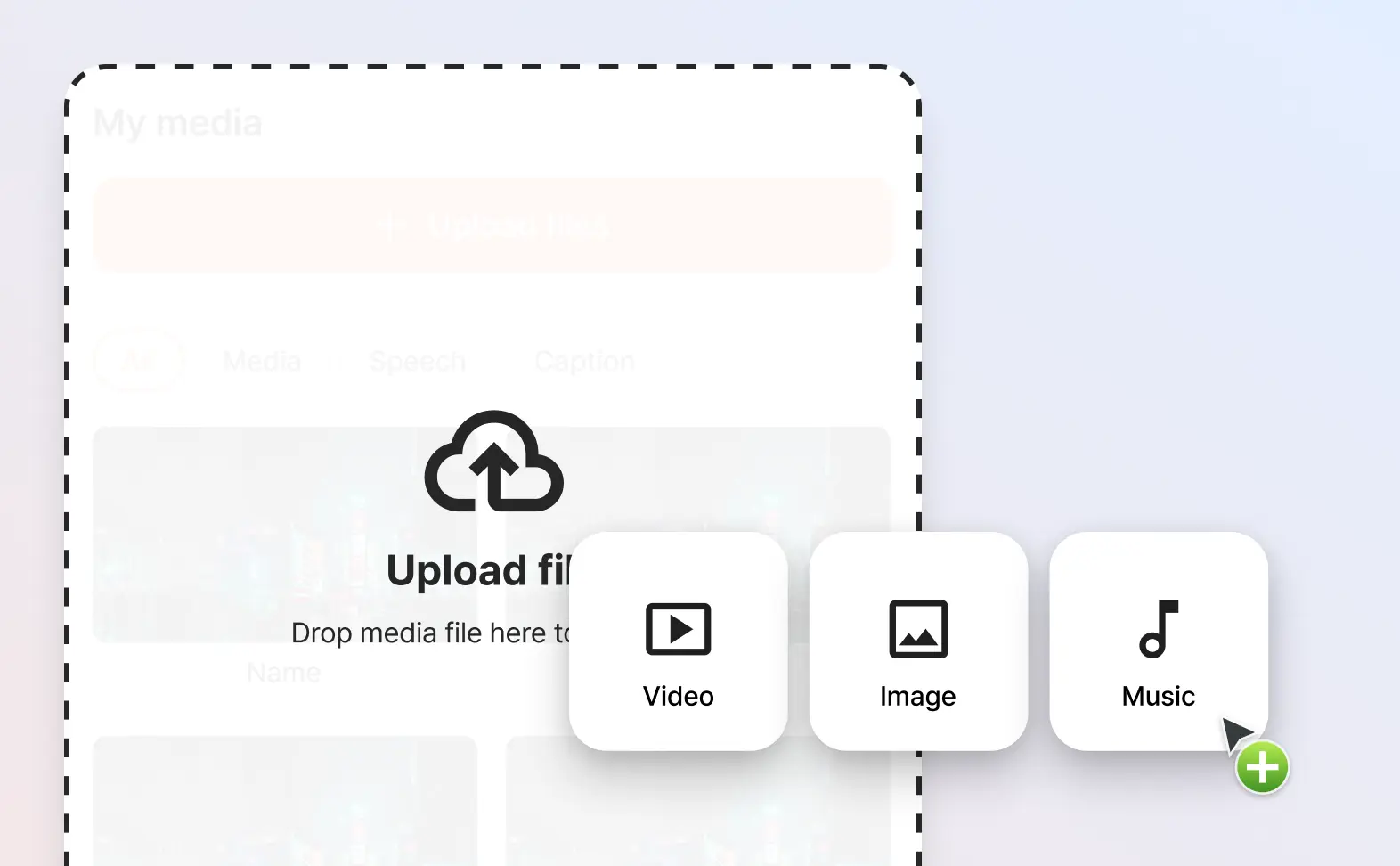
Multi-media support
Import in your own images, videos, music and audio files to create the digital storyboard video you want.
-
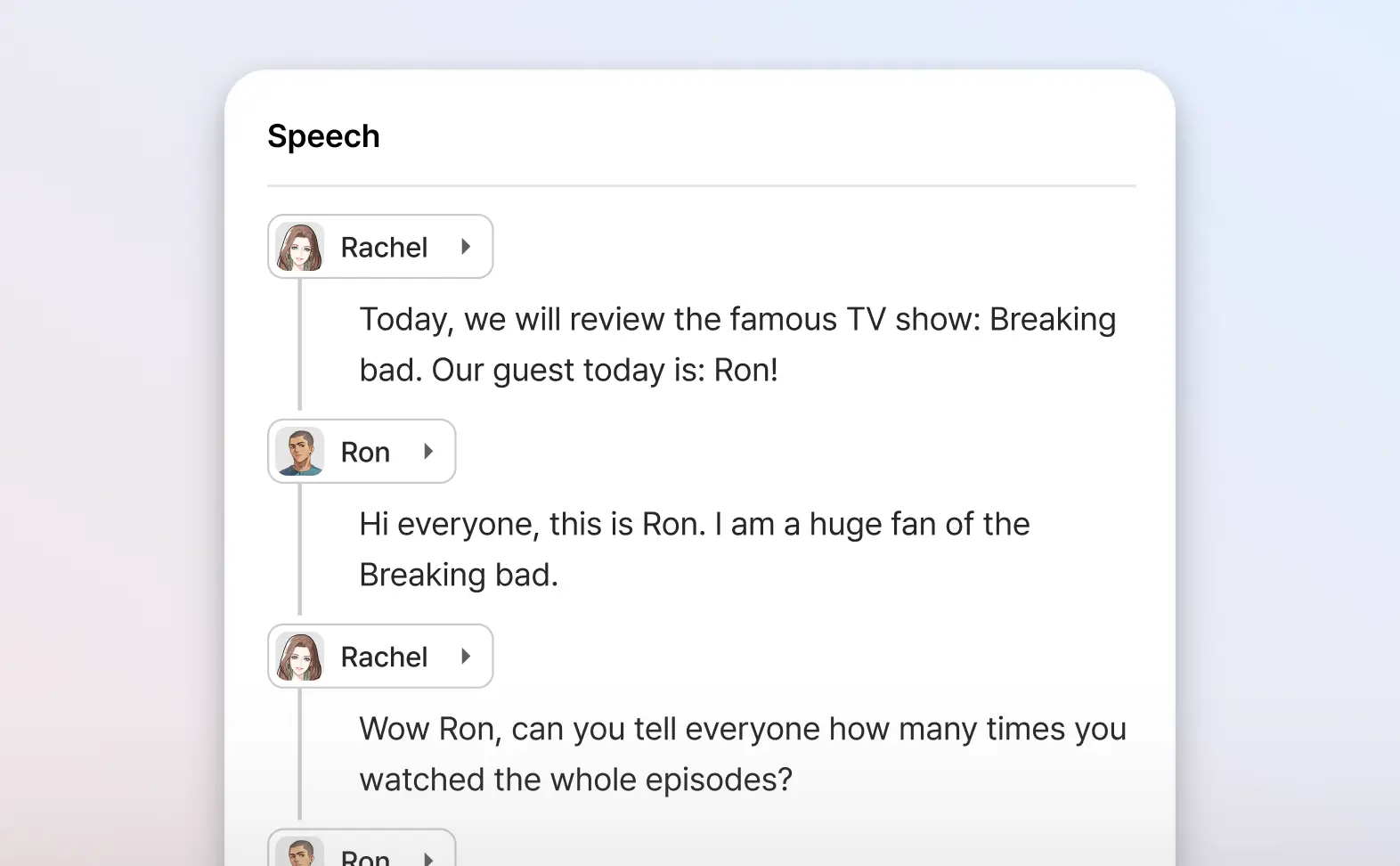
Add multiple voice overs to the same video
Why only use one voice? Add as many AI voices as you want to the same video.
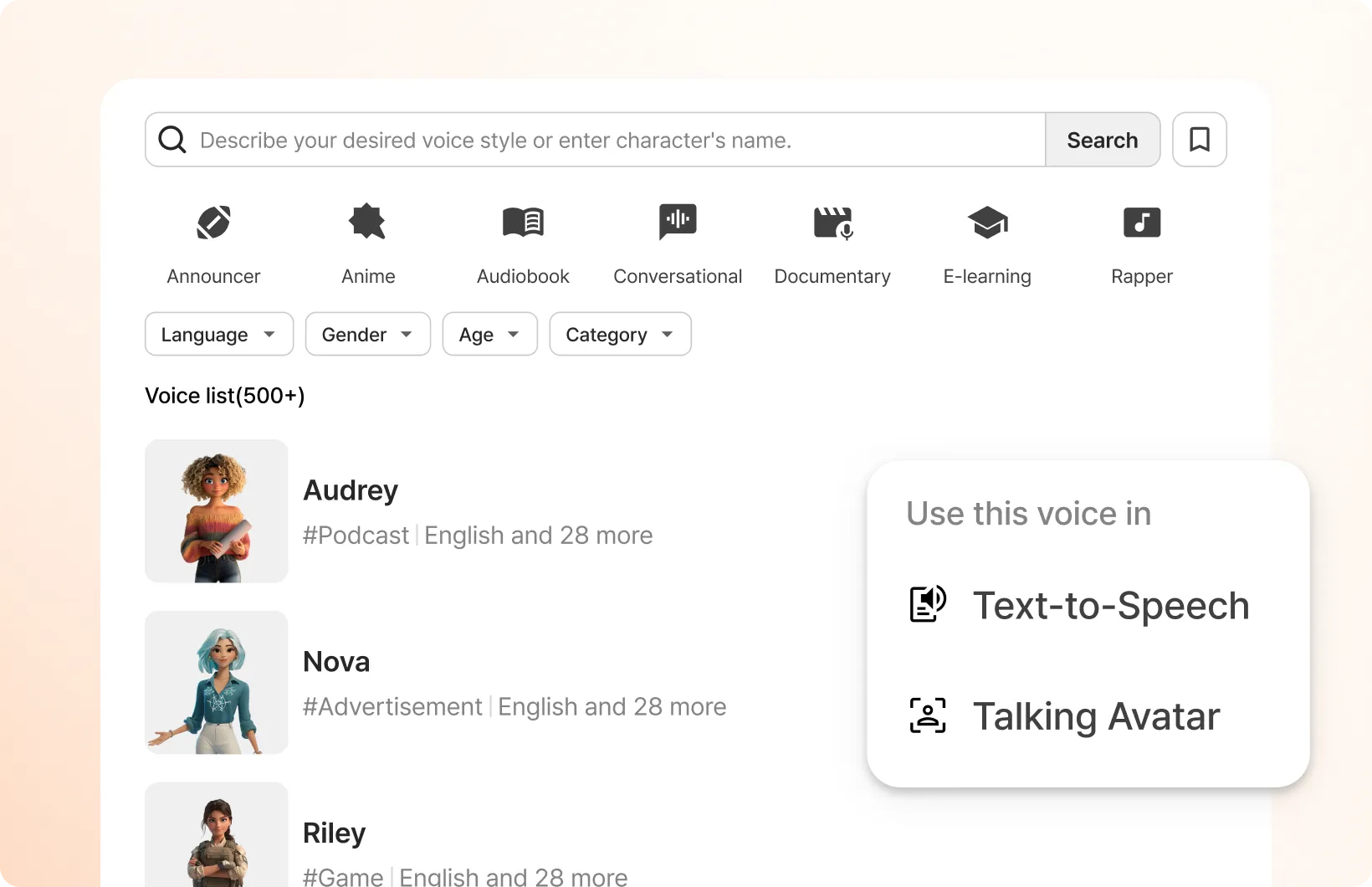
Create realistic voice overs for your digital storyboards with our AI voice generator
Typecast supports 35+ different languages and accents with its vast library of multilingual AI voices.
How to use Typecast's digital storyboard creator tool
Start creating your own AI-powered digital storyboards with these few simple steps.
-
STEP 1
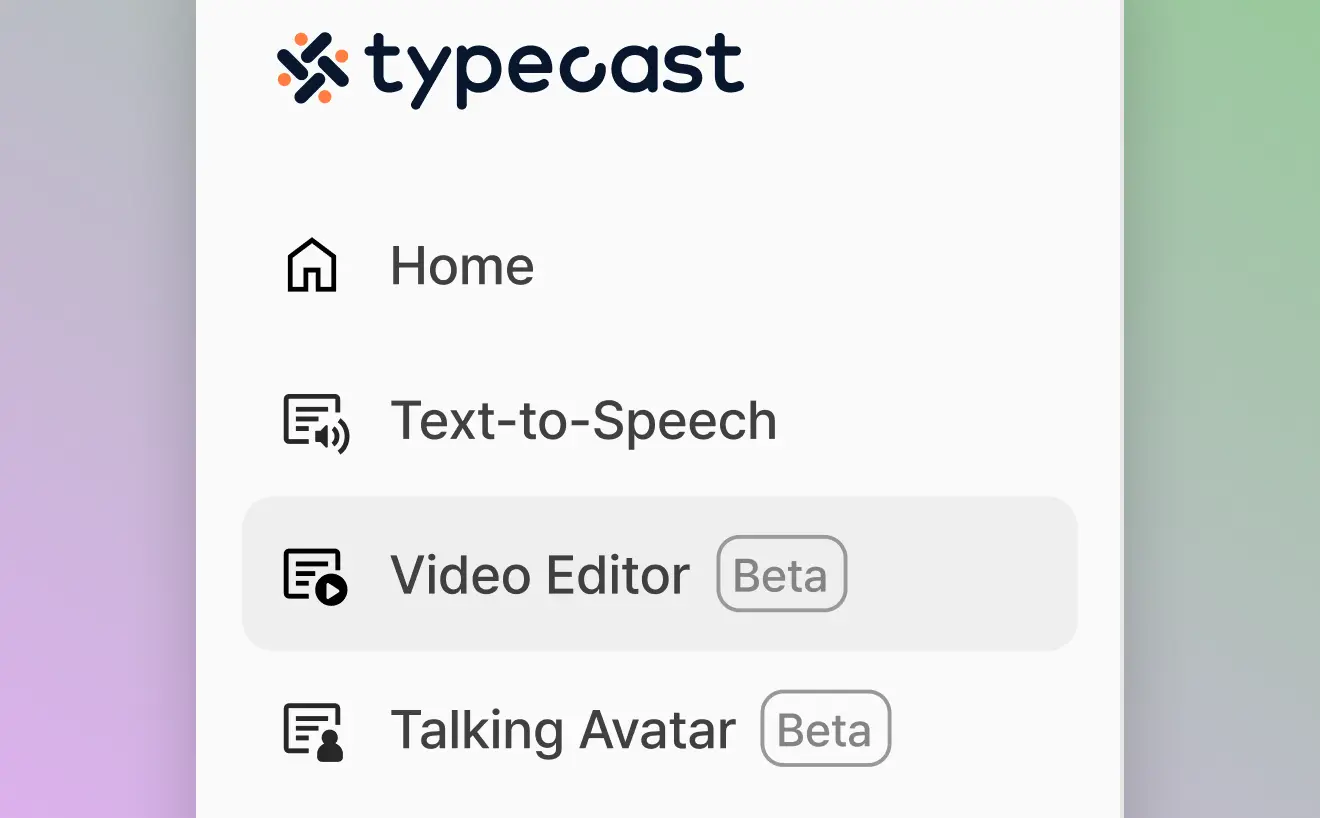
Step 1: Visit our Video Editor tool
Go to Typecast's digital storyboard maker by selecting the Video Editor tool from the menu on the left.
-
STEP 2
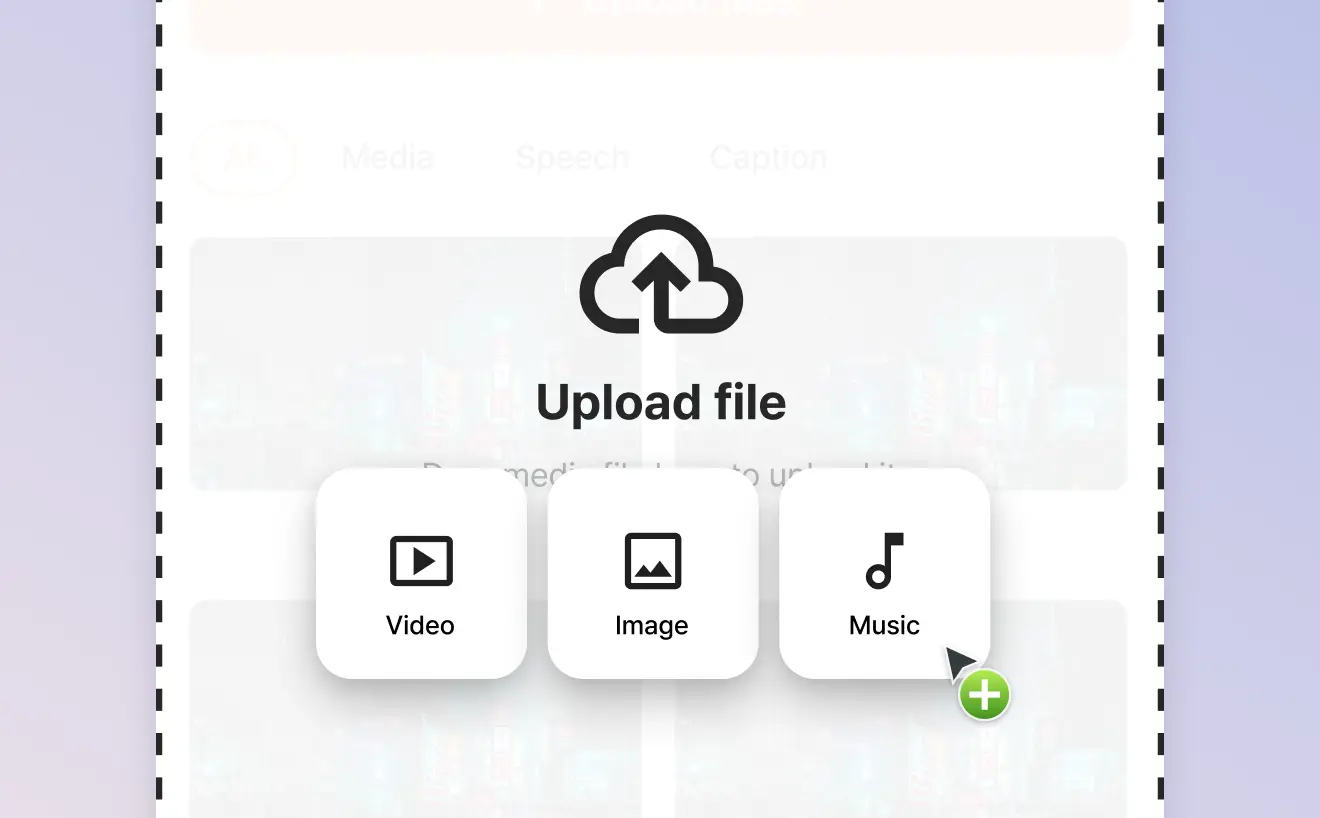
Step 2: Upload a video or image
Start by adding any asset such as an image file, video file or even an audio file.
-
STEP 3
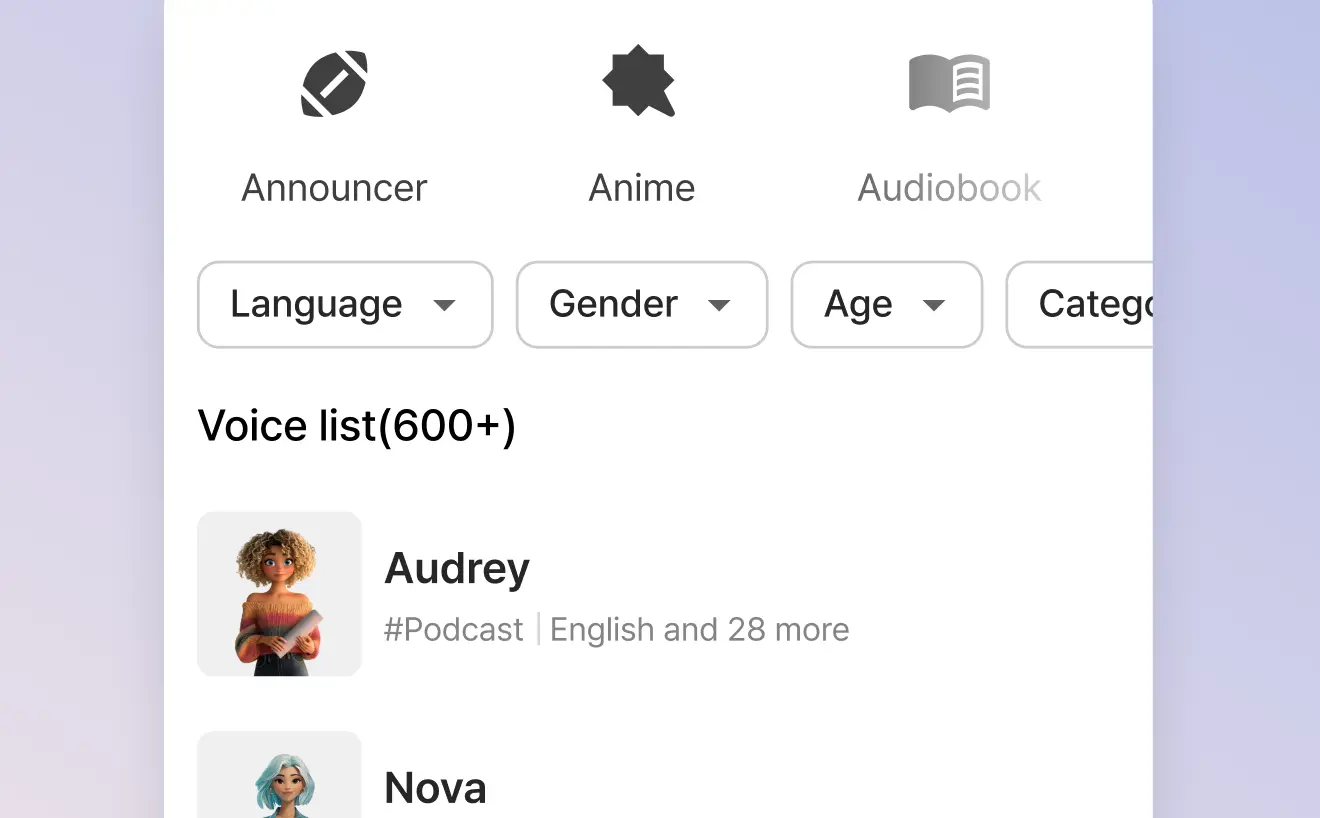
Step 3: Select one or more AI voice actors to voice your video
Click on the script icon then the character icon to browse our Voice Casting library and select as many voice actors needed to voice your video.
-
STEP 4
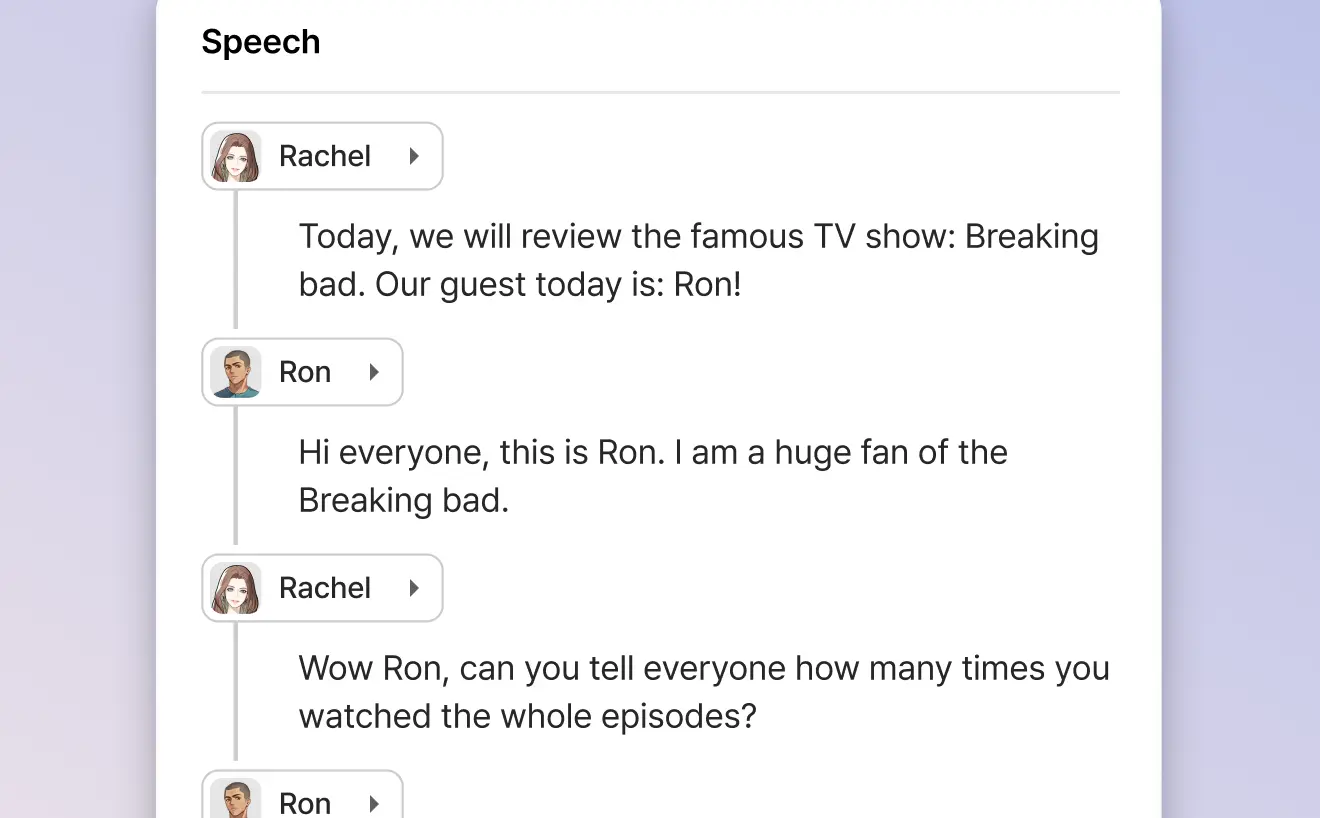
Step 4: Write your video's script
With your AI voice actors selected, you can either start writing your video script or paste one in.
-
STEP 5
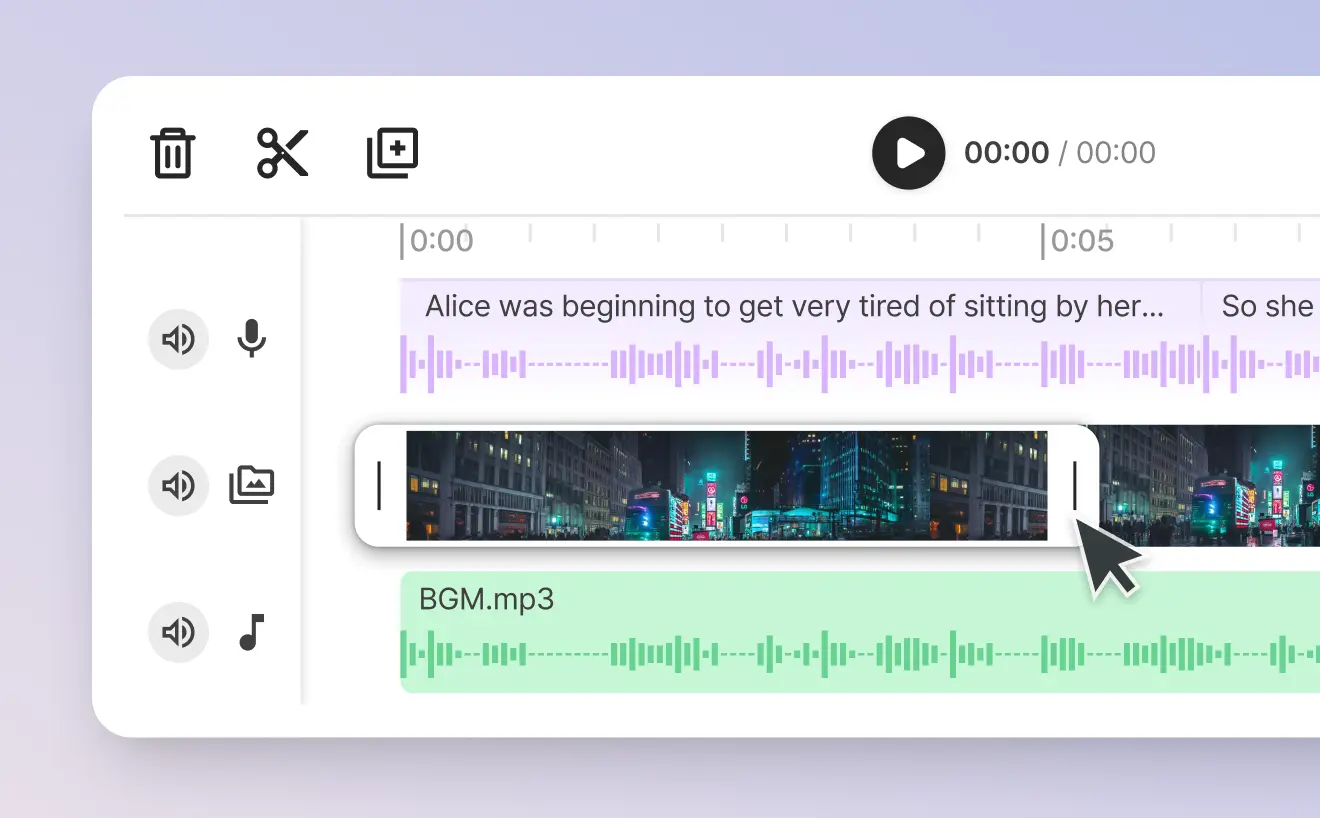
Step 5: Edit, cut, add captions & effects
Edit the video and voiceover together at the same time, as well as adding various transitional effects and captions to engage as many of your viewers as possible.
-
STEP 6
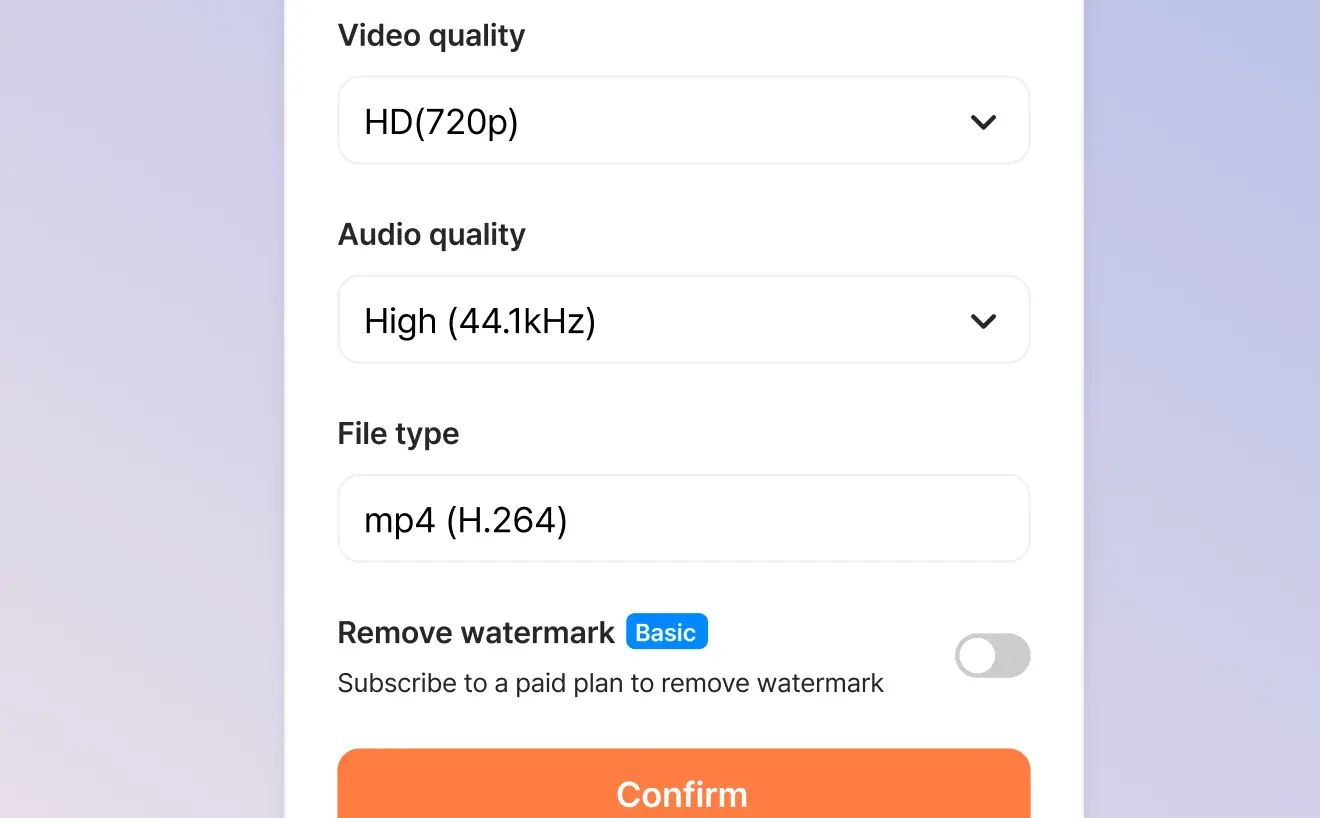
Step 6: Download your finished video
When you're finished, you can automatically export your video in a format suitable for storyboards.
What filmmakers say about our storyboard creator
Plans made for all content creators
Choose the plan that fits your content creation needs.
Free
Try AI voices for free
Voice generation & playback
Lifetime download credits
(~5 mins)
Included features
Attribution is required for all content downloaded on the Free plan.
Attribution guidelinesBasic
Access all AI voices
Voice generation & playback
Monthly download credits
(~35 mins)
Everything in Free, and
Plus
NEWControl voice speed
Voice generation & playback
Monthly download credits
(~50 mins)
Everything in Basic, and
Pro
Most popularFine-tune voices with emotion controls
Voice generation & playback
Monthly download credits
(~90 mins)
Everything in Plus, and
Business
Scalable AI voice platform for teams
Voice generation & playback
Monthly download credits
(~250 mins)
Everything in Pro, and
Frequently asked questions
How do you create a storyboard?
How do you prepare a storyboard?
What is a storyboard used for?
Can I upload hand-drawn storyboards to create a video?
What file formats are supported for storyboard uploads?
How do I sync voice overs to each storyboard panel?
Bring your storyboards to life today
Join filmmakers and creators using Typecast to transform their visual concepts into professional video presentations.