





Learning how to remove background noise from audio can make a recording easier to understand, more comfortable to listen to, and more useful for editing or voice cloning. The best result usually comes from a combination of better recording conditions, careful cleanup, and knowing when a new recording will save more time than aggressive processing.
Background noise is not always obvious while you are recording. Air conditioners, computer fans, traffic, electrical hum, room reflections, and distant conversations can become much more noticeable once the voice is edited, amplified, or placed next to music. This guide explains how to identify those problems, reduce them without damaging the voice, and decide whether to repair or re-record your source audio.
Start by identifying the type of noise

Not all unwanted sound should be treated the same way. Before applying an effect, listen through the recording with headphones and note when the noise occurs.
Common examples include:
- Steady noise: Fan noise, HVAC systems, computer hum, and microphone self-noise that remain relatively consistent.
- Intermittent noise: Keyboard taps, bumps, notification sounds, door closes, or passing vehicles.
- Low-frequency rumble: Traffic, handling noise, desk vibration, wind, or HVAC vibration.
- Electrical hum: A constant tone or buzz, often associated with power sources or connected equipment.
- Room sound: Echo and reverberation caused by hard surfaces and an untreated space.
- Speech bleed: Other people talking, television audio, or a podcast playing in the background.
A steady fan can often be reduced with a noise-reduction process. A loud conversation occurring at the same time as the speaker, however, is far harder to remove cleanly because it overlaps with the frequencies and timing of the voice.
Decide whether cleanup or a re-record is the better choice

Audio restoration can be useful, but it is not a substitute for a clean source. Heavy processing may reduce noise while also making speech sound thin, watery, clipped, or unnatural. If a recording is intended for voice cloning, those artifacts may become part of the source material and reduce the quality of the result.
Consider re-recording when:
- The speaker is difficult to understand without extreme noise reduction.
- Noise changes constantly throughout the recording.
- Other voices overlap with the intended speaker.
- The microphone is too far from the speaker, making the room louder than the voice.
- The recording clips or distorts.
- You hear strong echo that cannot be separated from the voice.
Cleanup is often a reasonable choice when the voice is already clear and the noise is subtle, steady, or limited to pauses. For example, a mild computer fan underneath a close-miked narration may be manageable. A recording made beside a busy road is more likely to need replacement.
Improve the recording before you edit
The easiest way to remove background noise from audio is to capture less of it in the first place. A few changes to your recording setup can reduce the amount of restoration required later.
Choose the quietest practical space
Record in a room away from appliances, open windows, active vents, and household activity. Turn off equipment that is not needed for the session, including loud fans, air purifiers, and notification sounds. If you cannot eliminate a sound, wait for a quieter time of day or move to a different room.
Soft materials can help control reflections. Curtains, rugs, upholstered furniture, and blankets do not make a room soundproof, but they can reduce the sharp echo created by bare walls, tile, glass, and hardwood floors.
Move the microphone closer
A closer microphone position generally captures more direct voice and less room noise. Keep the microphone at a consistent distance while speaking, and use a pop filter if plosive sounds are a concern. Avoid placing the microphone directly in the path of an air vent or near a vibrating desk.
Do a short test recording before the full session. Speak at your normal volume, pause for several seconds, and listen back. Those quiet pauses will reveal the room tone and help you notice issues that may be less obvious while you are talking.
Record a short sample of room tone
If you plan to use a noise-reduction tool, record several seconds of the unwanted background sound with no speech. This can give an editor a reference for the noise it should reduce. In Adobe Audition, the Noise Reduction effect can use a captured noise print to identify and reduce background noise; Adobe also cautions that overly aggressive settings can introduce artifacts. Adobe’s Noise Reduction and Restoration documentation explains this workflow and its controls.
How to remove background noise from audio step by step
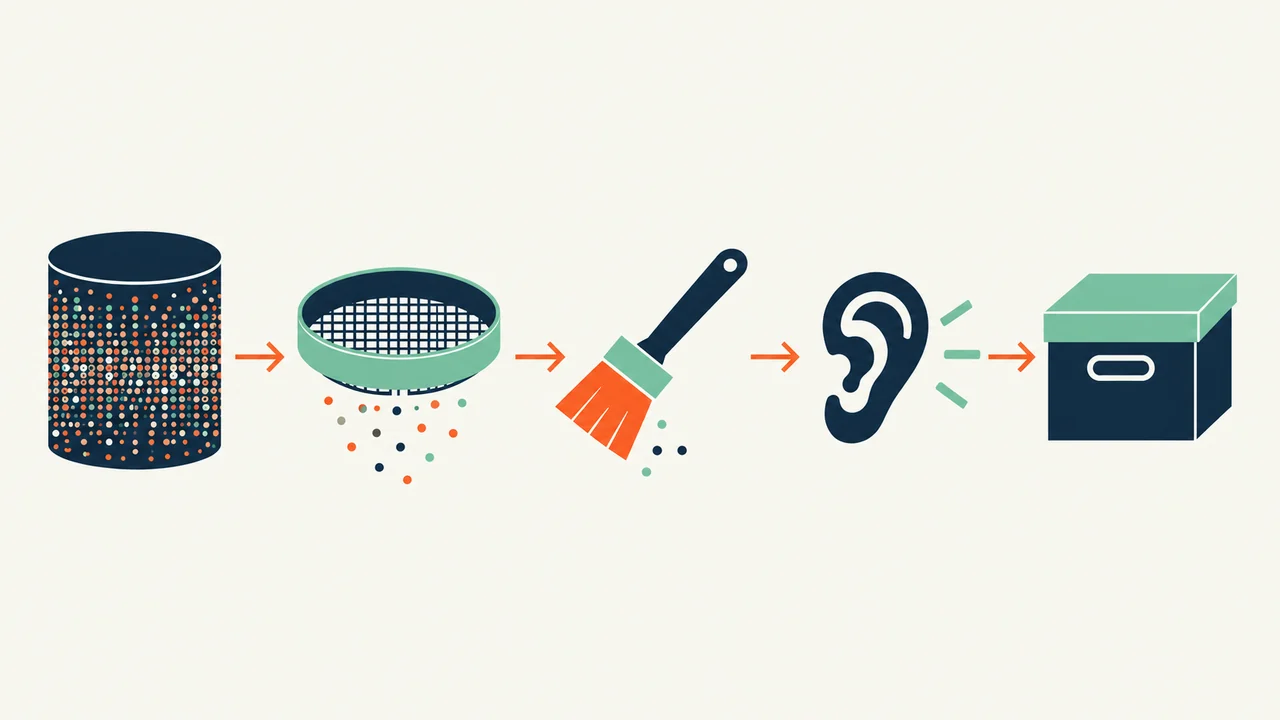
The exact controls vary by editor, but the workflow is similar across many audio applications.
1. Keep an untouched copy of the original file
Duplicate the recording before editing. Work from the copy so you can compare versions and return to the original if an effect makes the voice worse. Name files clearly, such as `interview-original`, `interview-cleanup-v1`, and `interview-final`.
2. Listen for a clean section of unwanted sound
Find a short stretch where the background noise is present but the speaker is not talking. This is often a pause at the beginning or end of a take. Avoid using a section containing breath sounds, mouth noise, keyboard clicks, or partial words as your noise sample.
3. Capture the noise profile when your editor supports it
Many editors let you teach a noise-reduction effect what the unwanted sound resembles. Capture the profile from the clean noise-only section, then apply the effect to the broader clip. If the noise changes from one part of the recording to another, one profile may not work equally well across the entire file.
For variable recordings, divide the audio into sections and process each section more conservatively. This takes longer, but it can produce a more natural result than applying one strong setting everywhere.
4. Apply noise reduction gently
Start with a modest amount of reduction. Then listen to the voice, not just the noise. If consonants lose definition, breaths disappear unnaturally, or the audio develops a swirling texture, reduce the strength of the effect.
It is often better to leave a faint, unobtrusive room tone than to create audible digital artifacts. A listener may accept a low level of consistent background sound more readily than speech that sounds processed or unstable.
5. Use targeted tools for targeted problems
Noise reduction is only one cleanup method. Choose tools based on the specific issue:
- Use a high-pass filter carefully to reduce low rumble or handling vibration below the useful vocal range.
- Use a de-hum tool or narrow equalization cut for a persistent electrical hum.
- Remove isolated clicks, bumps, and notification sounds manually when possible.
- Use a de-esser only if harsh “s” sounds become distracting after processing.
- Apply compression after cleanup, if needed, to make speech levels more consistent.
Avoid stacking multiple heavy effects without checking the result after each step. Processing compounds quickly, and a setting that sounds acceptable on its own may sound unnatural after additional filtering and compression.
6. Edit pauses instead of forcing silence
A noise gate can reduce background sound during pauses, but an aggressive gate may cut off word endings or make the background jump abruptly between silence and room tone. If the recording has only a few noisy pauses, manually lowering those sections can sound more natural.
When editing speech, leave enough room tone between phrases that the recording does not feel unnaturally chopped. If necessary, use a short section of clean room tone to smooth transitions.
7. Compare the processed recording with the original
A/B comparison is essential. Match the playback level as closely as possible, then switch between the original and cleaned versions. Louder audio can seem better even when it is not, so compare clarity, naturalness, and intelligibility rather than volume alone.
Listen on more than one device, including headphones and laptop or phone speakers. Headphones may reveal artifacts, while small speakers can reveal whether the voice remains clear in everyday listening conditions.
A practical test for voice-cloning source recordings

When preparing audio for a cloned voice, run a small comparison before processing an entire recording. Make two short versions of the same passage:
1. A lightly cleaned version with only necessary noise reduction.
2. A more aggressively cleaned version with stronger processing.
Listen for changes in vocal character. Does the stronger version still sound like the same speaker? Are syllables clear? Does the background sound quieter at the expense of natural detail? If the more processed take sounds artificial, use the lighter version or make a new recording in a quieter environment.
Voice cloning works best when the source clearly represents the speaker’s natural voice. If you need a better source, prioritize a quiet room, consistent microphone placement, and clean, deliberate reading over extensive post-production. Before you create a custom voice, make sure you have permission to use the speaker’s voice and that the recording reflects the voice you intend to reproduce.
For a broader overview of preparing and using voice-cloning material in content workflows, see How to Use AI Voice Cloning For Engaging Online Content.
Common background-noise removal mistakes
Removing too much noise
The most common mistake is treating maximum reduction as the goal. Strong settings can suppress fan noise, but they can also flatten vocal detail and create distracting artifacts. Use the least processing that solves the listening problem.
Editing before checking the recording environment
If you can re-record, fix the source first. Turning off a fan or closing a window is usually faster and more reliable than trying to repair the same issue later.
Ignoring inconsistent noise
A noise profile captured from one quiet moment may not match traffic, voices, or appliances that change over time. Process changing noise in smaller sections or re-record when practical.
Using effects to fix clipped audio
Clipping occurs when the recording level is too high and the waveform distorts. Noise reduction will not restore the missing detail. Lower the recording level and capture a new take instead.
Forgetting to save a clean master
Keep the original recording and a high-quality edited master. Export additional versions only after you are satisfied with the cleanup. This makes it easier to revise an edit later without starting from a compressed or heavily processed file.
Final checklist
Before exporting, confirm that:
- The voice is understandable without excessive processing.
- Background noise is less distracting, even if it is not completely gone.
- The recording does not have obvious warbling, clipping, or abrupt noise-gate cuts.
- Loudness is consistent across the clip.
- The edited version still sounds like the original speaker.
- You have retained an untouched original file.
The goal is not always absolute silence. It is a recording where the voice remains natural, intelligible, and appropriate for its intended use. When the source is too noisy to reach that standard with light cleanup, re-recording is usually the better editorial and technical decision.