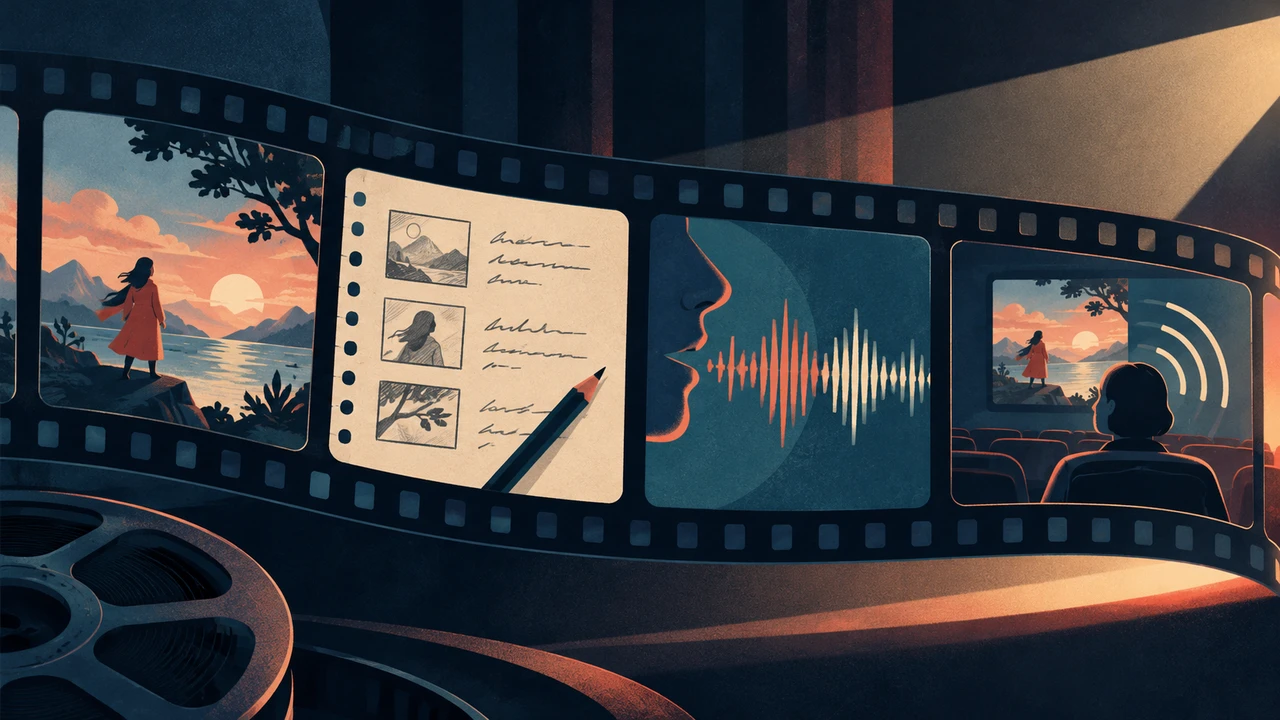




Audio descriptions help make visual information in video available to people who are blind or have low vision. For creators, it is a practical editorial process: identify what viewers need to know, write clear descriptions that fit available pauses, record narration, and review the finished mix. The goal is not to describe every visible detail. It is to communicate the visual context, actions, expressions, text, and changes that matter to understanding the video.
The W3C’s guidance on media descriptions explains that audio descriptions provide spoken information about important visual content during natural pauses in a video’s dialogue or other key audio. That principle gives creators a useful starting point: prioritize meaning, timing, and listener comprehension over exhaustive visual commentary.
This workflow can be used for tutorials, social videos, product demos, explainers, interviews, and narrative content. It also works well alongside a broader editing process in an AI video editor, where you can plan accessibility tasks before the final export.
Start with the finished video and its transcript
Do not begin by writing a description from a rough script alone. Watch the near-final edit first, then review the transcript or dialogue script beside it. An audio description depends on what is actually visible, what is already communicated by sound, and where there is room for narration.
UC San Diego’s extended-description workflow starts with a finalized source video and includes review of description accuracy, voicing, pause placement, and synchronization. For this workflow, lock the edit before recording the final description track.
As you review, mark moments where a listener could miss information without access to the visuals. Common examples include:
- A speaker silently points to a chart or product feature.
- On-screen text changes the meaning of the spoken message.
- A tutorial moves to a new menu, tool, or step without saying so aloud.
- A facial expression, gesture, or reaction changes the tone of a scene.
- A visual transition signals a new location, time, speaker, or topic.
- A graph, slide, screenshot, or demonstration contains information not read aloud.
Also mark the natural pauses between dialogue, narration, or important sound effects. These gaps are the likely homes for description. If there is no usable space, you may need to revise the edit, shorten the spoken content, or consider a separate described version rather than forcing narration over essential audio.
Separate essential information from decorative detail
A useful question is: if someone could hear every word and sound but could not see the frame, what would they need to know to follow the point of this moment?
For example, a creator may not need to describe every item in a home office background. But if a video says, “Notice how the before-and-after setup changes,” the description should identify the relevant differences. Similarly, a silent title card may need description if it introduces a new topic or contains information not spoken elsewhere.
Avoid treating description as a visual inventory. Focus on details that affect comprehension, context, mood, continuity, or the outcome of an action.
Build a description map before drafting

Create a simple working table with four columns: timecode, visual event, essential meaning, and available pause. This map keeps the script tied to the edit and helps you spot places where multiple details compete for limited time.
Here is a hypothetical scene map for a short creator tutorial. It illustrates the planning method; it is not based on a recorded or expert-validated video.
| Timecode | Visual event | Essential meaning | Available pause |
|---|---|---|---|
| 00:00–00:04 | Creator sits at a desk with a phone and laptop. | Establishes a workspace and the tutorial format. | Brief gap after greeting. |
| 00:05–00:11 | Screen recording shows a video timeline. | The creator is editing a clip in a timeline. | No pause; dialogue already explains the action. |
| 00:12–00:17 | Cursor selects a muted clip; waveform appears. | A silent clip is being selected for narration. | Two-second pause after “next.” |
| 00:18–00:24 | A short caption appears beside the clip. | The caption identifies the visual action being described. | Pause after the caption is read aloud. |
| 00:25–00:31 | The finished clip plays with added narration. | The description is mixed into the completed video. | No additional narration during essential audio. |
The map does not need to be complicated. Its purpose is to turn a general accessibility goal into specific editorial decisions.
Write an audio description script that fits the pause
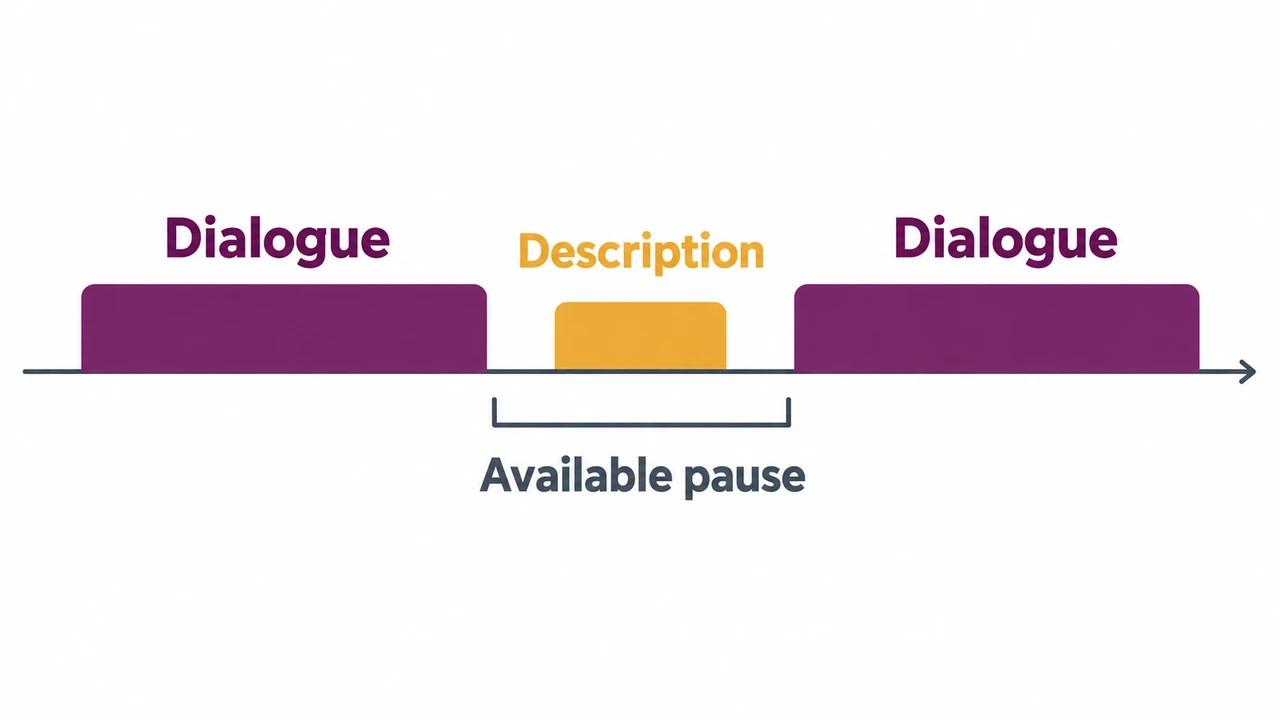
Write in present tense and use direct, concrete language. Describe what happens when it happens, unless a different structure is necessary for clarity. Keep names, labels, and terminology consistent with the spoken content.
A strong description line usually answers one of these questions:
- Who is on screen?
- Where are they, if the setting matters?
- What action is happening?
- What visual result changes the meaning?
- What text or graphic must a listener know about?
For the scene map above, a concise draft could read:
“The creator sits at a desk with a phone and laptop.”
“The muted clip is selected.”
These are provisional lines, not a timed recording. Read the second line aloud against the two-second gap and shorten it if needed. The caption and finished-playback rows need no added line when existing speech already supplies the meaning or essential audio must remain clear.
In this hypothetical example, these lines supply visual context not included in the imagined dialogue. Check both the wording and timing against your actual video before recording.
Keep language neutral unless interpretation is necessary
Prefer observable details over assumptions about intent or emotion. For instance, “She folds her arms and looks away” is more precise than “She is annoyed.” If an expression or gesture is central to the story, describe the visible evidence first. Interpretation may be appropriate when it is clear, important, and needed to understand the scene, but it should not replace description.
Be similarly careful with appearance. Include physical details only when they are relevant to identification, context, or the content itself. A description should support the work, not distract from it with unnecessary detail.
Handle on-screen text strategically
If text is already read aloud, it generally does not need to be repeated. If it is not spoken and changes what the viewer should understand or do, incorporate it into the description. For a tutorial, that might mean naming a button, menu heading, error message, or setting value.
W3C’s integrated-narration technique recommends naming a control and describing the action instead of relying on “this” or “here.” In a generic software tutorial, “Select Export; the confirmation dialog opens” is more informative than “Click here.”
When the screen contains dense information, summarize the takeaway rather than reading every element. A chart may need its trend and conclusion, while a detailed interface may need only the controls required for the current step.
Record narration with timing in mind
Once the script is drafted, read it aloud while watching the video. This is the fastest way to find lines that are too long, too vague, or placed in the wrong moment. A sentence that looks concise on the page can still sound rushed when paired with the edit.
Record in a clear, steady style that differs enough from existing speakers to be recognizable, without becoming theatrical. Maintain a consistent volume and tone across the project. If the source video already includes music or ambient sound, listen closely for moments where narration could obscure information that matters.
If you need a flexible way to produce a draft narration, you can create a text-to-speech voiceover and then evaluate its pacing against the edit. Treat generated narration as part of the editorial workflow: listen for pronunciation, rhythm, emphasis, and whether the voice leaves enough room for the original audio.
Plan for tight edits
Not every video has enough empty space for a complete description. In a fast-paced tutorial or social clip, creators have several editorial options:
1. Rewrite the main narration so it naturally includes key visual information.
2. Shorten nonessential dialogue to create a usable pause.
3. Extend a transition or hold a frame slightly longer.
4. Replace a dense visual sequence with a simpler edit.
5. Create a separately described version when the original timing cannot support adequate narration.
The right option depends on the video’s purpose and audience. What matters is avoiding a rushed description track that competes with dialogue or critical sound.
Mix and review the described version

After placing the narration, review the video from beginning to end without looking at the screen. This listening pass can reveal missing context, but it is an initial editorial check, not proof that the video meets every listener’s needs. Then watch the video normally to check that the narration aligns with the action and does not cover important audio.
Use this reviewer checklist before publishing:
- Does the description cover visuals that are necessary to understand the message?
- Does it avoid repeating dialogue or narrating unimportant decoration?
- Does each line fit naturally into its available pause?
- Are names, pronouns, and labels clear and consistent?
- Is essential on-screen text conveyed when it is not otherwise spoken?
- Does narration avoid covering dialogue, alerts, sound effects, or music that carries meaning?
- Are pronunciation, pacing, and volume consistent throughout?
- Can a listener follow scene changes, demonstrations, and outcomes without seeing the screen?
- Has someone other than the scriptwriter reviewed the described version for clarity?
A second reviewer is useful because scriptwriters already know what is on screen. A fresh listener can flag assumed visual knowledge. Where possible, seek feedback from people who use audio description and an experienced describer. This educational walkthrough and checklist are not expert validation or accessibility certification.
Make an audio description part of production, not a final add-on
The most efficient time to plan an audio description is before the edit is locked. During scripting and storyboarding, creators can make visual information easier to describe by saying important labels aloud, leaving short pauses after demonstrations, and avoiding unnecessary rapid cuts.
For existing videos, a post-production description workflow is still valuable. Start with the highest-impact content: evergreen tutorials, product walkthroughs, educational videos, and pieces where the visuals carry information that the soundtrack does not. As your team develops a repeatable process, scene maps, script templates, and reviewer checklists can reduce the effort required for each new project.
Audio descriptions are ultimately an editorial discipline. When creators identify what visual information matters, write for the available time, and test the narration with real listening passes, the result can be clearer for audiences who rely on description and more intentional for everyone watching.