




An effective explainer video script turns a complicated idea into a short, logical story that viewers can follow without rereading a page or asking for clarification. The script is more than narration: it sets the problem, introduces the solution, directs the visuals, and gives the viewer one clear next step.
This guide provides a practical script structure, a voiceover timing method, and a worked example. It also explains where an explainer differs from a product demo, so you can choose the right format before production begins.
What is an explainer video script?
An explainer video script is a written plan for a short video that explains a concept, service, process, or product benefit. It usually includes two connected tracks:
- Voiceover: What the audience hears
- Visual direction: What the audience sees while the narration plays
The purpose is not to describe every feature or detail. Instead, an explainer establishes context, makes the audience’s problem recognizable, presents a relevant solution, and closes with an action.
A product demo walkthrough has a different job. A demo generally shows how to use a product step by step, often with a screen recording, interface tour, or feature sequence. An explainer can mention the product, but it focuses first on why the product matters and how it changes the viewer’s situation.
Start with one audience and one outcome
Before writing a line of narration, define the person the video is for and the action you want them to take afterward. A broad goal such as “introduce our platform” can lead to a vague script. A specific goal is easier to write and edit.
Use this planning statement:
For [audience] who struggle with [problem], this video explains how [solution] helps them achieve [outcome] so they can [next step].
For example:
For small marketing teams that spend too long coordinating campaign assets, this video explains how a shared workflow helps them organize approvals so they can launch campaigns with fewer delays.
This statement gives the script a decision filter. If a line does not help the audience understand the problem, solution, or next step, consider removing it.
A simple explainer video script structure
Most short explainers can follow a five-part structure. The exact duration will vary, but the order helps the story build naturally.
1. Hook the viewer with a recognizable problem
Open with a situation the intended viewer will recognize. Avoid starting with company history, a mission statement, or a list of features. The first lines should quickly answer, “Why should I keep watching?”
A useful hook often names a frustration, missed opportunity, or recurring task.
Example:
Keeping a campaign moving should not require searching through scattered feedback, files, and approval emails.
2. Add context and stakes
Briefly show what the problem costs the audience. This could be time, inconsistency, uncertainty, or a difficult process. Keep the stakes realistic and specific to the audience.
Example:
When information lives in too many places, simple updates take longer, deadlines become harder to manage, and teams lose visibility into what needs attention.
3. Introduce the solution
Present the solution as a response to the problem. At this point, viewers should understand why the solution exists before they hear how it works.
Example:
A shared campaign workflow brings planning, review, and approvals into one clear process.
4. Explain how it helps
Choose two or three benefits that connect directly to the earlier problem. If you need to mention features, translate them into an audience-facing outcome.
Instead of writing, “The platform includes approval status labels,” write:
Everyone can see what is ready, what needs feedback, and what is holding up the next step.
5. End with one call to action
The closing should match the video’s place in the customer journey. For an awareness video, the action may be to learn more. For a product page video, it may be to start a trial, request a demo, or explore a specific workflow.
Keep the call to action direct:
See how your team can simplify campaign approvals.
Voiceover timing: how to estimate script length

A voiceover usually sounds clearer when it has room for natural pauses, emphasis, and transitions. Timing is not only about word count; it also depends on sentence complexity, proper names, on-screen actions, and the tone of the delivery.
As a starting point, many explainer scripts land around 130 to 150 spoken words per minute. A slower pace can work better for technical material, emotional stories, or videos with detailed visuals. A faster pace may suit a simple, familiar topic, but it can make the narration feel rushed.
Use this quick calculation:
Estimated duration in seconds = (script word count ÷ words per minute) × 60
For a 60-second explainer at 140 words per minute:
(140 ÷ 140) × 60 = 60 seconds
Then add time for elements that do not fit neatly into the word count:
- A logo reveal or opening title
- A deliberate pause after an important statement
- A screen transition or animated sequence
- Time for viewers to read essential on-screen text
- A final call to action
Read the script aloud before locking the timing. Silent reading tends to hide awkward phrasing and underestimates pauses.
Explainer video script template
Use this template as a starting point. Replace the brackets with details that matter to your audience.
Opening: 0–10 seconds
Voiceover:
[Audience] often face [specific problem]. When [problem occurs], it can lead to [practical consequence].
Visual direction:
Show the audience in a recognizable situation. Keep the visual focused on one friction point.
Problem: 10–25 seconds
Voiceover:
The usual approach means [inefficient process or limitation]. That makes it harder to [desired outcome].
Visual direction:
Illustrate the process becoming confusing, slow, fragmented, or difficult to manage.
Solution: 25–40 seconds
Voiceover:
[Product, service, or approach] gives you a simpler way to [core outcome].
Visual direction:
Introduce the solution clearly. Show the shift from the old process to the new one.
Benefits: 40–55 seconds
Voiceover:
With [solution], you can [benefit one], [benefit two], and [benefit three].
Visual direction:
Pair each benefit with one visual action or proof point. Do not overload the screen with unrelated messages.
Call to action: 55–65 seconds
Voiceover:
[Take the next action] and see how [solution] can help you [desired outcome].
Visual direction:
Show a simple final screen with the action and a consistent brand treatment.
Worked example: a 60-second explainer script
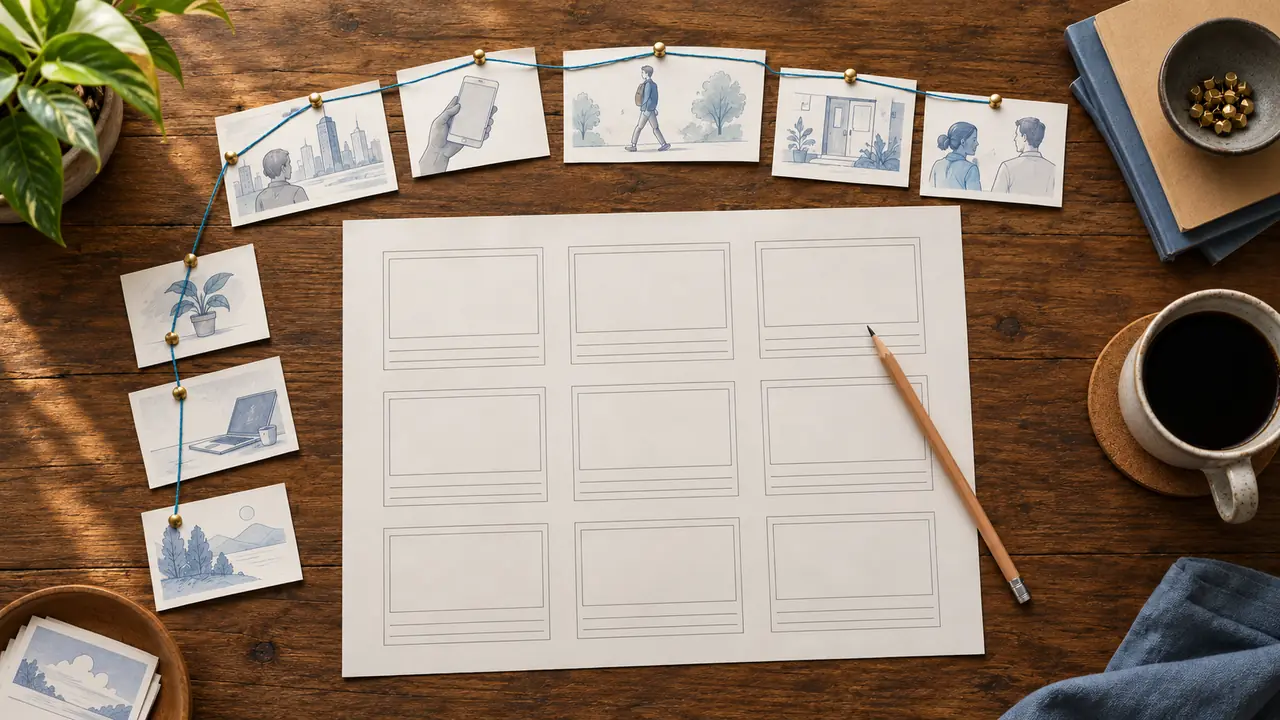
The following example uses a fictional campaign workflow tool. At roughly 138 spoken words, it is designed to leave a little room for transitions and pauses in a 60-second edit.
| Time | Voiceover | Visual direction |
|---|---|---|
| 0–8 sec | Launching a campaign should not mean chasing feedback across emails, chat threads, and shared folders. | A marketer switches between several cluttered tabs and messages. |
| 8–18 sec | When files, comments, and approvals are scattered, even small updates can slow down the whole team. | Revision requests pile up; a deadline indicator approaches. |
| 18–28 sec | A shared campaign workflow keeps the work moving in one place. | The scattered windows resolve into one organized workspace. |
| 28–42 sec | Teams can organize assets, collect feedback, and see exactly what needs approval next. | Assets move through clear stages: draft, review, approved. |
| 42–53 sec | That means less time searching for status updates and more time improving the campaign itself. | The team reviews a polished campaign and moves confidently to launch. |
| 53–60 sec | Bring clarity to your campaign process and keep every next step visible. | Final message and call to action appear on screen. |
Write for the ear, not the page
Voiceover copy should be easy to understand the first time someone hears it. That usually means writing with shorter sentences, familiar terms, and a clear sequence of ideas.
Try these editing practices:
- Put the main point near the beginning of each sentence.
- Use contractions when they fit the brand voice and make the narration sound natural.
- Replace stacked clauses with separate sentences.
- Read acronyms, numbers, and product names aloud to test their rhythm.
- Avoid repeating on-screen text word for word unless repetition is intentional.
- Give each visual enough time to communicate one idea.
If your video includes important spoken information, plan accessibility from the scripting stage. Guidance for publishing videos recommends providing captions and transcripts, and considering audio description when visual details are needed to understand the content (UK Government video guidance). A clean script makes those supporting materials easier to prepare and review.
Match narration to visual pacing

A common scripting problem is assigning too much narration to a visual that takes time to understand. A complex chart, interface view, or process diagram may need a pause before the next point begins.
For every row in your script, ask:
1. What should the viewer notice first?
2. How long will that visual take to understand?
3. Does the voiceover support the visual rather than compete with it?
4. Is there one main message in this moment?
If a section feels crowded, cut a benefit, simplify the visual, or extend the runtime. Trying to solve a pacing issue by speeding up the narration often reduces clarity.
Create and review the voiceover
Once the script is stable, make a rough narration track before finalizing animation or editing. A temporary read-through can reveal where the wording runs long, transitions feel abrupt, or visual directions need more room.
If you are producing narration with synthetic voices, you can create a text-to-speech voiceover after preparing a script that is concise, conversational, and paced for listening. Review the result alongside the visual sequence, not as audio in isolation.
For broader planning around campaign content, distribution, and production workflows, explore Typecast’s guide to AI marketing.
Final explainer script checklist
Before recording or generating the final voiceover, check that your script:
- Opens with an audience problem rather than a feature list
- States one clear promise or outcome
- Separates visual direction from spoken narration
- Uses benefits that connect to the original problem
- Leaves time for transitions, reading, and emphasis
- Includes only one primary call to action
- Sounds natural when read aloud
- Supports captions, transcripts, and other accessibility needs
A strong explainer does not attempt to explain everything. It gives the right audience enough clarity to understand the value, remember the message, and take the next step.