




To normalize audio is to adjust its level to a chosen target. For voiceover work, the goal is not simply to make every clip as loud as possible. The goal is to create audio that is clear, consistent, and free from clipping, harshness, or unexpected jumps in volume.
Normalization can be useful when you are combining recordings from different microphones, fixing a voiceover that is too quiet, or preparing narration for a video. Used without checking the source audio first, however, it can raise background noise, expose distortion that was already present, or create uneven results between clips.
This guide explains what normalization does, when to use it, and how to check your work in a video editor.
What it means to normalize audio
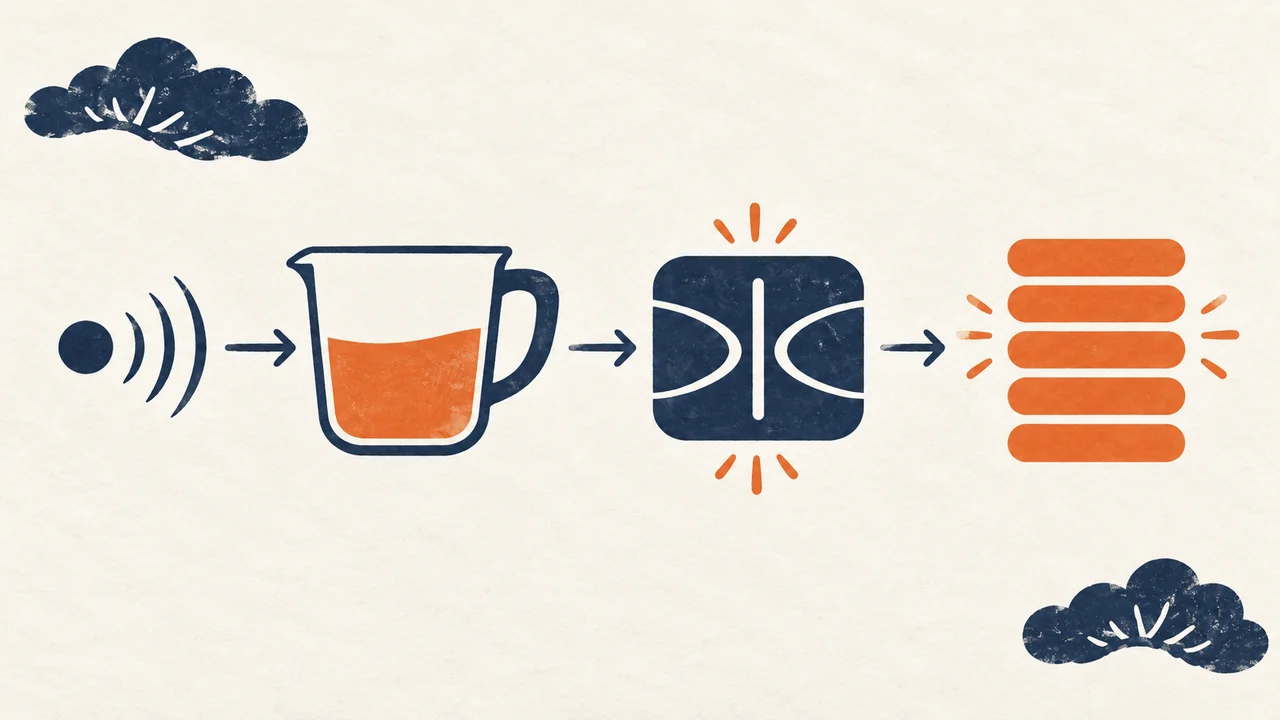
Audio normalization changes the gain of an entire audio clip so that it reaches a specified level. Depending on the tool, that target may be based on a peak value or an overall loudness measurement.
Peak normalization
Peak normalization looks for the highest sample peak in a clip and raises or lowers the entire file so that peak reaches a selected target. For example, if the loudest point in a voiceover is far below the target, peak normalization increases the full clip by the same amount.
This can be helpful for preventing a clip from exceeding a ceiling. But peak normalization does not necessarily make two clips sound equally loud. A recording with one sharp consonant or transient may hit the target while the rest of the narration still sounds quiet.
Adobe describes normalization as an amplitude adjustment that can set a file or selected audio to a specified peak amplitude in its amplitude and compression effects documentation.
Loudness normalization
Loudness normalization uses a measurement intended to better reflect perceived volume over time. It can be more useful than peak normalization when you need several voiceover clips to feel consistent to a listener.
A narrator may have a few loud syllables but a generally soft delivery. Another narrator may have lower peaks but a denser, more consistently loud delivery. Peak normalization could leave those recordings sounding noticeably different. Loudness-based adjustment provides a more useful starting point for matching them.
Normalization is not compression
Normalization changes the level of the entire clip by a fixed amount. Compression changes the relationship between loud and quiet parts within the clip.
If a narration has a wide dynamic range, normalization alone may not solve the problem. Raising the clip enough for quiet words to be heard could make louder words too close to the peak ceiling. In that situation, gentle compression may help control the loudest moments before or alongside level adjustment.
Why normalization can cause problems
Normalization does not create distortion by itself when there is adequate headroom and the source is clean. Problems usually happen when an editor treats normalization as a one-click repair for every audio issue.
It can raise noise with the voice
Normalization raises the whole signal. That includes room tone, microphone hiss, computer fan noise, and any background sound captured in the recording.
If a quiet recording has a poor signal-to-noise ratio, making it louder may make its defects more noticeable. Consider reducing noise or recording a cleaner take before relying on gain changes.
It cannot repair clipped recordings
Clipping happens when the recording or processing chain exceeds the available maximum level. Once a waveform has been clipped during recording, lowering or normalizing it later will not restore the missing waveform detail.
Listen for crackling, crunchy consonants, flattened waveform tops, or rough distortion on louder words. A replacement recording is often the best solution when clipping is clearly audible.
It may create inconsistent results across clips
Peak-normalizing a group of clips independently can make each file reach the same maximum peak while leaving their perceived loudness mismatched. This is especially common when clips have different speaking styles, microphone distances, or background-noise levels.
For a multi-clip project, compare clips after normalization and make small adjustments in context. A level that works in isolation may not work when music, sound effects, and other dialogue are present.
A practical workflow to normalize voiceover audio

The following workflow is designed for narration in a video editor. The exact controls vary by application, but the sequence remains useful across tools.
1. Start with the cleanest available recording
Before changing levels, listen through the full voiceover. Note any clipped words, abrupt level changes, long pauses, breaths, room noise, or unwanted background sounds.
Normalization works best after obvious recording issues have been addressed. If you are creating narration from scratch, it is also helpful to begin with a consistent source. You can create a text-to-speech voiceover and then review the resulting clip in the context of the final edit before making level decisions.
2. Measure the clip before processing
Open the editor's audio meters or loudness-analysis tool, if available. Record the peak level and, where supported, the integrated loudness reading for the complete narration.
This baseline helps you understand whether the issue is overall level, dynamic range, or a problem limited to a few moments. It also gives you a meaningful before-and-after comparison instead of relying on memory.
Do not judge levels only by the visual height of the waveform. A large waveform can still contain noisy or distorted audio, and a smaller waveform may be clear but need a measured gain adjustment.
3. Choose a target that leaves headroom
Set a reasonable peak ceiling rather than aiming for the absolute maximum possible value. Leaving headroom helps reduce the risk of overload when clips are combined, exported, or processed further.
The right target depends on the destination, the platform's delivery requirements, and the rest of the mix. Avoid assuming there is one universal loudness setting for every video. Instead, use the requirements of the intended distribution channel and confirm the final mix with meters and listening checks.
4. Normalize one representative clip first
Choose a typical section of narration and apply normalization to it. Then listen on headphones and speakers, if possible. Check whether the voice sounds natural, whether background noise has become distracting, and whether the clip sits appropriately with the project audio.
If the result is too quiet despite reaching the peak target, the issue may be dynamic range rather than peak level. If the result is loud but unpleasant, investigate noise, distortion, or overly aggressive processing instead of continuing to raise the level.
5. Match related clips in context
Once you have a workable reference clip, compare the remaining clips against it. Use loudness measurements where available, but make final adjustments while listening to the sequence.
Pay particular attention to transitions between sentences recorded at different times. A small gain change can be enough to prevent a noticeable jump when one clip follows another.
6. Recheck peaks after every major adjustment
Compression, equalization, limiting, music, and effects can all affect peak levels. Recheck meters after applying processing and again after assembling the full timeline.
A clean voiceover can still overload after it is combined with other elements. Review the complete mix, not only the narration track in solo mode.
When to use normalization, compression, or manual gain
These tools solve different problems. Choosing the right one makes it easier to avoid distortion and unnecessary processing.
| If the problem is… | Try this first | Why |
|---|---|---|
| The whole clip is consistently too quiet or too loud | Normalization or clip gain | A fixed gain change may be sufficient. |
| Different clips have inconsistent overall volume | Loudness comparison and clip-level adjustment | Matching perceived level is more useful than matching peaks alone. |
| Quiet and loud words vary too much within one take | Gentle compression | Compression can reduce excessive dynamic range. |
| A few words or breaths are unusually loud | Manual gain edits or automation | Targeted edits avoid changing the entire recording. |
| The recording sounds crunchy or broken | Replace or repair the source where possible | Lowering the level does not undo clipping. |
How to check whether your normalized audio is working

A successful result should sound stable without drawing attention to itself. Use both measurement and listening checks.
Check the meters
Confirm that peaks stay below your chosen ceiling. If your editor provides loudness readings, compare related narration clips and look for unexpected differences.
Listen at normal volume
Play the audio at a realistic listening level rather than monitoring unusually loudly. Listen for intelligibility, harsh consonants, pumping, hiss, and sudden changes between clips.
Check transitions and the full mix
A voiceover may sound fine on its own but become buried beneath music or overly dominant after a scene change. Play the full sequence from beginning to end, including transitions, music entrances, and any sections with sound effects.
Test on more than one playback system
Headphones can reveal noise and mouth sounds, while laptop or phone speakers can reveal whether words remain understandable in a limited-frequency playback environment. You do not need to chase identical sound on every device, but major problems should be apparent before export.
Normalize audio as part of the edit, not the final shortcut

Normalization is most effective when it is one step in a deliberate audio workflow. Start with a clean source, measure the original recording, set a sensible target with headroom, and compare the result in the full mix.
For broader editing guidance, see this overview of using an AI video editor. As you build your project, treat level consistency as an editorial decision: the narration should support the message without forcing the listener to adjust volume from one scene to the next.
When in doubt, make smaller changes, listen again, and preserve an unprocessed copy of the original audio. That approach makes it easier to correct problems before they become audible in the final video.