





Text-to-speech speed control lets you choose how quickly a device reads text aloud. Pitch changes how high or low a voice sounds. To find comfortable settings, start with a familiar passage, adjust one control at a time and listen again. The best combination depends on the voice, the content and your own preferences.
This guide focuses on listening to written material, rather than choosing a voice for an advertisement or producing an audio article. Device controls and availability vary, so check the instructions for the version you use.
How text-to-speech speed control differs from pitch
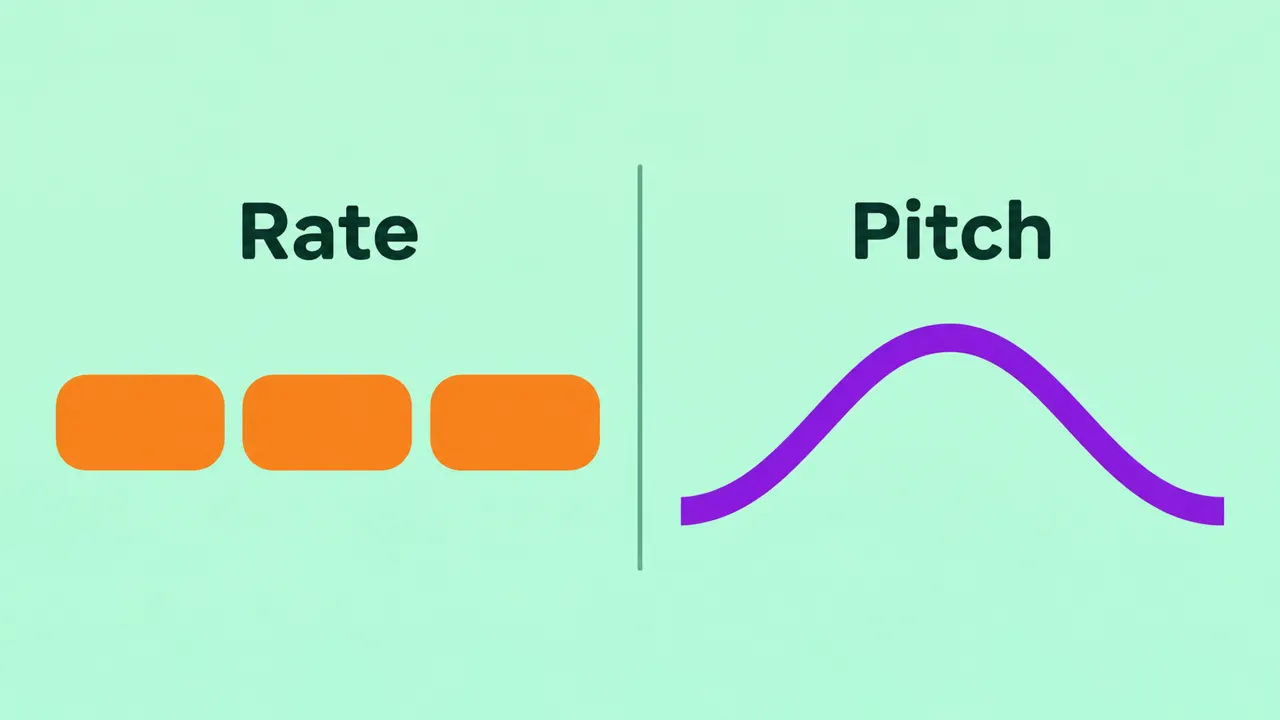
Speed, sometimes called speaking rate or speech rate, changes how fast the words are spoken. A faster rate can help you move through familiar text; a slower rate can give you more time with a new topic, unfamiliar name or detailed instruction.
Pitch changes the perceived highness or lowness of a voice. It does not tell you whether the words are being read faster. A voice that is comfortable for one listener may not be comfortable for another, so use the setting that helps you understand the passage.
The two controls are separate in some text-to-speech systems. Android’s text-to-speech output guide lists both speech rate and pitch among its settings. Available voices, engines and controls can differ by device.
How to find a comfortable reading speed
Choose a short paragraph that resembles what you actually want to hear: a study note, an article or a set of instructions. Start at the device’s current setting and listen to the whole passage. Then change the speed slightly and replay the same passage.
Ask yourself whether you can follow the meaning without repeatedly going back. Pay attention to numbers, names and transitions. If you are missing details, slow it down or divide the material into smaller sections. If the passage feels slow but is still easy to understand at a higher rate, try a modest increase.
There is no universal ideal speed. A familiar story, a technical explanation and a list of unfamiliar terms may each call for different settings. Avoid treating a speed setting as a test of reading ability.
Hear a speed comparison
We made these examples with Typecast text-to-speech. Both use the same fictional script and voice; the generation tempo is different. These are generated audio files, not recordings of device read-aloud controls.
A. Normal tempo (1.0) — 6.30 seconds
B. Slower tempo (0.8) — 8.50 seconds
Transcript: “Take a moment to choose a comfortable pace. Listen to the same passage again, and adjust the reading speed one step at a time.”
How to adjust speed and pitch on Android
Google’s Android accessibility instructions describe a text-to-speech output screen where you can select an engine, language, speech rate and pitch. Open your device settings, look under Accessibility for text-to-speech output, then use the available controls. You can play the system’s demonstration to hear a short example.
The exact menu wording can vary by manufacturer and software version. If you use TalkBack, its reading controls also include a way to change speech rate while reading. Review your device’s current instructions if a control appears in a different place.
How to change speaking rate on iPhone
Apple documents options for having iPhone speak selected text or the screen, along with a speaking-rate control. In the current iPhone guide, these features appear under Accessibility and Read & Speak. Depending on the version, you can adjust the speaking rate in settings or use the on-screen speech controller while listening.
Apple’s guide also describes choosing voices and pronunciations. It does not establish that every iPhone voice exposes a separate pitch slider in the same menu, so check the settings available on your device rather than assuming it matches Android.
Try a voice and a representative passage
Some people prefer to change the voice before adjusting the speed. Choose a voice and language that suit the material, then replay your short passage. Listen for:
- Names, abbreviations and numbers that are easy to understand.
- Pauses that give you enough time to follow the structure.
- A pace that remains comfortable beyond the first sentence.
- Whether the selected voice is still clear when the rate changes.
If a particular word is unclear, check whether your device or app offers a pronunciation setting. A clearer word or a better-structured sentence may help more than repeatedly changing the speed.

Playback speed versus generated narration
There is a useful difference between changing the speed of speech while you listen and changing the delivery of an audio file while you create it. A device’s read-aloud controls help an individual listener adjust an interactive reading experience. A voiceover editor helps a creator prepare narration for an audience or project.
For example, Typecast’s text-to-speech page describes voice controls including speed and pitch for generated speech. If you are preparing narration, preview a representative section, review the current controls for your selected voice, and check the resulting file before adding it to your project. Changing a generated file is a separate step from changing the read-aloud settings on a listener’s phone.
To explore the wider process, see our guide to using text-to-speech online. If you are adapting an entire article for an audience, keep the written version accessible and review the narration against the source.
When the settings do not sound right
If text-to-speech speed control makes a passage harder to follow, return close to the starting setting and try a different short passage. Check that you selected the intended language and voice. If words are still difficult to follow, try a different available voice and adjust the speed again. For a long document, pause between sections and revisit settings when the subject changes.
If the device reads the wrong language, check its language and text-to-speech engine settings. Android notes that the available engines depend on the device and any installed options. If a control is missing, use the device’s current accessibility documentation or contact its support team; menu paths can change after an update.
Frequently asked questions
Can I use text-to-speech speed control without changing pitch?
Many systems offer separate controls, but the options depend on the device and voice. Android lists speech rate and pitch separately in its text-to-speech output settings. Change one control and replay the same passage to hear the result.
Does a faster rate always save time?
It makes the speech progress more quickly, but a setting that causes you to miss details may require more replaying. Choose a rate that lets you follow the content comfortably.
Can I change the speed while listening?
Some experiences allow it. Apple describes rate controls in the iPhone speech controller, and Google describes TalkBack reading controls that include speech rate. Availability and steps vary with device and settings.
Is text-to-speech speed the same as a video player’s speed?
Not necessarily. Text-to-speech controls can affect synthesized reading, while a media player’s speed control changes playback of a recording. The exact behavior depends on the software, so test the control in the experience you intend to use.