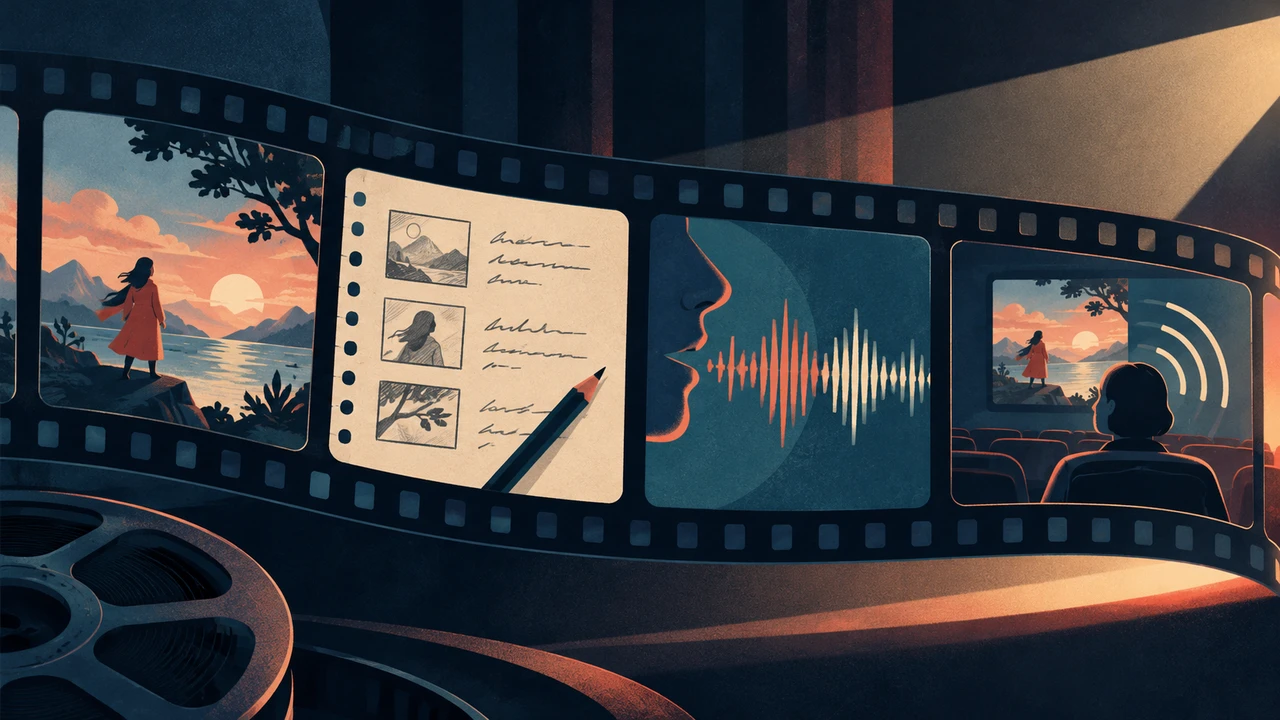





A strong training video script turns a subject-matter expert’s knowledge into clear, repeatable instruction. Rather than treating a script as narration alone, use it as a production document that connects learning objectives, spoken guidance, on-screen actions, visuals, and knowledge checks.
This guide provides a practical template for employee training videos, along with a process for drafting scripts that are easier to review, record, and update. For broader guidance on applying AI across everyday workflows, see how to use AI at work.
What is a training video script?
A training video script is a structured plan for what learners will hear, see, and do during an instructional video. It commonly includes:
- The learning objective
- A scene or section label
- Narration or dialogue
- On-screen text and visual direction
- Demonstrations or screen actions
- Pauses for practice or reflection
- Knowledge-check questions
- Accessibility and production notes
The format can be simple. A short software walkthrough may need only a two-column table for narration and screen actions. A compliance, onboarding, or process-training video may need more detail, including review notes, scenario branches, and references to source procedures.
Writing the script before recording helps teams identify missing steps and unclear transitions. The University of Florida Libraries recommends using a storyboard or script to organize instructional video content and align narration with planned visuals before production. Its instructional video guidance also distinguishes the spoken script from the visual planning needed to support learners.
Start with one measurable learning objective

Before drafting an opening line, define what the learner should be able to do after watching. Avoid broad objectives such as “understand the new process.” Instead, describe an observable action.
For example:
- Weak: Understand expense reporting.
- Strong: Submit an expense report with receipts and the correct cost center.
- Weak: Learn how to handle customer returns.
- Strong: Verify eligibility, issue a return label, and document the resolution in the support system.
A focused objective sets the boundaries of the video. If a step does not help the learner complete the stated task, move it to a separate lesson, job aid, or reference resource.
Build the script around the learner’s workflow
Most employee training is easier to follow when the sequence mirrors real work. A useful instructional structure is:
1. Explain why the task matters.
2. State what learners will be able to do.
3. Show the task from start to finish.
4. Explain decisions, exceptions, and common mistakes.
5. Ask learners to confirm their understanding.
6. Close with the next action or support resource.
This approach prevents a frequent scripting problem: giving background information for too long before showing the process learners came to learn.
Keep each section focused
Break longer topics into short sections with clear labels. For example, an expense-reporting video could use:
- Before you begin
- Create a new report
- Add expenses and receipts
- Select cost centers
- Review and submit
- Fix common submission errors
Section labels help reviewers check coverage, help editors organize visuals, and help learners return to a specific part when they need a refresher.
Training video script template
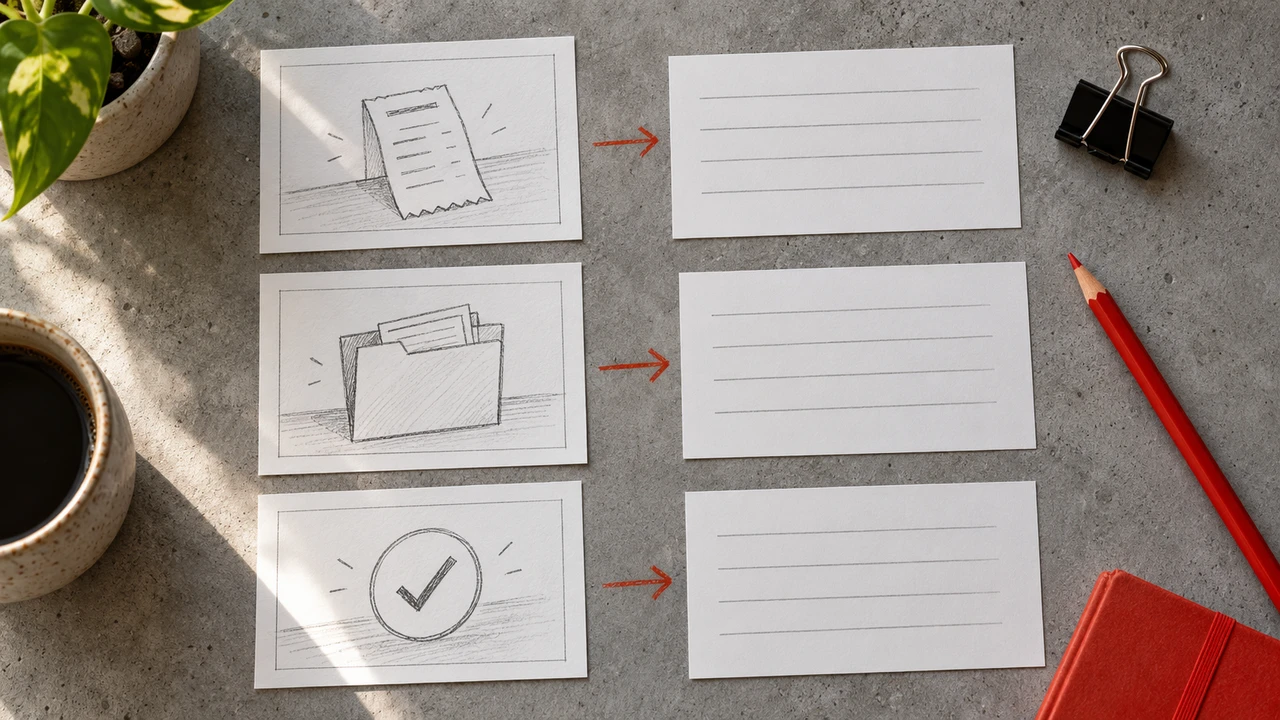
The employee expense example below is an original illustrative workflow, not a description of Typecast’s interface or your company’s policy. Adapt the approval rules to your organization. Time estimates are planning allowances, not measured recording durations.
Copy this template into a document or spreadsheet. Add rows as needed for each scene.
| Section | Time estimate | Visual or screen action | Narration | Learner check | Production notes |
|---|---|---|---|---|---|
| Title and purpose | 0:00–0:15 | Title card; show the completed outcome | “In this video, you will learn how to submit an expense report with receipts and the correct cost center.” | None | Keep title readable and brief. |
| Context | 0:15–0:35 | Show where the task fits in the workflow | “Submit reports within the required timeframe so managers can review and approve expenses.” | None | Remove policy details that are covered elsewhere. |
| Step 1 | 0:35–1:15 | Open the tool and select the relevant menu | “From the dashboard, select Expenses, then choose Create Report.” | “Where do you begin a new report?” | Zoom or highlight the menu selection. |
| Step 2 | 1:15–2:00 | Enter report details | “Enter a descriptive report name and confirm the reporting period.” | None | Show only fields needed for this task. |
| Step 3 | 2:00–3:00 | Add an expense and attach a receipt | “Choose the expense category, enter the amount, and upload the matching receipt.” | “What should be attached to each expense?” | Pause after the upload action. |
| Decision point | 3:00–3:30 | Show two possible category choices | “If an expense could fit more than one category, use the category guidance before submitting.” | “What should you do when the category is unclear?” | Include an approved reference resource if available. |
| Review and submit | 3:30–4:00 | Review page; submit button | “Review the report for missing receipts, incorrect dates, and cost-center errors. Then select Submit.” | None | Highlight the final review checklist. |
| Recap | 4:00–4:20 | Display three-step recap | “Create the report, add complete expense details and receipts, then review before submitting.” | “Which step will you complete before you select Submit?” | End with next-step guidance. |
Write narration that works when spoken aloud

UMass Amherst’s scripting guidance recommends testing conversational language aloud and separating what viewers hear from what they see in a shot list. Read each instruction while checking its matching visual: if the action takes longer than the sentence, leave time for the learner to complete it.
Training narration should sound direct and natural. Employees need enough context to make good decisions, but they should not have to decode dense policy language while trying to follow a demonstration.
Use these writing practices:
Use action verbs
Start instructions with verbs that tell learners what to do: select, enter, review, attach, compare, confirm, and submit. This makes the sequence easier to scan during review and easier to follow during playback.
Instead of: “The report creation option is located within the Expenses section.”
Write: “Select Expenses, then choose Create Report.”
Write one action per sentence
Long sentences can hide multiple steps. When a learner must click, enter information, and check a result, give those actions separate lines or sentences.
Instead of: “Select the category, upload the receipt, and verify that the total matches the transaction.”
Write: “Select the expense category. Upload the receipt. Then confirm that the total matches the transaction.”
Explain the reason behind critical steps
Not every click needs a rationale. However, a short explanation is valuable when a step affects accuracy, compliance, customer experience, or downstream work.
For example: “Review the cost center before submitting. This helps route the expense to the correct budget owner.”
Avoid reading the screen word for word
On-screen labels and narration should support each other, not duplicate each other. If the screen already shows a form field called “Expense Date,” narration can explain what belongs there or when to use a different date.
Plan visuals and narration together
A useful script tells the production team what learners should see at the moment they hear each instruction. For a software tutorial, this may mean a screen recording with cursor movement, highlights, and brief callouts. For a workplace scenario, it may include an actor’s action, a document close-up, or a simple graphic.
Add visual notes that answer these questions:
- What must be visible for the learner to complete this step?
- Which screen area, document field, or physical action needs emphasis?
- Is a zoom, highlight, pause, or example needed?
- Does the visual introduce sensitive, private, or outdated information that must be removed or replaced?
When possible, show the expected outcome after a step. A learner benefits from seeing not only where to click, but also what a correctly completed form, record, or physical setup looks like.
Add knowledge checks where mistakes matter

Knowledge checks do not need to turn every video into a formal assessment. They can be short prompts that encourage learners to pause and apply the instruction.
Place a check after a decision point, a high-risk step, or a common error. Useful formats include:
- “Which option should you select first?”
- “What should you verify before submitting?”
- “What would you do if the receipt is missing?”
- “Pause here and complete this step in your own account.”
For a narrated video, leave enough space after the question for the learner to think. For interactive training, connect the question to a response, feedback message, or practice activity.
Prepare the script for voiceover production
Before recording, read the narration aloud and revise anything that feels overly formal, repetitive, or difficult to say. Mark words that require careful pronunciation, including product names, acronyms, employee names, and technical terms.
If you are using generated narration, finalize the script before creating the audio. Consistent punctuation, short sentences, and clear section breaks can make revisions easier to manage. Teams that need narrated audio can create a text-to-speech voiceover after the instructional content and review language are approved.
Include a pronunciation and recording note when needed, such as:
Pronounce “SLA” as individual letters. Pause briefly after the warning statement. Do not read the URL on screen; direct learners to the linked resource instead.
Review the draft with subject-matter experts and learners
A script can be technically accurate and still be difficult for a new employee to use. Review it with both the process owner and someone who represents the intended audience.
Ask subject-matter experts to verify:
- Steps, terminology, and exception handling
- Required approvals and policy language
- System labels and screenshots
- Links to current procedures or job aids
Ask representative learners to verify:
- Whether the objective is clear
- Whether the sequence matches the task they need to perform
- Whether instructions appear at the right moment
- Which terms or decisions need more explanation
- Whether the pace leaves enough time to act
Final training video script checklist
Before production, confirm that the script:
- States one clear learning objective
- Uses a sequence that matches the real workflow
- Separates narration from visual direction
- Gives one clear action at a time
- Shows the expected result of key steps
- Explains important decisions and exceptions
- Includes knowledge checks where they add value
- Uses current terminology, system labels, and procedures
- Has been reviewed for accessibility, accuracy, and audience fit
- Includes a clear next step for the learner
A training video script is not just a record of what someone will say. It is the instructional blueprint for the learner’s experience. When objectives, narration, visuals, and checks work together, the final video is more likely to help employees complete the task correctly and confidently.