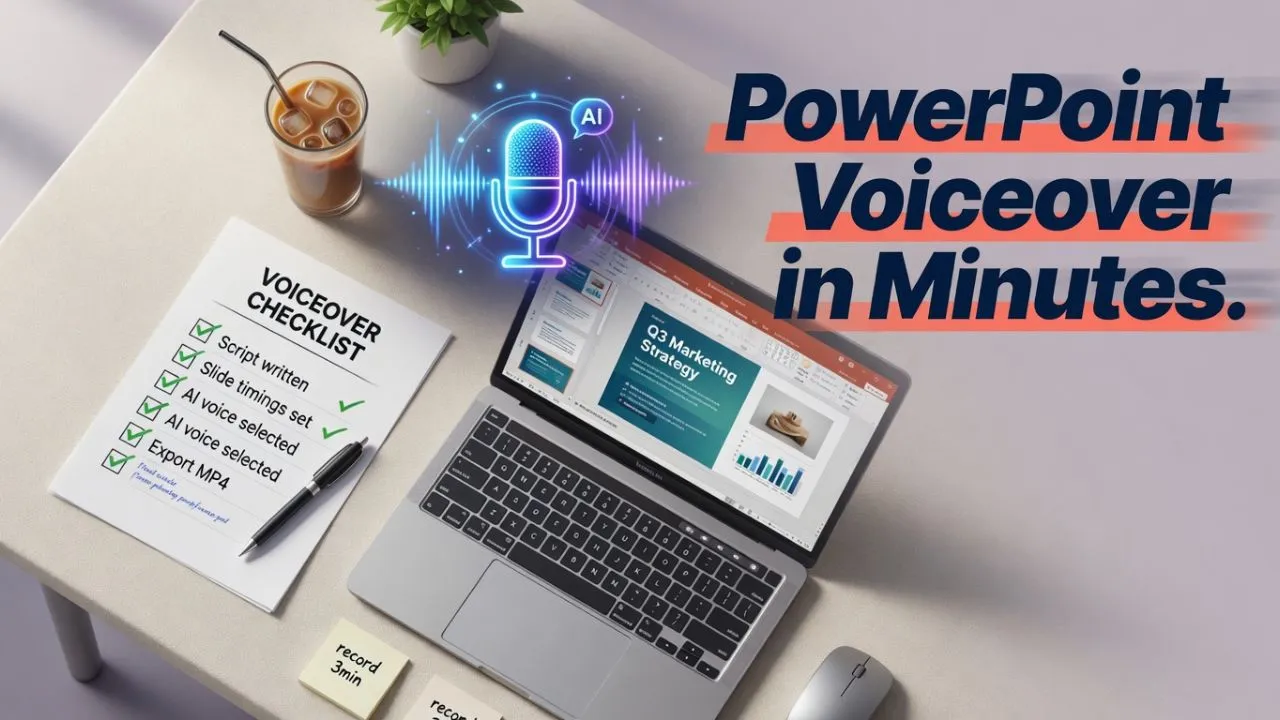





If you have ever wished for an automatic voice over for PowerPoint that simply reads your slides without the hassle of recording yourself, you are not alone. Thousands of professionals search for this exact solution every week because narrating a deck manually is slow, inconsistent, and hard to update.
This tutorial walks you through the easiest way to generate voiceover automatically using AI, embed it in your slides, and export a polished, narrated presentation in under an hour.
Why automatic voiceover matters more than ever
Presentations are no longer confined to conference rooms. They live in learning management systems, client portals, sales enablement platforms, and shared drives where no live presenter is available to explain the slides.
Without narration, a self-running deck is just a slideshow. With it, the same deck becomes a training module, a product walkthrough, or a boardroom-ready briefing that anyone can follow on their own time.
Three reasons teams are switching to AI narration
- No recording setup required. You skip the microphone, the quiet room, and the retakes entirely.
- Instant updates. When your content changes next quarter, you regenerate the audio instead of re-recording from scratch.
- Multilingual reach. Most AI voice platforms support dozens of languages, so one deck can serve global audiences without hiring multiple voice actors.
What you will need before starting
Gather these items so the process goes smoothly:
- A finished PowerPoint file (.pptx) with your slide order and visuals locked in.
- A narration script pasted into the speaker notes of each slide. If you have not written one yet, start with simple, conversational sentences that explain what the viewer is seeing.
- An AI voice platform account. This tutorial uses Typecast as the example tool, but the workflow applies broadly.
- Headphones. Small mispronunciations are much easier to catch with headphones than laptop speakers.
How to create an automatic voice over for PowerPoint
Here is the step-by-step process from script to finished, narrated deck.
Step 1: Write your script in the speaker notes
Open your PowerPoint file and click the Notes pane below each slide. Write exactly what the voiceover should say for that slide.
Keep sentences between 10 and 20 words. Shorter sentences translate to more natural-sounding AI audio and give your audience time to process the visuals on screen.
Step 2: Generate audio with an AI voice tool
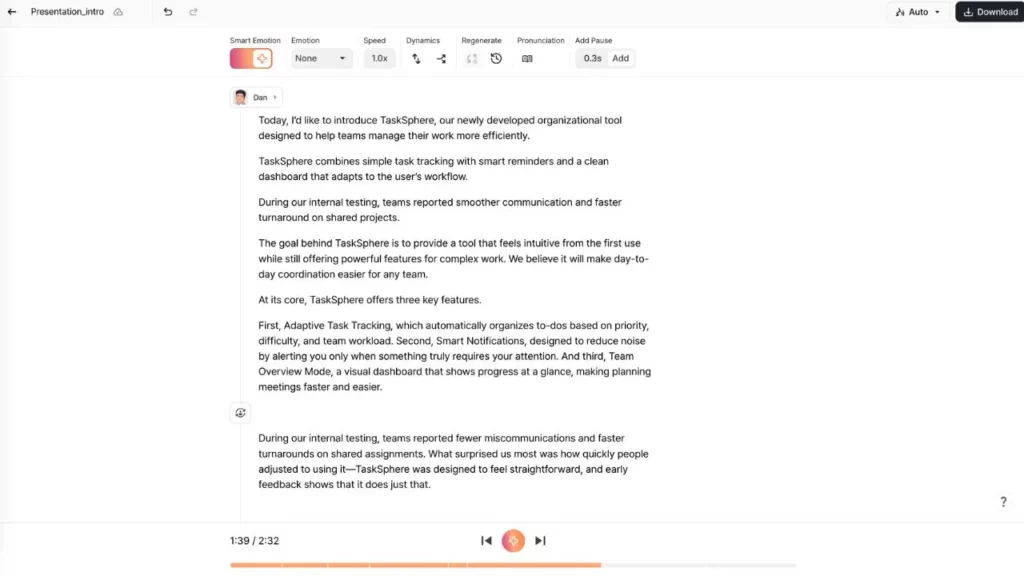
Open your text-to-speech platform. In Typecast, for example, the workflow looks like this:
- Open the editor and browse the narrator voice generator library to pick a voice that matches your content’s tone.
- Paste the script for Slide 1 into the text field.
- Adjust speed, pitch, or emphasis as needed.
- Click generate and preview the output.
- Download the file as MP3 or WAV.
- Repeat for each slide.
Generating one clip per slide (rather than one long file for the entire deck) gives you maximum flexibility when editing or reordering slides later.
Step 3: Insert audio into each slide
Back in PowerPoint:
- Go to the target slide.
- Click Insert > Audio > Audio on My PC.
- Select the audio file you downloaded for that slide.
- A small speaker icon will appear. Drag it to an unobtrusive corner or off the visible canvas area.
Step 4: Configure automatic playback
Click the speaker icon, then open the Playback tab in the ribbon. Set the following:
- Start: Automatically
- Hide During Show: Checked
- Loop until Stopped: Unchecked (unless you specifically want the audio to repeat)
These settings ensure that the voiceover begins the moment the slide appears and that the speaker icon stays invisible during the presentation.
Step 5: Sync transitions to audio length
This is the step that separates a good narrated deck from a frustrating one.
Open the Transitions tab. Under Advance Slide, uncheck “On Mouse Click” and check “After.” Then set the duration to slightly exceed the length of your audio clip.
For instance, if the Slide 4 narration runs 22 seconds, set the advance timer to 24 or 25 seconds. That small buffer prevents the deck from jumping ahead while the voice is still mid-sentence.
Step 6: Preview in slideshow mode
Press F5 to watch the entire presentation from the beginning. Listen for:
- Mispronunciations or awkward phrasing (fix these by tweaking the script in your AI tool and regenerating).
- Slides that advance too quickly or lag too long after the audio ends.
- Volume differences between slides.
Step 7: Export or share
You have two main options once everything sounds right:
- Save as .pptx. The embedded audio files travel with the presentation, so anyone who opens it in slideshow mode will hear the narration.
- Export as video. Go to File > Export > Create a Video, choose 1080p, and let PowerPoint render an MP4. This is ideal for uploading to YouTube, an LMS, or a company intranet.
How to read a Word document aloud and use it for PowerPoint narration
Sometimes your presentation script lives in a Word document rather than in slide notes. Microsoft Word has a built-in Read Aloud feature (under Review > Read Aloud) that lets you hear the text spoken by a default system voice.
This can be useful for proofreading your script before converting it to AI audio. Listen for sentences that feel too long, transitions that sound abrupt, or jargon that might confuse a listener.
However, Word’s built-in voice is limited in customization. You cannot change the voice style, add emotional inflection, or export the audio as a standalone file easily. For actual presentation narration, generating your audio through a dedicated AI voice tool gives you far more control over tone, pacing, and output quality.
As a 2023 study in Computers & Education found:
“The use of a human-like AI voice in instructional multimedia significantly improved learner engagement and information retention compared to robotic-sounding synthesis.”
— Computers & Education, Vol. 201, 2023
Tips for better-sounding automatic voiceover
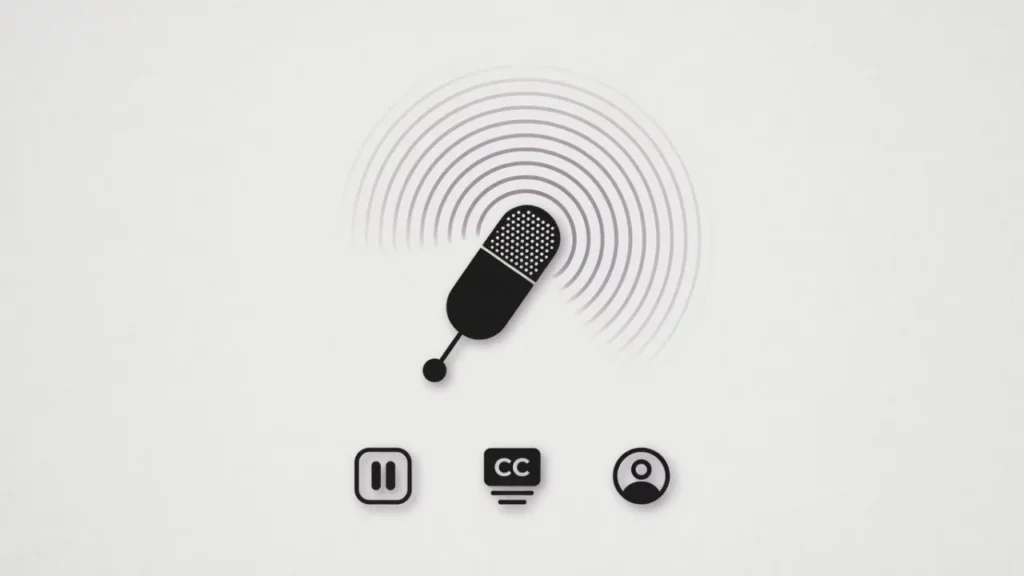
Consider the following tips when it comes to making your presentation’s automatic voiceover for PowerPoint sound more natural.
Match the voice to your audience
A compliance training deck and a product launch teaser demand very different vocal tones. Spend a few minutes auditioning voices before committing. Most platforms, including Typecast, let you preview multiple styles and emotional presets so you can find the right fit quickly.
Use pauses intentionally
Add a comma or a short ellipsis in your script wherever you want the AI to pause. A brief silence before a key statistic or after a section heading helps the listener absorb what was just said.
Minimize on-screen text
If the voiceover says it, the slide does not need to spell it out word for word. Use charts, images, or single-phrase headlines instead of dense paragraphs.
Always add captions or a transcript
Accessibility is not optional. PowerPoint has a built-in subtitle feature (Slide Show > Always Use Subtitles), and providing a downloadable transcript alongside your deck ensures that hearing-impaired viewers can follow along.
Common mistakes and how to avoid them
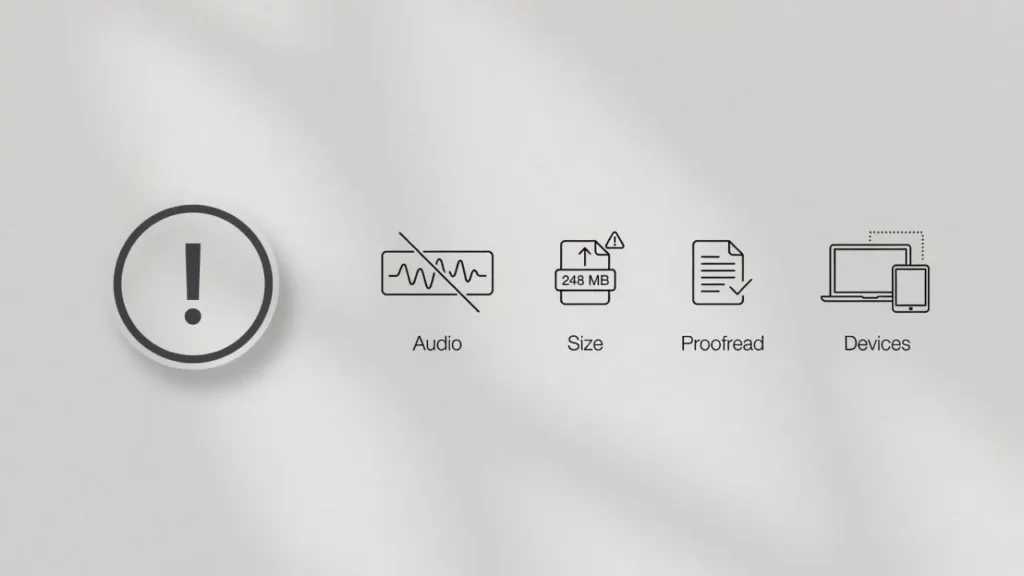
- One audio file for the entire deck. This makes it nearly impossible to edit a single slide without redoing everything. Stick to one file per slide.
- Ignoring file size. WAV files are large. If you plan to email the presentation, export your AI audio as MP3 at 192 kbps for a good balance of quality and file size.
- Skipping the proofread. AI voices read exactly what you type, including typos and misplaced punctuation. Read your script aloud yourself before generating audio.
- Forgetting to test on another device. Embedded audio can behave differently on Mac vs. PC or in older versions of PowerPoint. Always test on at least one additional machine.
When to consider AI voiceover vs. recording yourself
| Scenario | Best option |
| Quarterly training updates | AI voiceover |
| Personal keynote with storytelling | Self-recorded narration |
| Multilingual product demos | AI voiceover |
| Brand video requiring deep emotion | Professional voice actor |
| Weekly internal status decks | AI voiceover |
For recurring, content-heavy presentations, automatic AI voiceover wins on both speed and consistency.
A note on how to add AI voice to PowerPoint using the built-in recorder
PowerPoint does offer a native Record Slide Show feature (Slide Show > Record Slide Show) that captures your microphone audio one slide at a time. It is functional for quick, one-off recordings, but it ties you to your own voice, your own recording environment, and a single take unless you choose to re-record.
For teams that need scalable, editable, and consistently professional narration, the AI-generated workflow described above is a more practical long-term solution.
Wrapping up
Creating an automatic voice over for PowerPoint is simpler than most people expect. Write a clear script, generate audio clips with an AI voice tool, embed them slide by slide, sync your transitions, and export. The whole process can take under an hour for a 20-slide deck.
If you are looking for a starting point, the narrator voice generator library at Typecast offers a range of natural-sounding voices you can preview and customize before downloading.
The hardest part is writing a good script. The technology handles the rest.