




If you have ever wanted to know how to add sound to PowerPoint, you are in the right place. A well-placed audio clip or voiceover for PowerPoint can transform a quiet slide deck into an engaging experience.
Sound adds energy, emotion, and clarity to your slides. It keeps your audience focused and helps your message land.
This beginner’s guide walks you through every step, from inserting a simple clip to adding clean narration. Whether you are a business owner, marketer, or developer, you will finish with a deck that sounds as good as it looks.
Why sound makes your presentations better

Sound is one of the most underused tools in presentation design. Used well, it turns a flat deck into something memorable.
Audio cues guide attention and signal transitions. Music sets a mood, while narration explains your points without crowding the slide with text. Nielsen Norman Group states that “Multimedia elements like audio can significantly improve engagement and information recall.”
The result is a presentation that works even when you are not there to present it live.
Types of sound you can add
Before you start, it helps to know what kind of audio fits your goal. Each type serves a different purpose.
Common options include:
- Background music to set a tone or mood
- Sound effects to highlight transitions or clicks
- Voiceover narration to explain each slide
- Recorded audio files from interviews or clips
Most presentations use a mix. A little music plus clear narration often delivers the strongest result.
How to add sound to PowerPoint step by step
PowerPoint makes it simple to insert audio on both Windows and Mac. The process takes just a few clicks.
Step 1: Open the insert menu
Open your presentation and select the slide where you want the sound. Go to the Insert tab at the top of the screen.
Look for the Audio button, usually on the right side of the ribbon. This is where all your sound options live.
Step 2: Choose your audio source
Click Audio and you will see two main choices. You can insert audio from a file on your computer or record audio directly.
To learn how to add sound clips to PowerPoint from your device, select Audio on My PC. Browse to your file and click insert.
Step 3: Record audio directly
If you want to capture your own voice, choose Record Audio instead. A small window opens where you can record, stop, and play back.
This is handy for quick narration without leaving PowerPoint. Name your clip, record, and click insert when done.
Step 4: Adjust playback settings
Once the audio is on your slide, a speaker icon appears. Click it to reveal the Playback tab with your options.
Here you can control how and when the sound plays:
- Start automatically or on click
- Play across multiple slides
- Loop until stopped
- Hide the icon during the show
- Trim the clip to the right length
These settings give you full control over timing and flow.
Step 5: Test before you present
Always run your slideshow to confirm the sound plays as expected. Check the volume and timing on the actual device you will use.
According to the Harvard Business Review, “Testing your setup before a presentation is the simplest way to avoid technical surprises.”
A quick rehearsal saves you from awkward silence or audio that fires at the wrong moment.
Tips for using sound effectively

Adding sound is easy. Using it well takes a little thought.
Keep these guidelines in mind:
- Use music at a low volume so it never overpowers your voice
- Avoid stacking too many sound effects on one slide
- Match the tone of the audio to your message
- Keep clips short and purposeful
- Always check copyright before using music or effects
Less is usually more. A few well-chosen sounds beat a deck cluttered with noise.
Adding clear narration with an AI voice
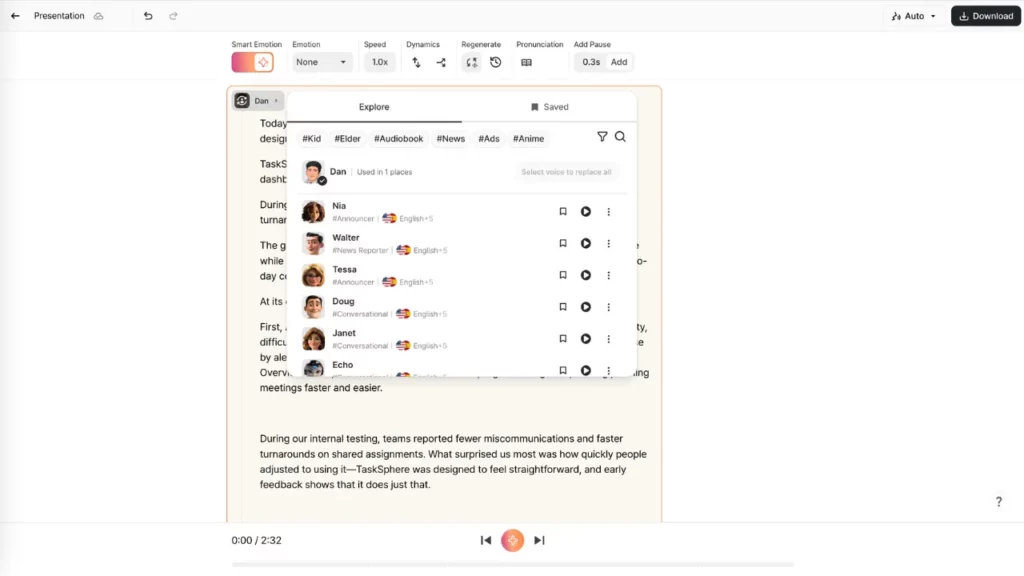
Sometimes you need a voiceover for PowerPoint but lack a quiet space or recording gear. This is where AI narration becomes a real help.
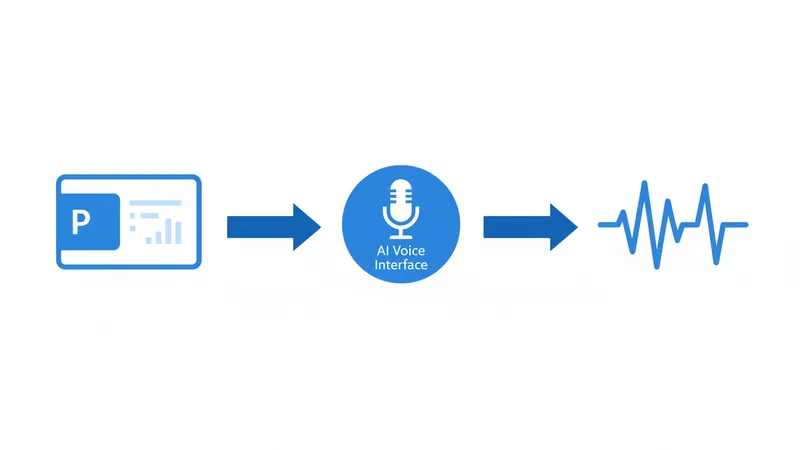
Typecast lets you create natural AI narration voices that you can drop straight into your slides. You type your script, generate the audio, and add the file to PowerPoint.
This approach removes the need for a microphone or studio. It also keeps your narration consistent across every slide and every deck.
Editing is just as simple. If you change a slide, you regenerate that single line instead of re-recording everything.
Why AI narration works for busy teams
For teams managing many presentations, AI narration saves real time. Everyone can use the same voice, so your content stays on brand.
It also makes updates painless. When figures or messaging change, you refresh the audio in minutes rather than hours.
This flexibility is a big reason creators explore how to add narration to PowerPoint with AI tools rather than recording every time.
Common mistakes to avoid
Even simple audio can go wrong. Watch out for these issues.
- Setting clips to autoplay when you wanted manual control
- Using files that are too large and slow to load
- Forgetting to embed audio, which breaks links on other devices
- Choosing music that distracts from your point
- Skipping the final playback test
A quick review catches most of these before your audience does.
Final thoughts

Knowing how to add sound to PowerPoint opens up a more dynamic way to present. With a few clicks, you can layer in music, effects, and clear narration.
Start small with one slide and one sound. As you grow comfortable, mix in narration and AI voices to scale your decks.
Your presentations will feel more polished, more engaging, and far more memorable. Your audience will notice the difference.