




Learning how to make videos with AI voices starts with a simple idea: match the voice, visuals, and pacing to one clear viewer goal. An AI voice video can help turn a written script into an explainer, social clip, tutorial, product overview, or internal presentation without recording narration yourself.
The strongest results do not come from adding a generated voice at the end of a finished edit. Instead, build the script, voice delivery, visuals, captions, and timing as one workflow. That approach makes it easier to spot awkward phrasing, mismatched scenes, or narration that moves too quickly for viewers to follow.
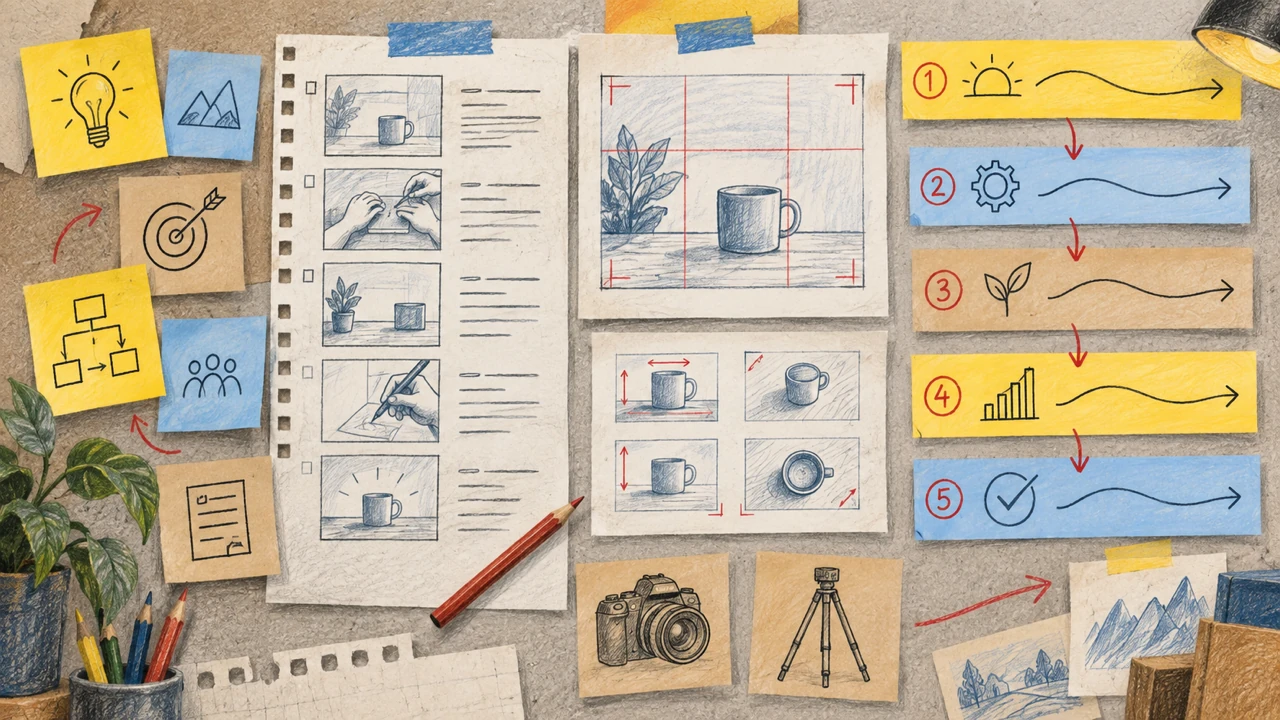
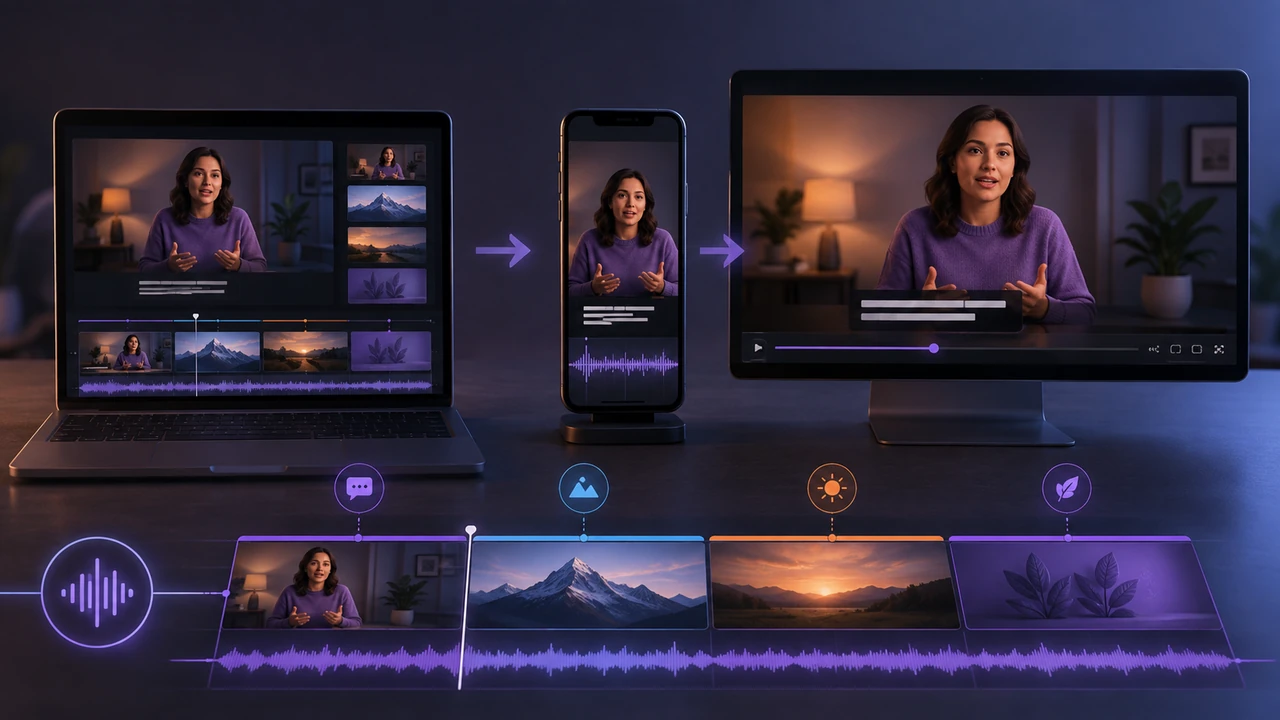
The basic workflow for creating an AI voice video
To create video with AI voice, follow these steps:
1. Define the audience and the video’s single purpose.
2. Write a script designed to be heard, not just read.
3. Choose a voice that fits the audience, tone, and format.
4. Generate and review the narration before finalizing the edit.
5. Build visuals that support each spoken idea.
6. Adjust timing, pauses, captions, and transitions.
7. Export for the platform where the video will be watched.
Each step affects the others. For example, changing a sentence may alter the narration length, which can require a different visual duration or caption break. Planning for those revisions keeps the process efficient.
1. Start with a specific video goal
Before writing a script, decide what viewers should understand, feel, or do after watching. A focused goal gives your video a useful structure and prevents the narration from becoming a list of unrelated points.
For a short social video, the goal may be to introduce one idea quickly and encourage viewers to keep watching. For a training video, the goal may be to explain a process accurately enough that viewers can repeat it. For a product walkthrough, the goal may be to show how a task is completed.
Write down three basics:
- Audience: Who is this for?
- Outcome: What should they take away?
- Format: Where will they watch it?
A vertical short-form video, for example, usually needs a faster opening and larger on-screen text than a longer desktop-focused presentation. The same narration can feel very different depending on where and how it is viewed.
2. Write a script for spoken delivery
A script for an AI voice should sound natural when spoken aloud. Writing that reads well on a page can feel formal, crowded, or unclear in narration.
Start with an opening that establishes the topic quickly. Then organize the middle around a small number of points. End with a summary, next step, or clear conclusion. In most cases, one main message is more memorable than several loosely connected ones.
Make sentences easier to hear
Use short, direct sentences where possible. Replace long strings of clauses with separate thoughts. Introduce unfamiliar terms before relying on abbreviations or technical shorthand.
For example, instead of writing a dense sentence with multiple instructions, turn it into two or three lines that each describe one action. This gives the voice more natural places to pause and gives you more options for matching visuals.
Read the script aloud before generating the full narration. If a phrase feels awkward to say, revise it. This simple check can reveal issues that are easy to miss while reading silently.
Add performance cues carefully
Punctuation can help shape delivery. Periods, commas, question marks, and line breaks create useful cues for rhythm. If a sentence needs a meaningful pause, consider rewriting it so the pause is supported by the language rather than relying on excessive punctuation.
Avoid overloading a script with parenthetical directions or complicated formatting unless the tool you use supports those controls clearly. Plain, well-structured copy is usually easier to revise.
For a broader overview of turning written copy into spoken audio, see this text-to-speech guide.
3. Choose an AI voice using practical criteria
The right voice is not necessarily the most dramatic or the most energetic. It is the one that helps the intended audience understand the message and fits the context of the video.
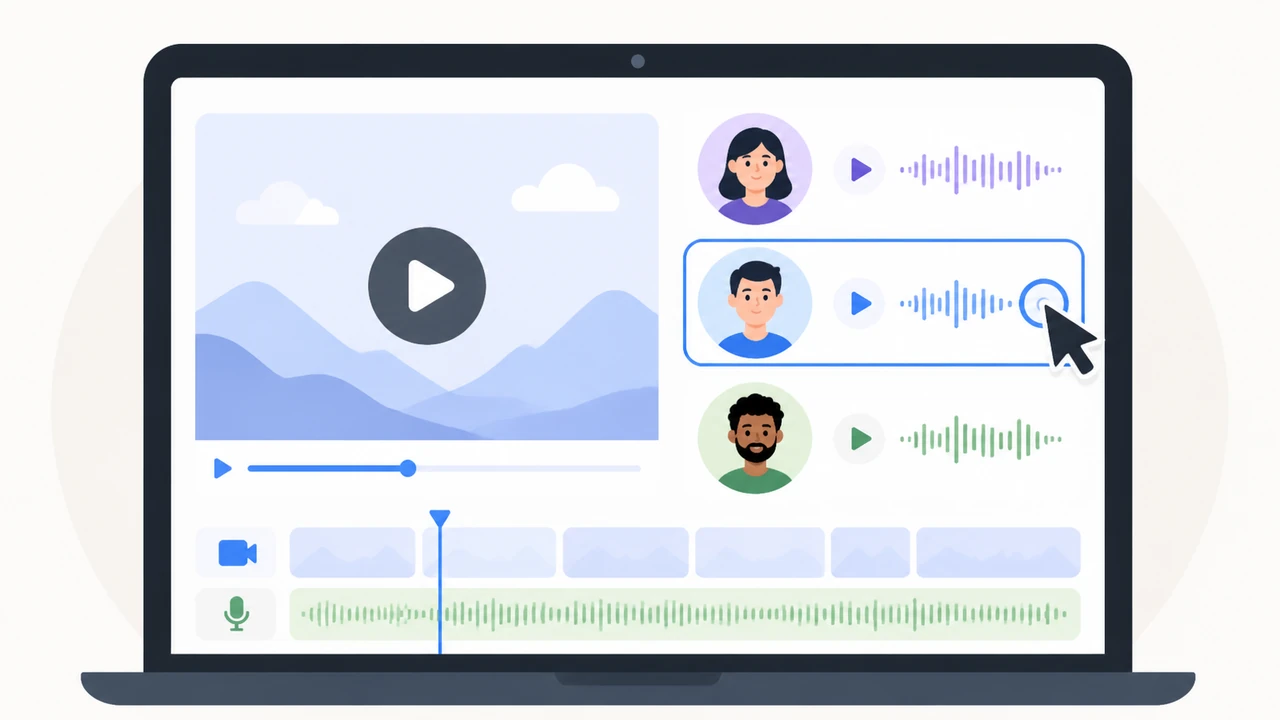
Compare voice options using criteria that matter to the project:
- Clarity: Are words easy to understand at the intended playback speed?
- Tone: Does the delivery feel appropriate for the subject?
- Pacing: Does the voice leave enough room for viewers to process information?
- Audience fit: Does the voice suit the language, region, and expectations of the people watching?
- Consistency: Can you maintain a similar delivery across related videos?
- Editing control: Can you revise the script and regenerate narration without disrupting the workflow?
A calm, measured voice may work well for instructions, while a more conversational delivery may suit a casual social clip. However, the best choice depends on the script and viewer expectations rather than a general rule about voice style.
When evaluating a platform, prioritize whether it gives you a practical way to preview, revise, and align voice generation with your video-editing process. Typecast can be a relevant option when those criteria—voice selection, script iteration, and a workflow built around AI-generated narration—match what your project needs.
4. Generate narration before locking the visual edit
It is tempting to finish the video timeline first and add narration later. That can create timing problems, especially when generated speech runs longer or shorter than expected.
Generate a draft of the complete narration early. Listen for pronunciation, pacing, emphasis, and transitions between sections. Then make script changes before investing heavily in detailed motion, scene changes, or tightly timed visual effects.
Review for these common issues
During the first playback, listen for:
- Words that are pronounced unexpectedly
- Sentences that move too quickly
- Repeated phrases or filler language
- Abrupt shifts in tone between sections
- Important points that need more emphasis
- Pauses that feel too short or too long
If a sentence does not sound right, revise the copy first. Changing the words is often more reliable than trying to force a different delivery from an overly complex sentence.
Keep a version of the script alongside the video project. This makes it easier to track changes and ensures captions, visuals, and narration all use the same final wording.
5. Match each visual to the narration
Visuals should reinforce what the audience hears. They do not need to illustrate every word literally, but they should make the narration easier to understand or remember.
A useful method is to divide the script into beats. A beat is a short unit of meaning, such as a claim, instruction, example, or transition. Assign each beat a visual role:
- Show the action being described.
- Display a key phrase or term.
- Use a diagram, screen recording, or example.
- Add supporting footage that sets context.
- Hold on a simple visual while the narration explains a more complex idea.
Avoid changing scenes so often that viewers cannot absorb the information. At the same time, avoid leaving an unrelated static image on screen while the narration moves through several new concepts. The goal is alignment, not constant motion.
For screen recordings and tutorials, zoom or highlight the area being discussed. For explainers, use on-screen labels sparingly to reinforce the most important terms. For story-driven content, let the visual sequence establish emotion and context without repeating every line of narration.
6. Add captions and design for silent viewing
Many viewers encounter videos with sound off, in noisy environments, or while multitasking. Captions help make an AI voice video more accessible and easier to follow in those situations.
Captions should match the final narration, including revisions made after the first draft. Break lines at natural phrases rather than splitting names, verbs, or tightly connected ideas. Keep enough contrast between text and background so captions remain readable on a small screen.
Do not assume captions replace clear narration. They work best as support. The spoken script should still make sense when heard, and the visual design should still communicate the overall topic without requiring viewers to read every word.
If your video includes important numbers, names, steps, or calls to action, consider showing them on screen as well. This gives viewers more than one way to retain key information.
7. Adjust pacing for the platform
Pacing is more than speaking speed. It includes how quickly new ideas appear, how long visuals remain on screen, when captions change, and how much time viewers have to understand an instruction.
For short-form content, begin with the value of the video rather than a long introduction. Use the opening moments to answer a likely viewer question, show the outcome, or state the central problem. Then move directly into the explanation.
For longer videos, use clear sections and transitions. Tell viewers what they will learn, guide them through the sequence, and briefly recap before moving to the next major point.
When making vertical social content, a purpose-built workflow can help you plan for the format from the start. An Typecast AI TikTok video creator is relevant for projects that need an AI-assisted approach to short-form TikTok-style video creation.
8. Export and review the final version
Before publishing, watch the video from beginning to end in the same format viewers are likely to use. If it is designed for mobile viewing, review it on a phone. If it is intended for a presentation, test it in the presentation environment when possible.
Use a final checklist:
- Does the opening clearly state or demonstrate the video’s value?
- Is every spoken line understandable?
- Do visuals support the narration?
- Are captions accurate and readable?
- Are names, terms, and calls to action correct?
- Does the ending provide a clear conclusion or next step?
- Is the export format appropriate for the publishing platform?
It can also help to take a break before the final review. Returning with fresh attention makes rushed pacing, repetitive wording, and visual mismatches easier to notice.
Common mistakes to avoid
A common mistake is treating AI voice generation as a substitute for planning. A generated voice can speed up narration production, but it cannot decide what the audience needs to learn or which visuals best explain the message.
Another mistake is choosing a voice before the script is ready. If the script changes substantially, the original voice choice may no longer fit the final tone or pacing.
Some creators also try to fit too much information into one video. If your script requires frequent caveats, definitions, or detours, consider dividing it into separate videos. A series can be easier to follow than one overloaded edit.
Finally, do not skip the listening stage. Even a well-written script can reveal issues once it becomes spoken audio. Review, revise, and regenerate as needed before publishing.
Final takeaway
To make an effective video with an AI voice, begin with a clear audience goal, write for spoken delivery, select a voice based on clarity and fit, and build visuals around the final narration. Captions, pacing, and a careful final review turn those elements into a video that is easier to understand across platforms.
The technology can streamline voice generation, but the editorial decisions still matter most. A focused script and a deliberate editing process will do more for video quality than adding complexity for its own sake.