




If you are searching for how to turn off auto dubbing YouTube, the short answer is that YouTube does not offer viewers one universal switch that disables every dubbed track across the platform. Instead, you can often choose a different audio track for an individual video, including the original audio when the creator has made it available.
This distinction matters because auto dubbing is handled at the video level. A video may have an original-language track, one or more dubbed tracks, or no alternate track at all. Your options depend on the video, the tracks available, and the device or version of YouTube you are using.
Desktop check: we verified the player’s Audio track menu by selecting Spanish and then returning to English original. We also opened Settings → Playback and performance → Preferred languages → Add or edit languages in a signed-in account. We inspected the language choices without saving changes. This check used YouTube’s desktop website on a Mac; mobile and TV guidance below comes from YouTube’s documentation, not a device test. The sample video’s track labels do not establish whether its dub was generated automatically.
The quickest way to switch off a dubbed track
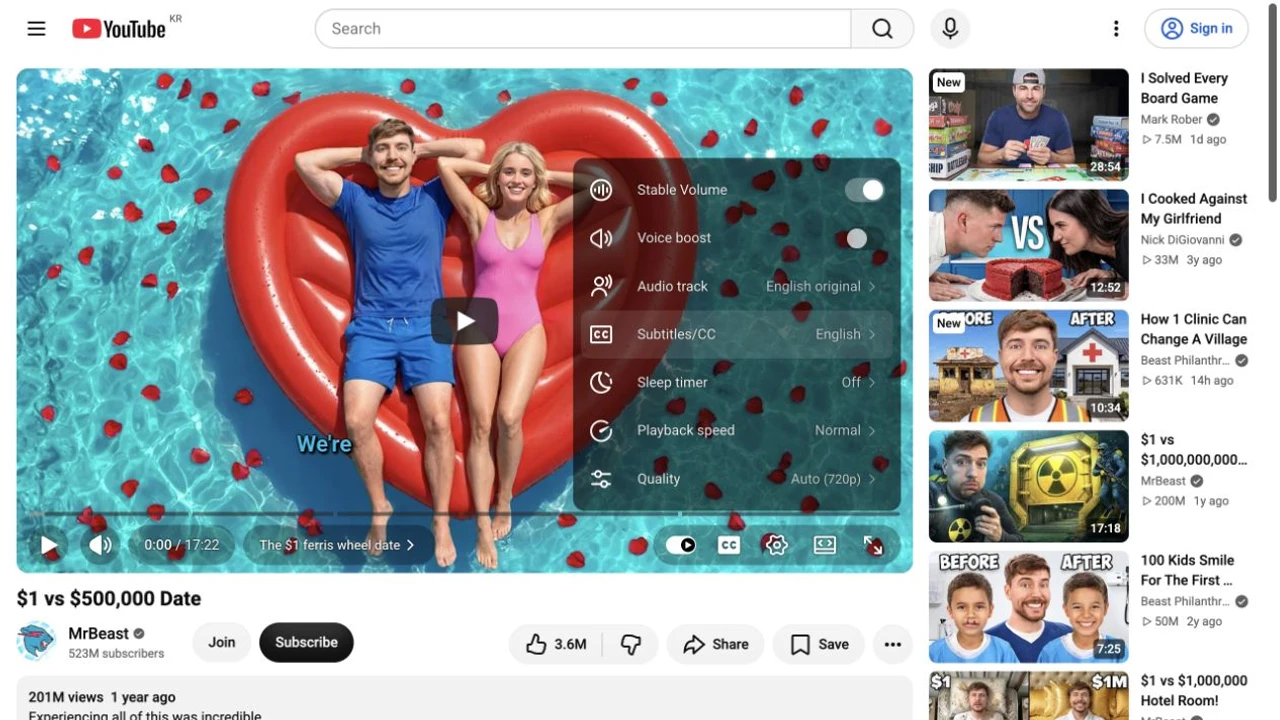
When a video is playing in a language you did not choose, look for an Audio track option in the video player settings. If the original track is available, selecting it is the closest viewer-side equivalent to turning off auto dubbing.
1. Open the YouTube video that is playing with dubbed audio.
2. Open the player settings. On many interfaces, this is the gear icon or the settings menu.
3. Select Audio track if that option appears.
4. Choose the original language or original audio track.
5. Resume playback and confirm that the audio has changed.
YouTube documents that viewers can select from available audio tracks and set language preferences for audio. The exact labels and placement can vary by device, so use the player menu available on your screen rather than relying on a single fixed path. See YouTube’s guidance on audio tracks and preferred languages.
Why there is no single “turn off auto dubbing” button
It is easy to assume that automatic dubbing works like captions, where one setting can often be applied broadly. Dubbing is different: it is an alternate audio track attached to a particular video.
That means YouTube may automatically choose an audio track based on your language preferences, but the video itself must have another track available for you to select. If the player shows only one audio option, there may be nothing to switch in that interface. Check available tracks before assuming a setting is broken.
In practical terms, viewers can usually do the following:
- Select original audio for a video when an original track is listed.
- Select another available language track.
- Adjust preferred languages so YouTube has better information about the audio languages you understand.
- Return to the video settings when YouTube selects a dubbed track you do not want.
What viewers generally cannot do is force every current and future video to use its original audio with one global “disable auto dubbing” control.
Set your preferred languages on YouTube
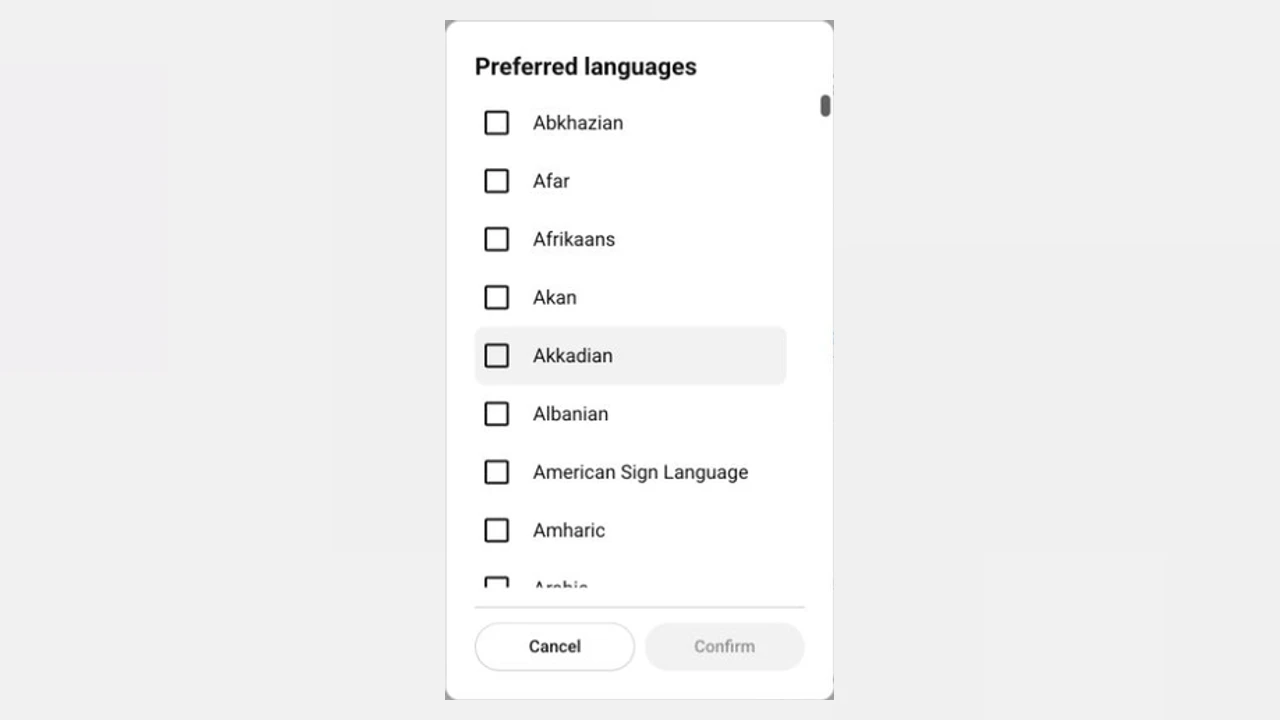

Preferred language settings can help YouTube choose more appropriate audio when multiple tracks are available. This is useful if you understand more than one language, prefer original-language content, or want to reduce the number of times you need to change an audio track manually.
YouTube’s current mobile guidance uses profile picture > Settings > Languages > Preferred languages. Choose the languages you understand and confirm. The setting is separate from the app’s display language and location; desktop and TV layouts can differ.
YouTube states that videos whose original audio is in one of your preferred languages default to that original audio rather than a translation. This is useful when you understand the original language. It does not create a missing track or offer a universal off switch for every original language. You can still choose an available track for an individual video.
If you cannot find the Audio track option
Not seeing an Audio track menu does not necessarily mean something is wrong. Work through these checks before assuming auto dubbing cannot be changed.
The video may have only one audio track
Some videos do not have alternate audio at all. In that case, YouTube has no original or dubbed version for you to choose between. The player will not show an audio-track selector when there is only one option.
The original audio may not be available
If the original language is not listed in your player, you cannot select it from that menu. Check another supported device and the video’s available tracks; the missing option alone does not establish why it is absent.
Your device interface may be different
YouTube’s web, mobile, and connected-TV interfaces do not always display settings in the same place. Try opening the video on another supported device if you need to check whether alternate audio tracks are available. A missing control on one interface is not proof that the video has no alternate audio, but it also does not guarantee another device will show one.
The video may have been updated
Audio availability can change if a creator adds, removes, or updates tracks. If you watched a video previously in its original language but now hear a dub, check the Audio track menu again rather than assuming your account settings have changed.
How to tell whether you are hearing a dub

A few signs can suggest that YouTube is playing an alternate audio track:
- The spoken language differs from the language you expected from the creator.
- Mouth movements and speech do not closely match.
- The player offers an Audio track option with multiple languages.
- Switching tracks changes the voice while the video itself remains the same.
These signs are not conclusive on their own. Some creators publish separate language versions, use voiceovers intentionally, or upload videos without on-camera speech. The audio-track menu is the most useful place to confirm whether YouTube has alternatives available.
What creators can control—and what viewers cannot
Viewer audio choices and creator dubbing controls are separate. As a viewer, you can select from the tracks YouTube makes available for a video. As a creator, you may have options to review or manage automatic dubs for content you own.
YouTube’s creator documentation explains that automatic dubbing can be managed in YouTube Studio, which is different from a viewer preference setting. In other words, a creator may change dubbing availability for their own videos, but viewers cannot use those creator controls to change another channel’s uploads. Review YouTube’s automatic dubbing management guidance for creators for the creator-side workflow.
If you run a channel and are planning your audio strategy, it helps to think about original audio, translated tracks, captions, and voiceovers as separate publishing choices. For broader channel planning, start with this guide on how to start a youtube channel.
A simple troubleshooting checklist

Use this checklist when a YouTube video starts with unexpected dubbed audio:
1. Open the video player settings.
2. Look for Audio track.
3. Select the original language if it is available.
4. Check your preferred language settings if YouTube repeatedly chooses languages you do not want.
5. Try another device if the player controls are unclear or missing.
6. If no alternate track is listed, do not assume a universal toggle can restore it.
This approach is more reliable than searching for a universal toggle that may not exist for viewers.
For creators: plan audio before publishing
If you create videos for audiences in multiple languages, decide early whether you want to publish original audio only, offer alternate tracks, or use localized voiceovers. A clear audio plan can make it easier for viewers to understand what they are hearing and to choose the version that works for them.
For scripted videos, you can also create a text-to-speech voiceover before editing your final video. Review the timing, pronunciation, pacing, and language choice carefully so the finished audio supports the audience you want to reach.
FAQ
Can I permanently turn off YouTube auto dubbing?
There is no confirmed universal viewer setting that permanently disables all auto-dubbed tracks on every YouTube video. When available, choose the original audio track for each video and update your preferred languages.
Why does YouTube keep changing the language of a video?
YouTube may choose among available audio tracks using language-related preferences and video availability. Check the player’s Audio track menu to see whether you can select the original track.
Can I remove dubbing from someone else’s YouTube video?
No. You can select an alternate audio track when one is available, but only the video owner can manage the dubbing options for their own content.
Is dubbed audio the same as subtitles?
No. Subtitles display written text, while dubbing replaces or supplements the spoken audio with another audio track. You may be able to control subtitles and audio tracks separately.
Key takeaway
To turn off auto dubbing on YouTube for a specific video, open the player settings and select the original audio track when it is available. If you do not see that option, the video may not offer an alternate track, or the control may be displayed differently on your device. Preferred language settings can improve future playback choices, but they are not a universal off switch for dubbing.