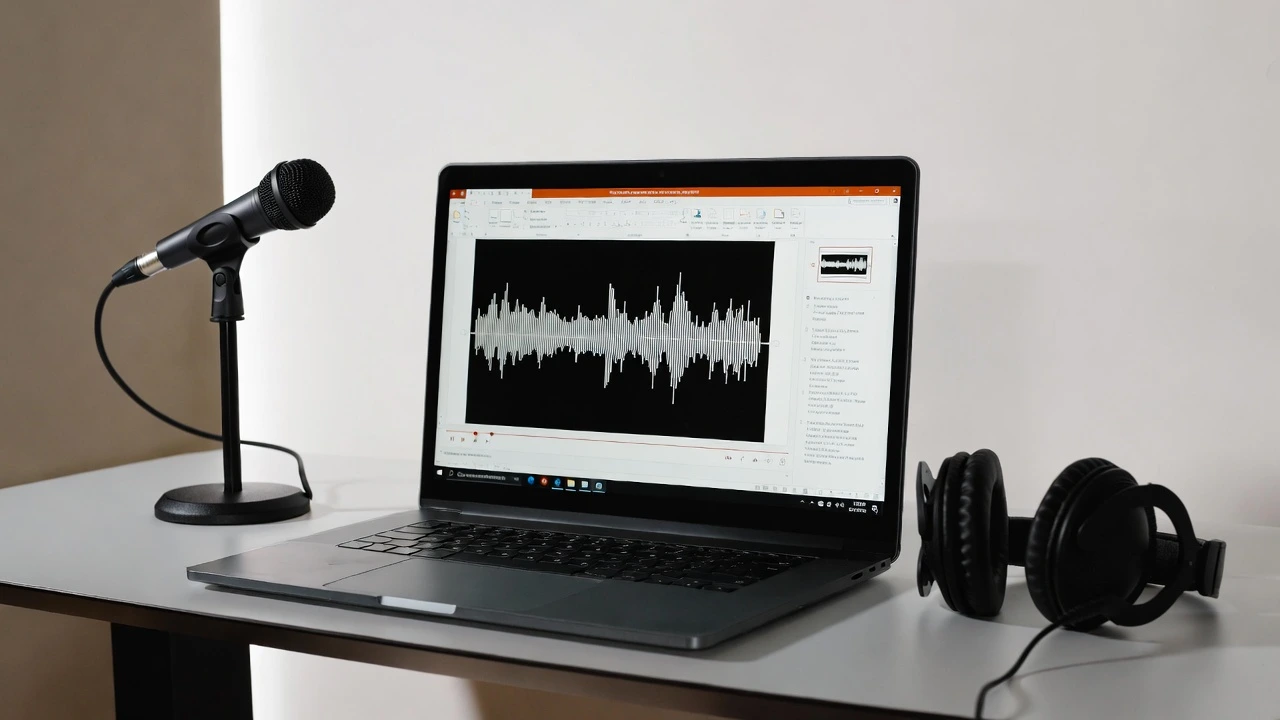





Adding narration to a presentation used to mean booking a recording studio or fumbling with a microphone at your desk. Today, PowerPoint text-to-speech technology has completely changed the game — giving anyone the ability to produce polished, professional voiceovers in minutes.
Whether you’re building an e-learning module, a sales deck, or an internal training video, voiceover for PowerPoint can make your slides more engaging, accessible, and memorable. The challenge is knowing which tool actually delivers results worth sharing.
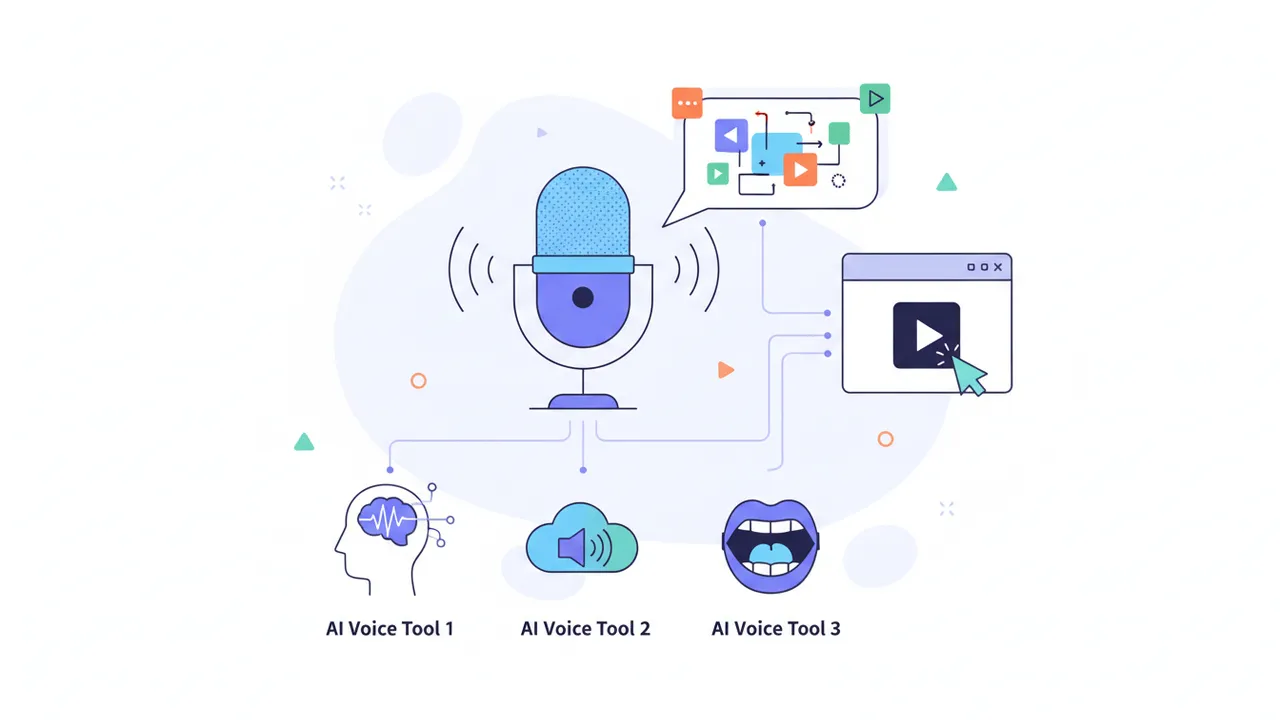
In this post, we break down the top three AI voice tools for PowerPoint narration — what they do well, where they fall short, and which one might be the right fit for your workflow.
Why PowerPoint presentations need voiceover

Slides alone rarely tell the full story.
Research consistently shows that people retain information better when they hear it alongside visual content. A voiceover bridges the gap between a static deck and a truly engaging presentation — especially when your audience is watching asynchronously, without you in the room to guide them.
There’s also an accessibility angle that’s easy to overlook. Adding audio narration makes your content available to people with reading difficulties or visual impairments, broadening your reach without extra effort.
The traditional route — recording your own voice — has real barriers. Background noise, inconsistent pacing, and the need for multiple retakes eat up time that most creators simply don’t have.
That’s exactly why PowerPoint text-to-speech tools have become so popular. They remove the friction entirely.
How AI text-to-speech works for PowerPoint
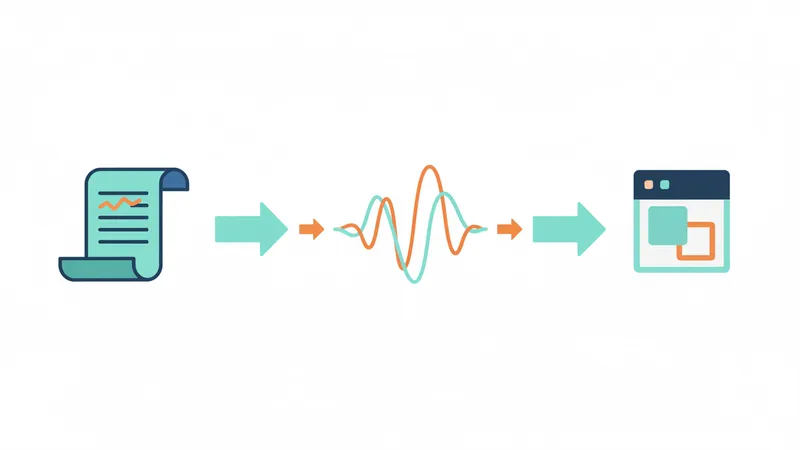
The concept is straightforward: you provide a script, choose a voice, and the AI generates a lifelike audio file you can sync to your slides.
Most tools let you adjust speaking rate, pitch, and emphasis — giving you control over how the narration sounds without touching a microphone. Some platforms go further, offering emotion controls or multiple language options for global audiences.
Exporting audio to PowerPoint
Once your voiceover is generated, you typically export it as an MP3 or WAV file. From there, you insert it directly into PowerPoint using the Insert > Audio menu, then set it to play automatically on each slide.
It’s a simple process — but the quality of your final presentation depends heavily on the AI voice tool you choose.
What to look for in a PowerPoint voiceover tool
- Voice naturalness: Does it sound like a real person, or robotic and flat?
- Language and accent options: Can it serve multilingual or international audiences?
- Customization controls: Can you adjust speed, tone, and emphasis per sentence?
- Export flexibility: Does it output standard audio formats compatible with PowerPoint?
- Pricing: Is there a free tier, and does the paid plan scale reasonably?
With those criteria in mind, here are the three best options available right now.
Top 3 AI voice tools for PowerPoint text-to-speech

1. Typecast
Typecast is one of the most versatile AI voice platforms available for creators who need professional narration for PowerPoint presentation projects.
What sets Typecast apart is its library of emotionally expressive AI voices. Rather than choosing a voice and hoping for the best, you can direct each line — adjusting emotion, pacing, and emphasis the way a director would work with a voice actor. This level of control is rare in the text-to-speech space.
Typecast supports multiple languages and offers a wide range of voice personas, from warm and conversational to authoritative and formal. That flexibility makes it ideal for everything from corporate training decks to educational content aimed at younger audiences.
Exporting is straightforward: generate your audio, download the file, and drop it into your PowerPoint slides.
The platform also includes a dedicated narrator voice generator if you’re looking for the best narration voice for your PowerPoint. You don’t have to worry about losing your voice or mumbling during recording because the AI literally speaks out loud whatever you type in!
- Best for: Creators who want expressive, director-level control over AI narration
- Standout feature: Emotion and tone adjustment per line of script
- Pricing: Free tier available; paid plans start at an accessible monthly rate
2. Murf AI
Murf AI is a well-known name in the voiceover for PowerPoint space, particularly popular among business users and e-learning developers.
The platform offers over 120 voices across 20+ languages, with a clean interface that makes it easy to paste in a script and produce audio quickly. Murf also has a built-in slide sync feature that attempts to match narration timing to your presentation — a genuinely useful addition that saves manual editing time.
The downside is that Murf’s voices, while high quality, can occasionally feel slightly mechanical on longer passages. It’s a strong tool, but for presentations where emotional resonance matters, it may fall just short of Typecast’s expressiveness.
3. Speechify
Speechify has grown from a popular text-to-speech reader into a full-featured AI voice platform. It offers a wide selection of natural-sounding AI voices in multiple languages, making it a versatile choice for PowerPoint narration across global teams.
One of Speechify’s biggest strengths is its ease of use. The interface is clean and intuitive — you simply paste your script, choose a voice, adjust the speed, and export the audio file. This makes it a great pick for beginners who want to create voiceovers quickly without a steep learning curve.
However, compared to Typecast and Murf AI, Speechify offers less control over voice emotion and tone. If your presentation requires expressive narration with varied delivery styles, you may find the customization options somewhat limited.
For straightforward, professional-sounding PowerPoint voiceovers with minimal effort, Speechify is a solid and reliable choice.
Comparing the three tools at a glance
Choosing between these platforms comes down to your specific needs.
- Typecast — Best overall for expressive, customizable narration with strong multilingual support
- Murf AI — Best for business teams that want a quick, reliable workflow with slide sync
- Speechify — Best for users who prioritize ease of use and simplicity
All three support audio export in formats compatible with PowerPoint. The real differentiator is how much creative control you need and how often you’ll be producing narrated presentations.
If you’re just getting started, Typecast’s free tier is a low-risk way to experience what high-quality PowerPoint text-to-speech narration actually sounds like before committing to a paid plan.
Tips for getting the best results from AI voiceover

The tool is only half the equation — your script matters just as much.
AI voices perform best when the text is written conversationally. Short sentences, natural punctuation, and clear phrasing all help the engine produce more fluid, lifelike output. Avoid overly complex sentence structures or dense technical jargon unless your audience specifically expects it.
Script formatting tips that improve AI narration
- Use commas and periods to control natural pauses in the audio
- Spell out numbers and abbreviations (“three” instead of “3”, “for example” instead of “e.g.”)
- Break long slides into shorter narration chunks for easier audio management
- Read your script aloud before generating — if it sounds awkward when spoken, the AI will reflect that
Once your audio is generated, listen through the full narration before syncing it to slides. Catching a mispronounced word or an awkward pause at this stage saves significant time compared to fixing it after everything is assembled.
Small refinements go a long way toward making your voiceover for PowerPoint feel polished and intentional rather than automated.
Conclusion
PowerPoint text-to-speech technology has made professional narration accessible to everyone — not just those with recording equipment or voice acting experience.
Of the three tools covered here, Typecast stands out for its combination of expressive AI voices, multilingual support, and intuitive controls that give creators genuine directorial input over their narration. Murf AI is a strong runner-up for teams that value workflow efficiency, while ElevenLabs is the go-to for maximum voice realism.
Whichever tool you choose, the result is the same: presentations that don’t just inform — they engage. If you’re ready to add voiceover for PowerPoint to your next project, start with a free trial and hear the difference for yourself.