




Text-to-speech with emotion is less about adding a dramatic label to a script and more about making deliberate choices about voice, delivery, pacing, and editing. A voiceover that sounds appropriate for a product tutorial may feel flat in a character scene, while an energetic delivery can distract from serious instructional content. The goal is to match the delivery to the listener’s context.
If you are new to voice generation, start with this guide to text to speech online. Then use the process below to compare the same words across voices and delivery settings instead of judging an emotional style from a single sentence.
What makes text-to-speech sound emotional?
Emotion in speech comes from several elements working together. The words matter, but so do the pace, pauses, emphasis, pitch movement, and the character of the selected voice. A script can sound reassuring when delivered slowly with room to breathe, or urgent when delivered with tighter phrasing and a faster pace.
Speech-synthesis standards separate pitch, speaking rate, volume, pauses, and emphasis into different controls. W3C’s SSML specification describes these building blocks and makes clear that rendering depends on the synthesis processor. That is useful context for comparison, not a claim that Typecast accepts SSML tags.
For a practical workflow, separate these decisions:
- Voice selection: Choose a voice whose natural character fits the audience and scenario.
- Emotional direction: Select an available emotional delivery only when it supports the meaning of the line.
- Pacing: Adjust speed carefully to create urgency, calm, tension, or conversational space.
- Script formatting: Use short sentences, punctuation, paragraph breaks, and clear wording to guide the read.
- Review: Listen in the context where the audio will appear, not only in an isolated preview.
How to make an emotional voiceover in Typecast
The following workflow was checked in Typecast’s English web editor on October 13, 2026. It uses Apollo, the voice selected in our test project. The visible choices are specific to that editor and voice; check the controls available in your own project rather than assuming that every voice or API model behaves identically.
Create a project and set the language
Open Text-to-Speech in Typecast, choose New project, give the project a recognizable name, and select English for this example. Confirm to open the editor. Setting up a separate comparison project keeps experiments apart from your production script.
Choose one voice and enter a short script
Use the voice selector above the paragraph to choose your narrator. Keep that voice fixed while comparing delivery settings. Enter: “The doors close in ten seconds. Please move carefully.” Start with one paragraph so you can see which text the controls affect.
To choose a voice with more weight or authority, compare text to speech deep voice options against the script’s audience and clarity needs; a lower register should support the message, not blur it.
An age-coded character needs the same testing in complete lines. When that identity is central to the brief, use this guide to old text to speech voice to compare approaches without treating a short preview as the final result.
Generate a baseline before changing emotion
For a manual comparison, leave Smart Emotion off, set Emotion to None, and leave Speed at 1.0x. Play the paragraph to generate a reference take. None means no manually applied emotion preset; it does not mean that the resulting speech has no expression.
Apply an emotion to the selected paragraph
Select the script paragraph, open Emotion, and choose one of the options offered for that voice. Apollo’s menu in this test showed Happy, Sad, Angry, High tone, Low tone, and Whisper, alongside None. These labels mix emotional directions and vocal styles. “Calm,” “urgent,” and “tense” are creative goals in the examples below, not names we verified in this menu.
The percentage beside the emotion controls intensity. Keep the words and speed unchanged while comparing an emotion with the baseline. To remove an applied emotion, use its remove control in the panel beside the paragraph. Typecast’s Applying Emotion guide documents selection, intensity, and removal.
Angry is one available direction to test, not a substitute for clear writing. For conflict-focused dialogue, this guide to angry text to speech shows how to compare intensity, voice, and intelligibility.
Change speed in a separate comparison
Return Emotion to None before testing Speed. Compare the same paragraph at 1.0x and a slower setting, leaving the voice, words, punctuation, and other controls unchanged. This makes it easier to separate a pacing change from an emotion change. Preview again after each adjustment; a speed label alone cannot tell you whether a line remains clear.
Comedy needs timing as much as vocal character. When rhythm, pauses, and a punchline are central to the script, the funny text to speech voice guide can help you compare takes without overplaying the performance.
Export clearly labeled takes
When a take is ready, choose Download. In the tested web editor, the dialog offered Full script or Selected sections, Mid or High quality, MP3 or WAV, and a single file or a split by sentence. Keep these export options identical across comparisons. Rename each saved file with its voice, emotion, intensity when applicable, and speed, so you can reliably match the audio to its settings later.
Listen to the exported files in context before selecting a final take. Check the last words, sentence boundary, and any phrases that could become unclear. Our measurements below describe these particular exports; they do not establish which delivery every listener will prefer.
What changed in three Typecast exports
We generated the same sentence with Apollo in Typecast’s English web editor on October 13, 2026: “The doors close in ten seconds. Please move carefully.” Smart Emotion was off. We kept the voice, wording, punctuation, and export options fixed, changing only the settings listed below.
Baseline — Emotion: None; Speed: 1.0x. Exported duration: 4.75 seconds.
Emotion comparison — Emotion: Angry at 100%; Speed: 1.0x. Exported duration: 3.75 seconds, 1.00 second shorter than the baseline.
Speed comparison — Emotion: None; Speed: 0.9x. Exported duration: 5.45 seconds, 0.70 seconds longer than the baseline.
Each result is one untrimmed, high-quality WAV export at 44.1 kHz, mono. Duration was calculated from the file’s sample count and sample rate, including any pauses. These are individual observations, not averages from repeated trials, an API benchmark, or a listener-quality study.
The practical lesson is to check timing again after changing emotion, even when the speed setting stays the same. In this test, the Angry take had a different duration at 1.0x; lowering the baseline’s speed to 0.9x lengthened its export. Neither result proves that a delivery sounds clearer, more urgent, or more convincing. Listen to the complete takes in your intended scene before choosing one.
Use one script to compare emotion and pacing
The most reliable way to hear what changes is to hold the wording constant. Changing the script, voice, and speed at the same time makes it difficult to tell which choice created the result.
Use this short test script:
“You made it. Take a breath, look around, and let’s begin.”
Render the same script repeatedly. Keep the voice selected for the first pass, change only one control, and label every export. For example: `calm_100`, `calm_slow`, `energetic_100`, and `energetic_fast`.
Control matrix: what to compare before publishing
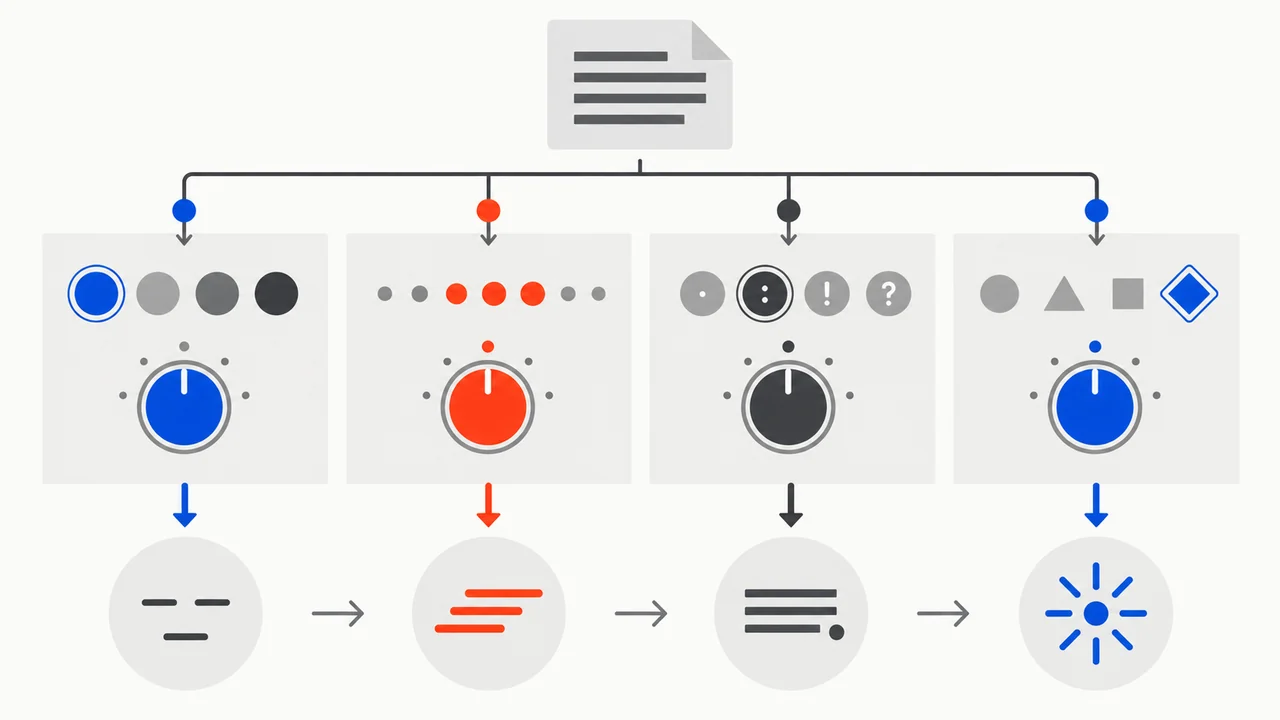
Use this matrix to plan a controlled comparison. The examples below are delivery directions to try, not recorded listening-test results. Availability notes distinguish documented controls from settings that need checking for your selected voice and model.
| Test variable | Keep constant | Change | What to listen for | App status to verify | API status to verify |
|---|---|---|---|---|---|
| Voice character | Script and pace | Voice | Natural character, clarity, fit | Verify per available voice | Do not assume parity with app |
| Emotion or delivery | Script, voice, pace | Supported emotion | Whether tone fits without exaggeration | Verify per voice | Emotion presets and intensity documented |
| Pacing | Script, voice, emotion | Speed or pacing | Urgency, intelligibility, pauses | Verify available pacing | Speed documented as audio_tempo |
| Punctuation | Voice and settings | Punctuation marks | Whether phrasing is clearer or less natural | Test in editor | Verify parsing separately |
| Emphasis | Script meaning and voice | Supported emphasis | Key words stand out naturally | Verify available tools | Treat as unsupported until documented |
This approach avoids a common mistake: treating an emotion label as a guarantee of a particular performance. Even when a voice offers an emotional option, the result can vary by voice, script length, punctuation, and speed.
Example comparison: calm, urgent, and tense

Use the same sentence for each pass:
“The doors close in ten seconds. Please move carefully.”
Calm: Keep the pace moderate and use clear punctuation. This can suit a safety instruction, guided experience, or informational announcement.
Urgent: Increase pace only enough to create momentum. If the final words become difficult to understand, reduce the speed rather than adding more intensity.
Tense: Use shorter phrasing and allow intentional pauses. Tension often comes from restraint, so an overly fast or overly expressive read can undermine the scene.
For an unsettling atmosphere, a measured pace and deliberate pauses often matter more than a sudden shock. The creepy text to speech voice guide explores how to build that mood while keeping narration intelligible.
For horror scenes or a suspenseful reveal, test the voice against the full scene before increasing expression. The scary voice generator text to speech guide goes deeper on voice choices and delivery for that use case.
The comparison is valuable because it reveals whether the emotional goal comes from the voice, the speed, the script, or a combination of all three.
App controls and API controls are not automatically the same
When planning text-to-speech with emotion, distinguish between what you can adjust in a visual editing workflow and what may be available programmatically. An app may present voice-selection, preview, pacing, and editing options in a way that is easy to audition. An API may use a different set of parameters, support a narrower set of voices, or require separate implementation details.
Typecast’s current API overview documents emotion/style presets and intensity, volume, pitch, and speed controls. Its request example uses audio_tempo for speed and audio_pitch for pitch. Check the API documentation for the chosen model rather than translating app percentages directly into request values. A documented control does not guarantee identical delivery across voices.
If a needed control is unsupported, use script-level alternatives instead:
- Rewrite long sentences into shorter spoken phrases.
- Add punctuation where a natural pause is needed.
- Move a key phrase into its own sentence.
- Choose a voice whose inherent character is closer to the desired delivery.
- Edit separate takes together rather than forcing one read to cover multiple emotional shifts.
Choose an emotion that serves the content

Emotion should clarify intent, not compete with it. Start by identifying what the listener should feel or do after hearing the line.
Educational and instructional content
For training, explainers, and onboarding, prioritize clarity and steady pacing. A warm, confident delivery can make material easier to follow, while highly dramatic expression can pull attention away from the lesson.
A practical review checklist
Before exporting an emotional voiceover, review it as a listener would:
1. Is the emotional direction clear from the words alone? Rewrite ambiguous lines before trying to solve every issue with delivery.
2. Does the selected voice fit the audience? A playful character voice may not fit a compliance video, even if the performance is strong.
3. Can listeners understand every key word? Emotional emphasis should not reduce clarity.
4. Does the pace match the platform? Social clips, tutorials, ads, and long-form narration have different listening conditions.
5. Have you compared at least two versions of the identical script? A direct comparison is more useful than choosing the first acceptable result.
6. Have you checked rights, brand guidelines, and accessibility needs? Emotional delivery should support, not obstruct, a clear experience for the intended audience.
Build the final voiceover from deliberate choices
Effective emotional text-to-speech starts with a clear creative brief: who is speaking, who is listening, what the listener should feel, and what action the audio should support. From there, test one variable at a time with identical scripts. Keep the version that is understandable, appropriate, and consistent with the rest of the project.
When you are ready to move from testing into production, you can create a text-to-speech voiceover and apply the same comparison method to your full script. The best result is not necessarily the most dramatic one; it is the delivery that makes the message easier to understand and more appropriate for its audience.