




Voiceover for PowerPoint can turn a static slide deck into a guided presentation that people can watch, hear, replay, and understand without you being in the room.
If you are looking for voiceover for a PowerPoint presentation, the best method depends on what you need: a quick internal update, a polished training video, a sales deck, an online course, or a reusable company presentation.
What makes a good voiceover for PowerPoint
A good Voiceover for PowerPoint is not just audio placed on top of slides. It is a complete viewing experience where the narration, visuals, timing, and transitions work together.
The voice should explain what the slide cannot. If the slide shows the key point, the narration should add context, examples, and emphasis.
Microsoft describes recorded PowerPoint presentations as a way for audiences to see your presentation with “passion and personality intact.”
That is the real value of narration. It brings back the human layer that often disappears when someone receives only a deck.
Voiceover is especially useful for training, onboarding, sales presentations, product walkthroughs, internal announcements, online courses, and conference follow-ups. Whenever a slide deck needs explanation, tone, or guided pacing, narration usually improves it.
The most common mistake is reading every word on the slide. A stronger approach is to keep slides visually simple and let the voice explain the reasoning behind them.
Method 1: Record narration directly in PowerPoint
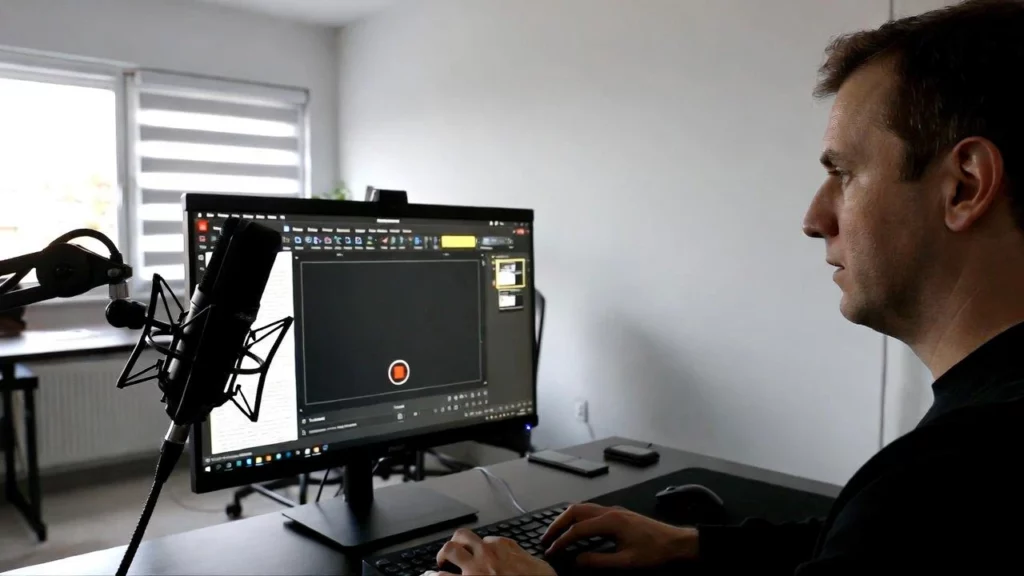
The most direct way to create a Voiceover for PowerPoint is to record inside PowerPoint itself.
This method is best when you want slide-by-slide narration, built-in timings, and a simple path to exporting the presentation as a video.
PowerPoint can record your voice, slide timings, ink gestures, pointer movements, and camera presence. That makes it practical for lectures, training videos, product demos, and presentations that need to feel close to a live delivery.
Microsoft says PowerPoint can “capture voice, ink gestures, and your video presence.
The workflow is simple. Open your deck, go to the Record tab or Slide Show tab, choose whether to start from the beginning or the current slide, and speak through the presentation. PowerPoint saves narration and timing data as you move through the slides.
This is also the core method behind how to record narration in PowerPoint, especially if you want to keep the whole process inside Microsoft’s own tools.
The main advantage is convenience. You do not need another app, and the narration stays attached to the presentation.
The downside is that the final quality depends on your microphone, room, voice, and energy. For a long deck, recording everything manually can become tiring.
Method 2: Add an audio file to each slide
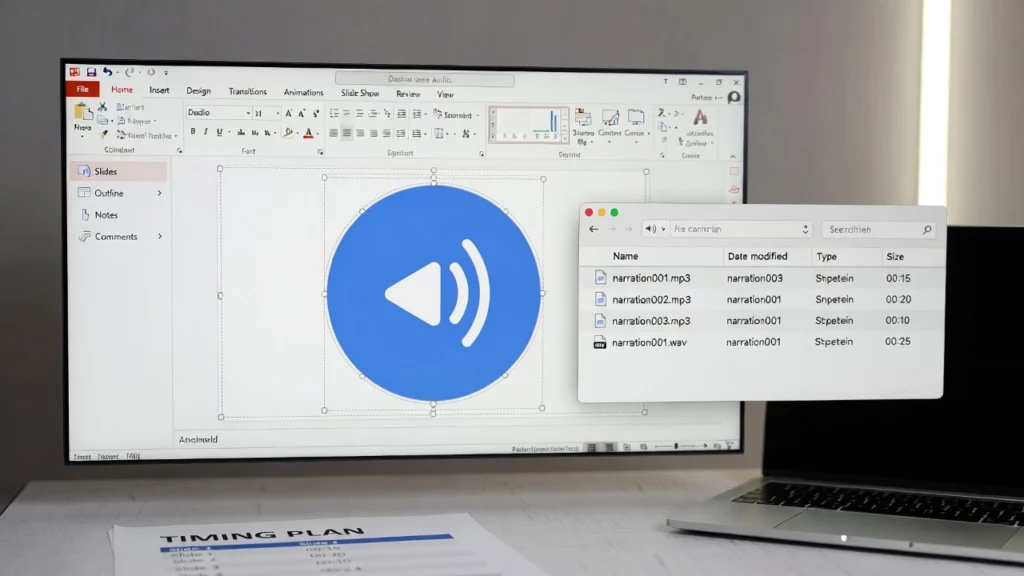
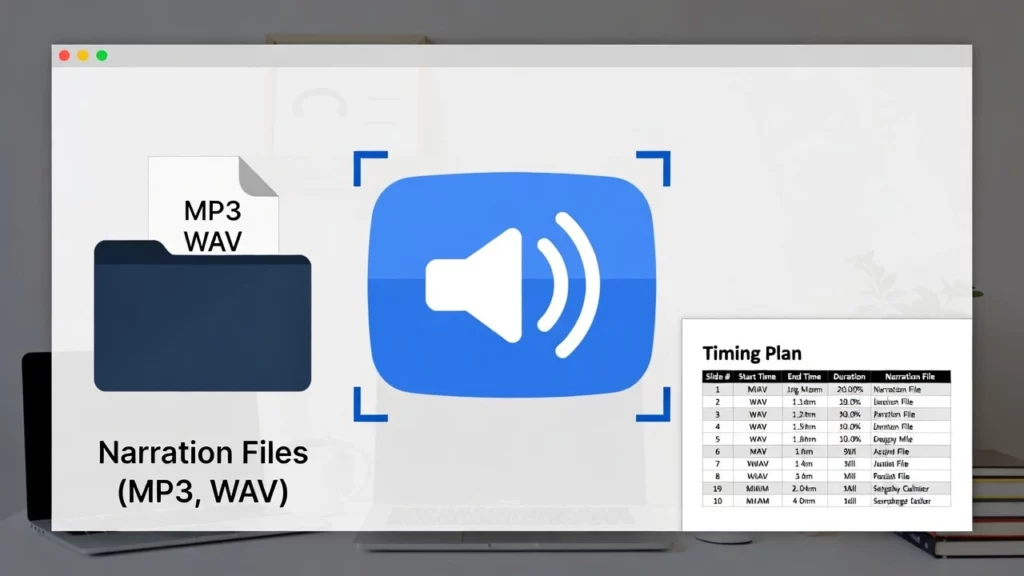
Another reliable method is to create or record audio separately, then insert it into PowerPoint.
This gives you more control over the sound before it enters the deck. You can remove noise, adjust volume, edit pauses, and organize narration files by slide.
Microsoft’s basic instruction is simple: “Select Insert > Audio.”
This method works well when you already have narration files from a voice actor, an audio editor, a team member, or an AI voice platform.
It is also helpful when learning how to add sound to powerpoint, because the same basic process works for narration, background music, sound effects, and slide-specific audio cues.
For best results, keep your audio organized. Instead of vague file names, use clear names like slide-01-intro.mp3, slide-02-problem.mp3, and slide-03-solution.mp3.
This small habit saves time later. If one slide changes, you can replace one audio file instead of reworking the whole presentation.
The benefit of this method is control. The tradeoff is file management, especially if your deck has many slides.
Method 3: Use AI voice narration
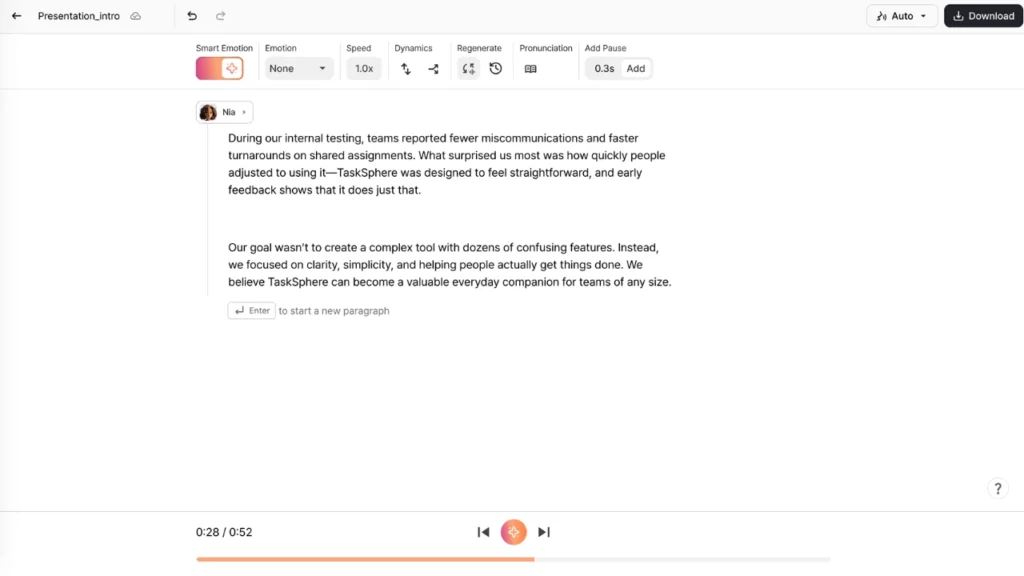
AI narration is one of the easiest ways to create a consistent Voiceover for PowerPoint without recording your own voice.
Instead of speaking into a microphone, you write or paste a script, choose a voice, generate the audio, and add it to PowerPoint.
For Typecast users, this can be a practical way to create clear narration with natural AI narration voices, especially when the presentation needs to sound polished but not overly produced.
The key is to start with a good script. AI voice works best when the writing sounds like something a person would actually say.
A stiff line like “This presentation will provide a comprehensive overview of operational alignment initiatives” may sound unnatural when read aloud. A better version would be, “In this presentation, we’ll look at how teams can work together more smoothly.”
AI narration is useful for training decks, HR onboarding, product education, internal documentation, SaaS walkthroughs, and multilingual versions of the same presentation.
It is also a strong fit if you are exploring how to add AI voice to PowerPoint and want a workflow that does not require advanced editing skills.
Wyzowl’s 2026 video report found that “63% of video marketers” have used AI tools to help create or edit marketing videos.
That trend makes sense for PowerPoint too. AI voice can reduce repetitive recording work while keeping the final presentation clear and consistent.
Method 4: Use text to speech for fast narration
Text to speech is a practical option when speed matters more than performance.
It is closely related to AI voice narration, but the goal is usually simpler: turn written speaker notes into usable spoken audio quickly.
If your deck already has speaker notes, PowerPoint text-to-speech can help you move from written explanation to narration without starting from scratch.
This method works best for informational presentations. It is a good fit for process explainers, policies, product tutorials, compliance lessons, standard operating procedures, and internal training.
Before converting speaker notes into speech, rewrite them for the ear. Speaker notes are often written as reminders for a live presenter, which means they may be too fragmented or too formal for narration.
A listener-friendly script should use complete sentences, short transitions, and plain language. It should also remove anything already obvious from the slide.
The rule is simple: if the slide shows what is happening, the voice should explain why it matters.
Method 5: Create automatic voiceover for PowerPoint
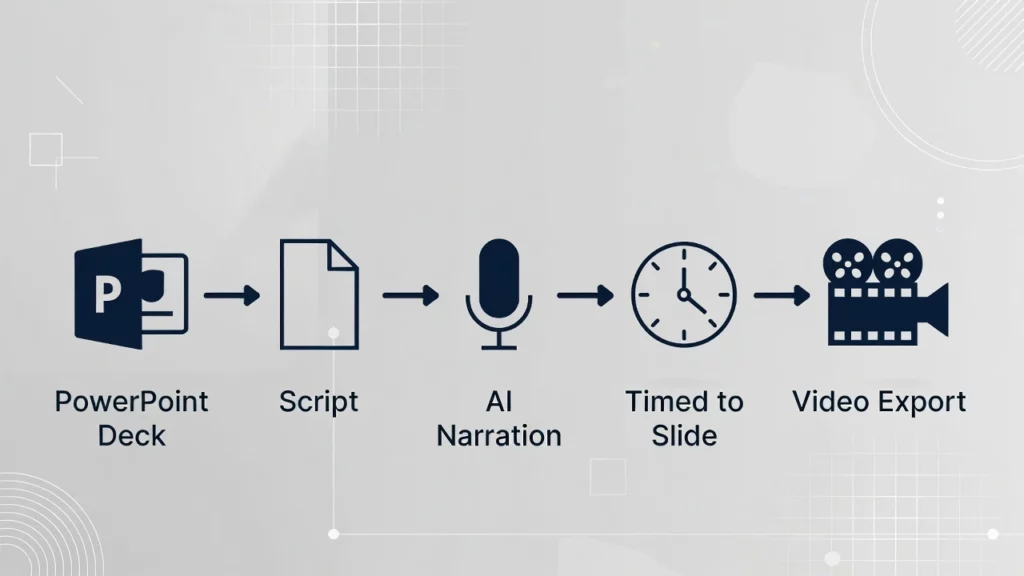
Automatic voiceover means creating a repeatable system for turning slides into narration with less manual work.
This can include speaker notes, AI-generated narration, slide-by-slide audio files, automatic playback settings, and video export.
If you produce many decks, automatic voiceover for PowerPoint is often more efficient than recording every presentation by hand.
Automatic does not mean carelessness. It means structured.
A strong workflow usually starts with speaker notes. Those notes become a script. The script becomes narration. The narration is added to each slide. The slide timings are adjusted, and the final deck is exported or shared.
This is especially helpful for teams that create many versions of similar presentations. A sales team might need separate decks for healthcare, finance, education, and software buyers. The core structure can stay the same while the narration changes for each audience.
Microsoft and LinkedIn’s 2024 Work Trend Index found that many knowledge workers use AI because it helps them save time and focus. Reporting on the study, MarketWatch summarized that “90% say it saves them time.”
That is the practical value of automation. It is not about removing human thinking from the presentation. It is about reducing repetitive production work.
Method 6: Record a live presentation and export it as a video
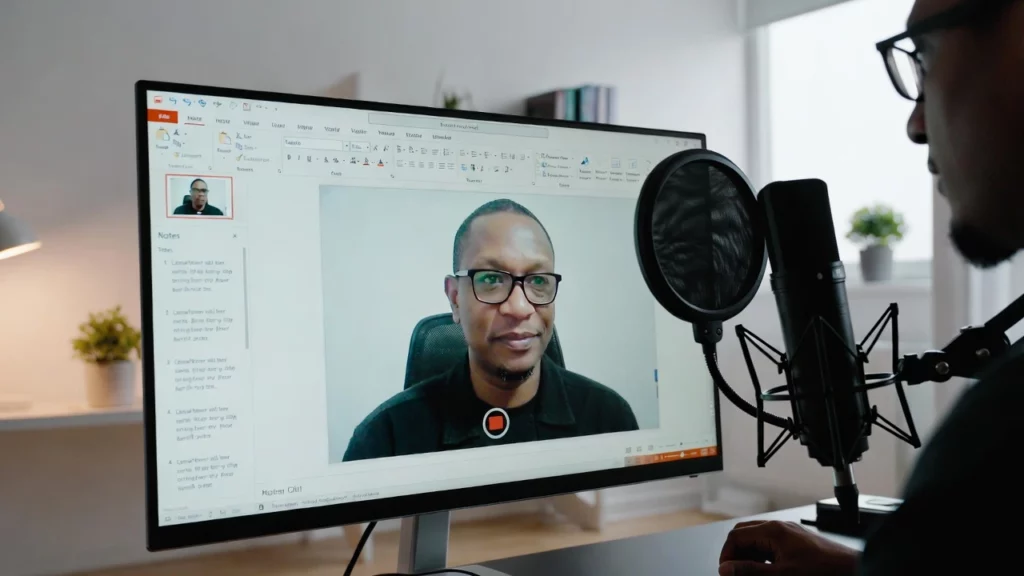
Sometimes the best voiceover is a real presentation.
If you are comfortable presenting, you can record the slideshow as if you were speaking to a live audience, then export it as a video.
This method is useful for webinars, lectures, executive updates, sales presentations, and situations where your personality or authority matters.
It also answers a very common question: how to do a PowerPoint presentation with voiceover.
A narrated PowerPoint file is useful, but a video is often easier to share. You can upload it to a learning platform, send it to clients, post it internally, or embed it on a webpage.
Microsoft explains that when you record a presentation, “all its elements” are saved in the presentation itself.
That includes narration, animation, pointer movement, and timings.
Before recording, choose a quiet room, use a decent microphone, turn off notifications, rehearse once, and test the first minute. A small amount of preparation can make the final presentation feel much more professional.
Method 7: Add narration slide by slide for maximum control
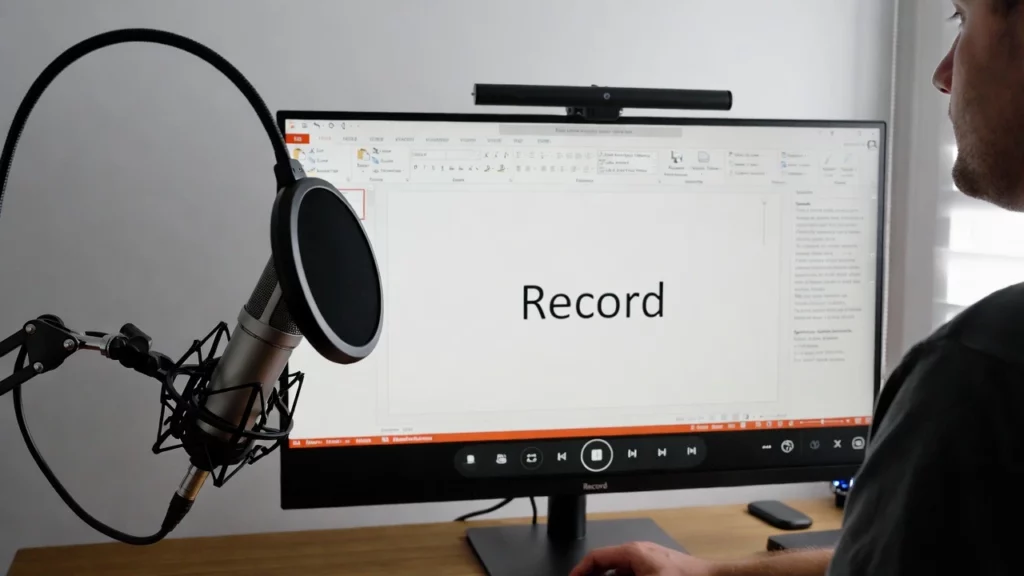
For the most control, add narration slide by slide instead of recording one long track.
This method takes more planning, but it creates a presentation that is easier to edit later.
It is also one of the best approaches if you are learning how to add narration to PowerPoint and want a workflow that works with both recorded voice and AI-generated narration.
The main advantage is flexibility. If slide 12 changes, you only replace the narration for slide 12. You do not have to edit one long audio file or re-record the entire presentation.
Slide-by-slide narration also improves pacing. A complex slide can stay on screen longer, while a simple slide can move quickly.
This method is especially useful for product tutorials, online course lessons, software walkthroughs, customer onboarding, compliance training, and reusable sales decks.
It also helps when multiple people review the presentation. A reviewer can comment on one slide’s narration without disrupting the rest of the project.
How to choose the best method
The best Voiceover for PowerPoint method depends on the kind of presentation you are making.
If you need a quick personal explanation, recording directly in PowerPoint is usually enough. If you need a polished external deck, edited audio files may be better. If you need scalable training content, AI voice narration can save significant time.
For fast script-based narration, text-to-speech is often the simplest option. For many similar decks, automatic voiceover is the most efficient. For a webinar-style experience, record the presentation live and export it as a video. For long-term editing flexibility, use slide-by-slide narration.
Voice style matters too. A financial presentation may need a calm and confident narrator. A product tutorial may need a friendly and clear voice. A classroom lesson may need slower pacing and warmer delivery.
Accessibility should also be part of the workflow. If your narrated presentation becomes a video, captions or a transcript can help viewers who are deaf or hard of hearing, people watching without sound, and people who prefer to read along.
W3C’s WCAG 2.2 says, “Captions are provided for all prerecorded audio content” in synchronized media.
Before publishing, always watch the full presentation from beginning to end. Check that the audio is clear, the volume is consistent, the timings feel natural, and the exported file plays correctly on another device.
Conclusion
Voiceover for PowerPoint works best when the method matches the goal.
Record directly in PowerPoint when you want speed and personality. Add audio files when you want more control. Use Typecast or another AI voice workflow when you need clear narration, fast updates, and consistent delivery across many decks.
For most teams, the strongest workflow is a hybrid. Write speaker notes, turn them into a clean script, generate or record slide-by-slide narration, add the audio to PowerPoint, preview the timings, and export the final presentation as a video.
That gives you a presentation people can understand even when you are not there to explain it.